Auto Release Notes
Auto Release Notes keep Subscribers informed about Voting Board activity by sending automated email digests at your chosen frequency.
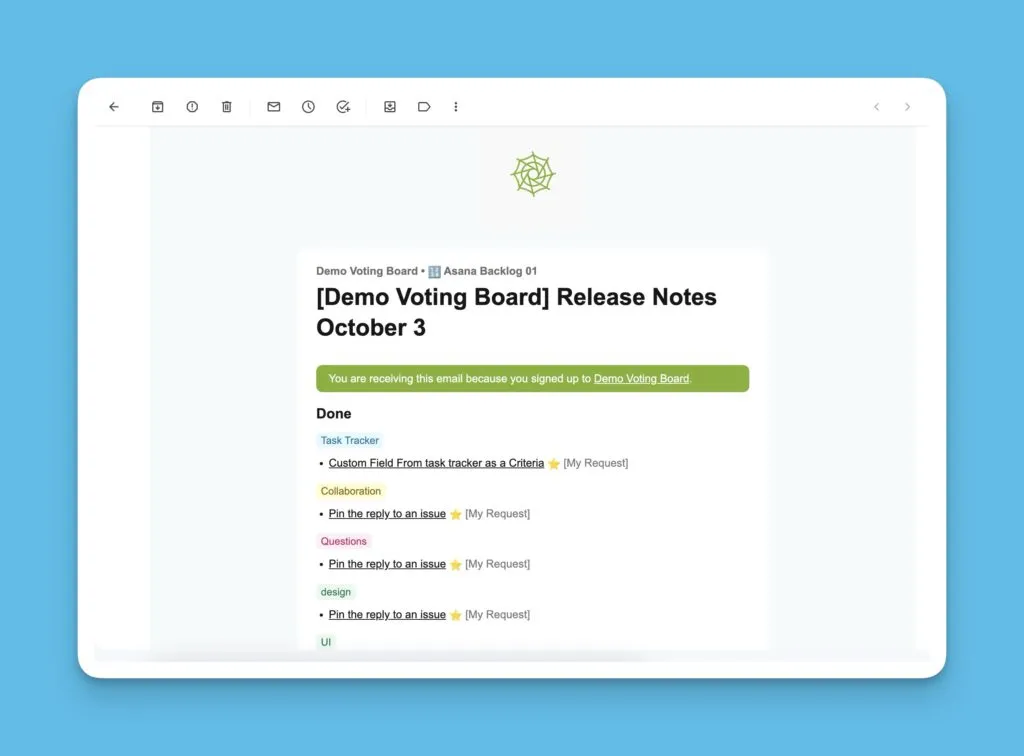
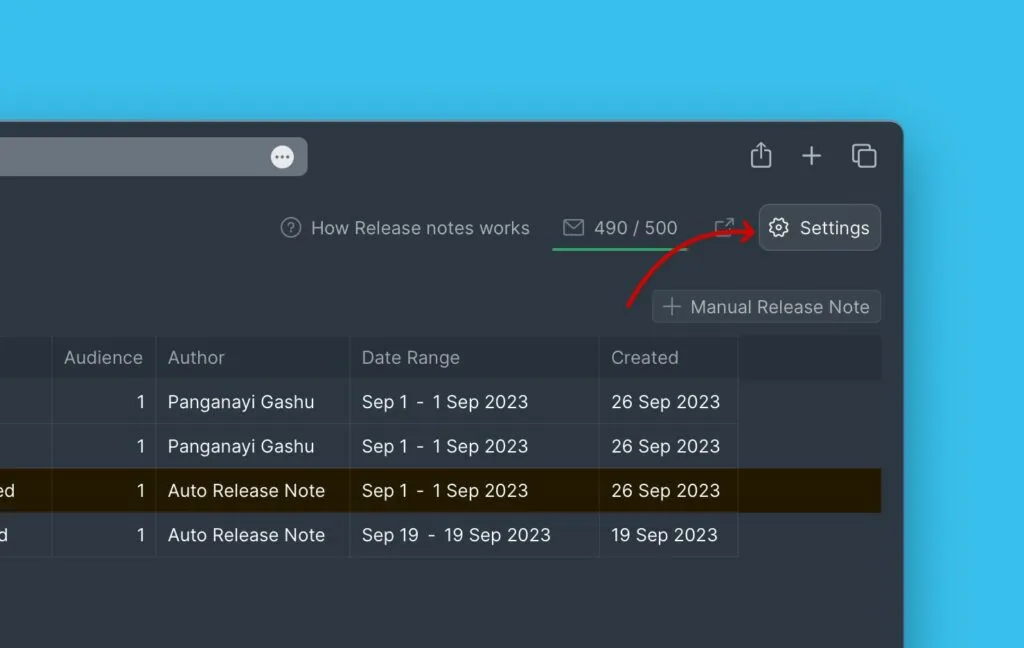
When you activate a Voting Board, Auto Release Notes are enabled by default. You can toggle this feature on or off in Settings.
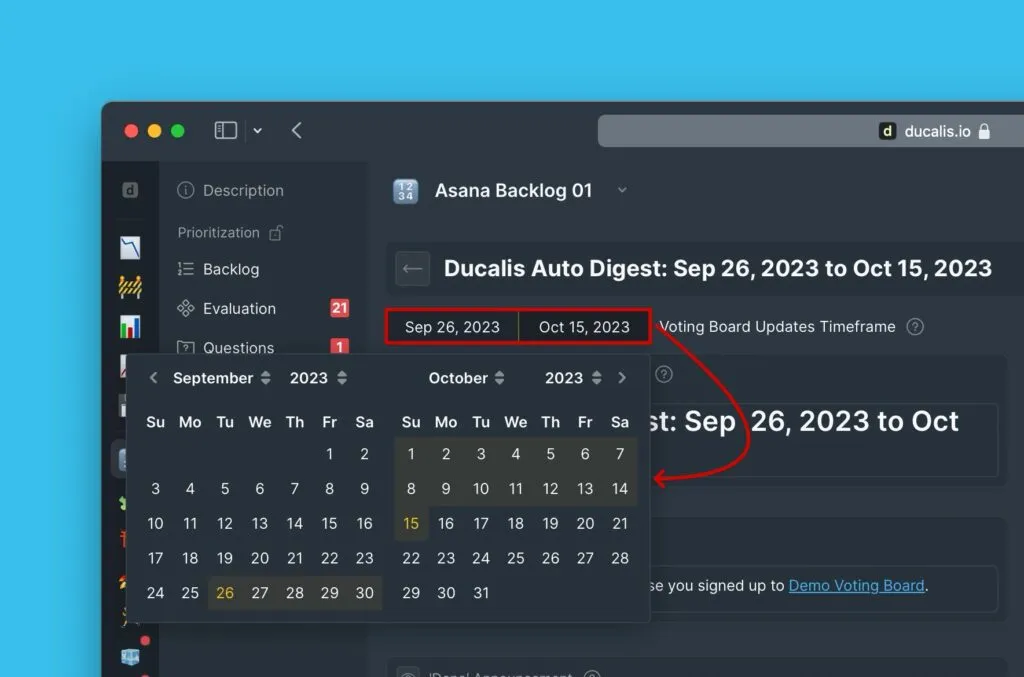
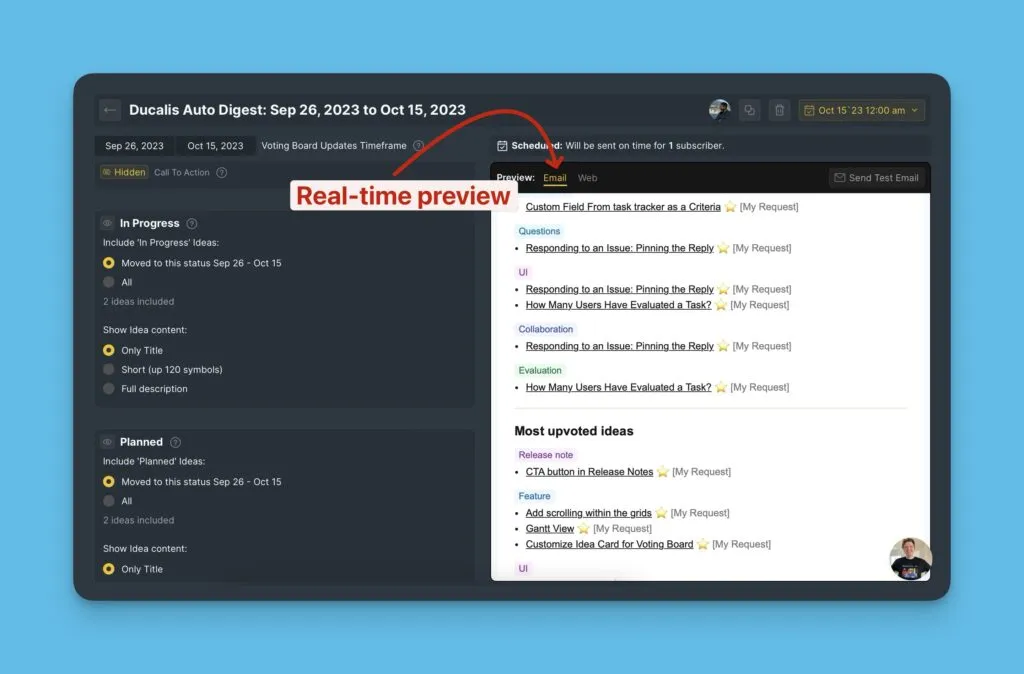
To prepare an email, first choose the date range that encompasses the Ideas you want included.
Structure and contents of the release note
Blocks included in the email:
- The title of the release note
- An introduction
- Progress statuses blocks
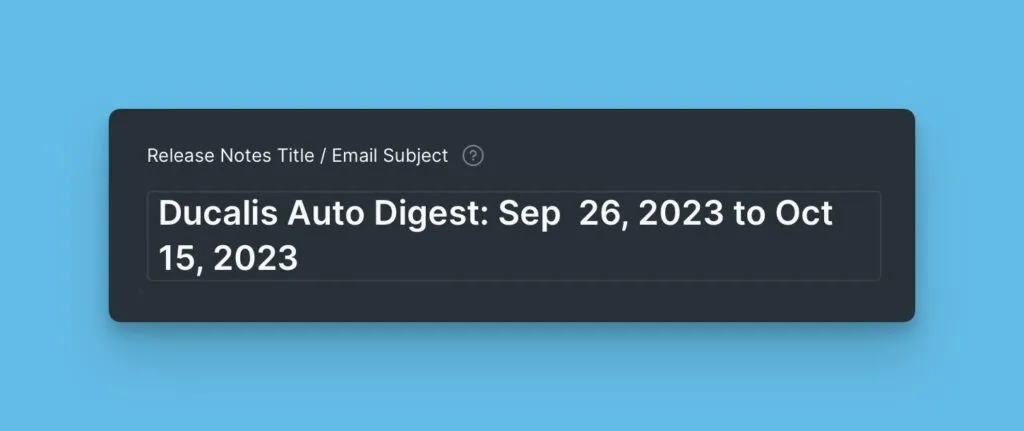
Title
Highlights the main topic of the email.
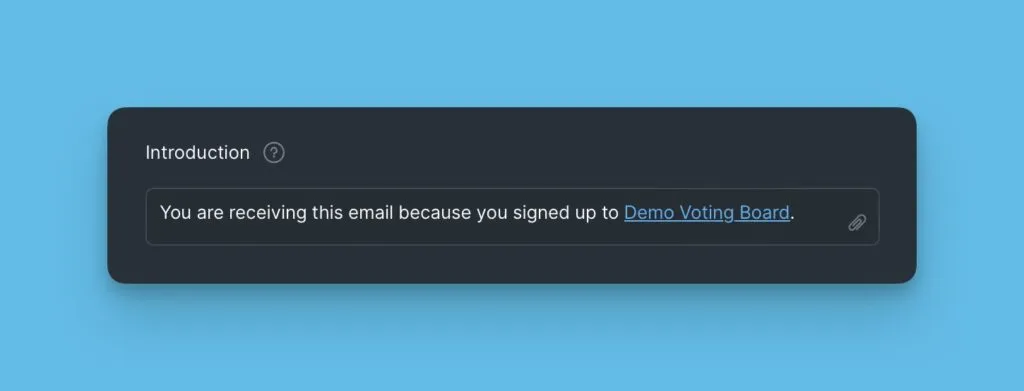
Introduction
Usually, this block is used to state the reason a user is receiving the email.
Progress statuses blocks
The blocks represent the progress statuses on the voting board. Each block contains either ideas that were added to any of the statuses between the date range you chose, or all the ideas under a status at the time the Auto-release note is being sent.
You have the option to choose which ideas to include in each block. Either:
- Ideas moved to that particular status in the date range you chose above.
- Or, all the ideas under that status.
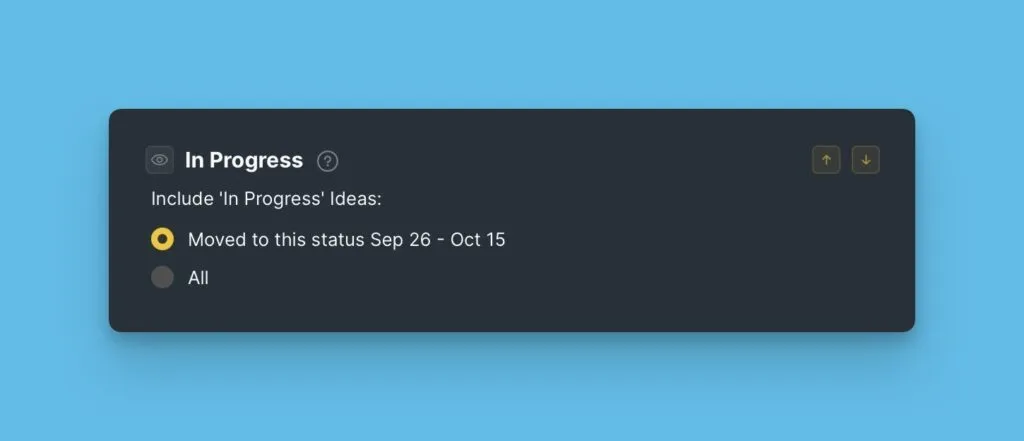
Not available for the Most Upvoted block.
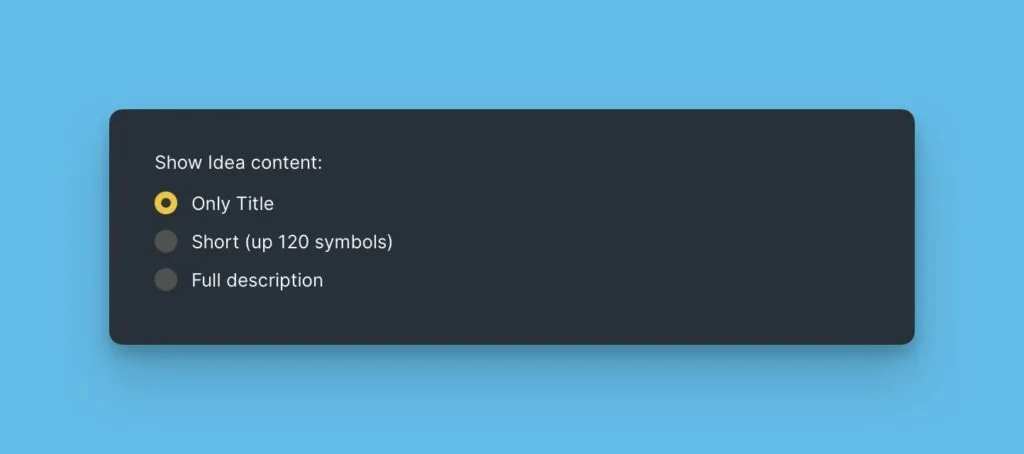
You can also customize the amount of content about an idea to show. It can be:
- Just the title.
- A short description of the idea.
- The full description of the idea.
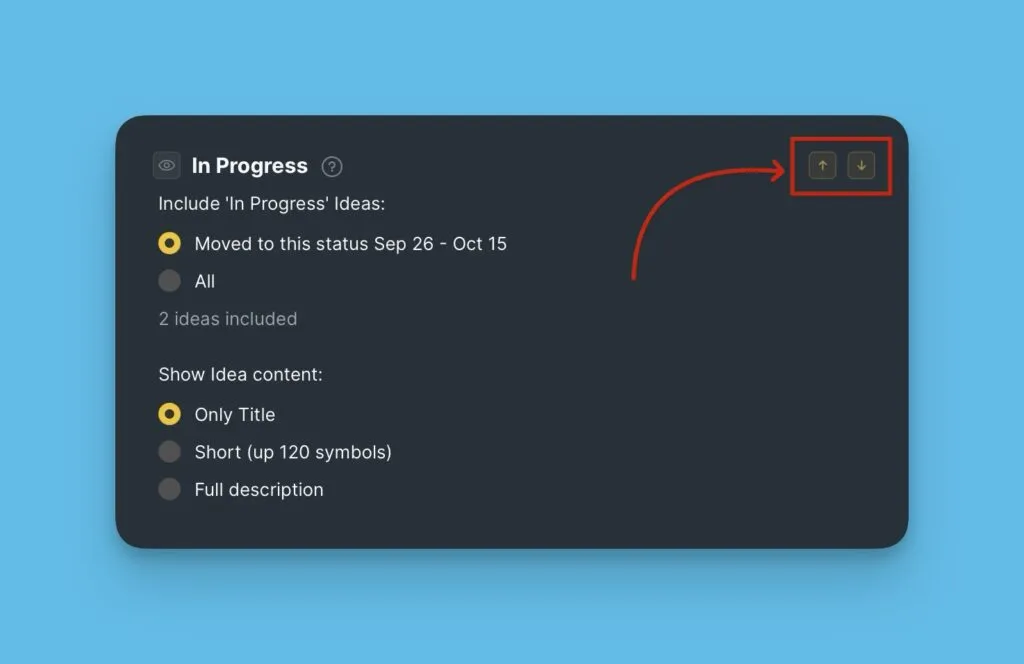
These blocks can be:
- Rearranged
- Disabled
As you are preparing your email, you can see a preview, which helps you to get a picture of how the it will look like.
Setting the schedule
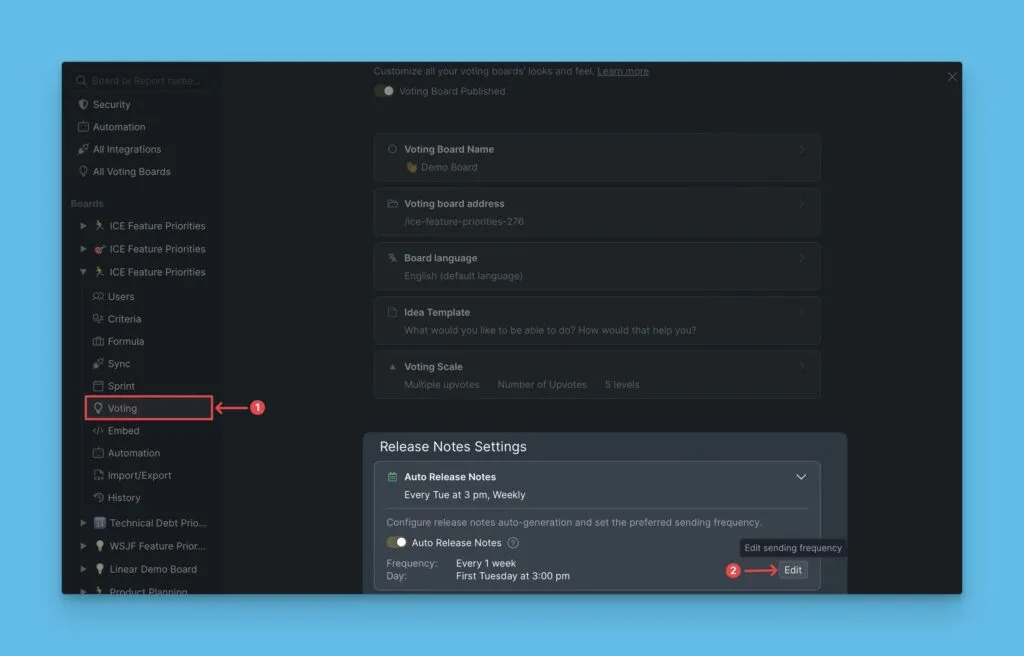
You have the ability to set the frequency at which the email is sent to your customers – the day and time it should be sent.
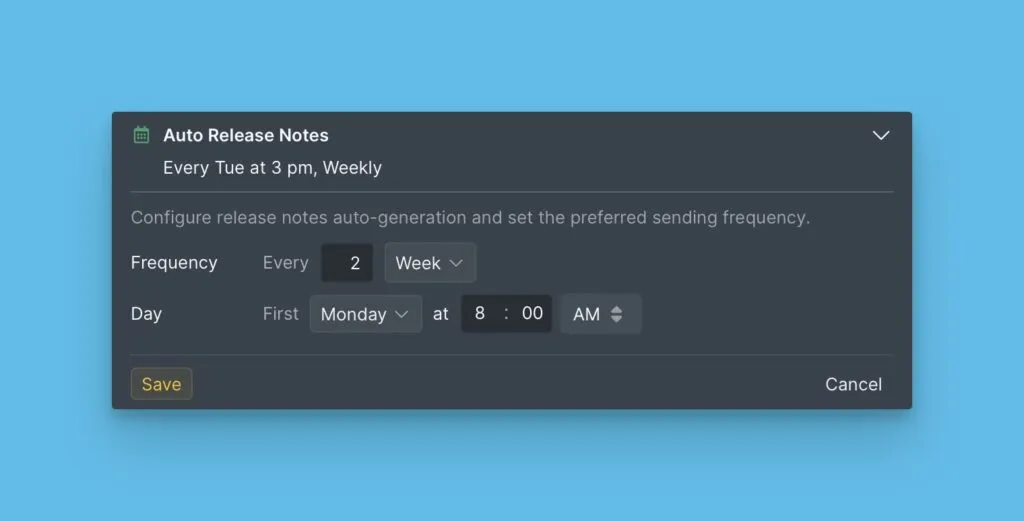
Like in the example below, the email is sent to customers is sent every 2 weeks, on a Monday (it will be sent on the first Monday during these two weeks).
You can see the schedule that you have set at the top of the table.
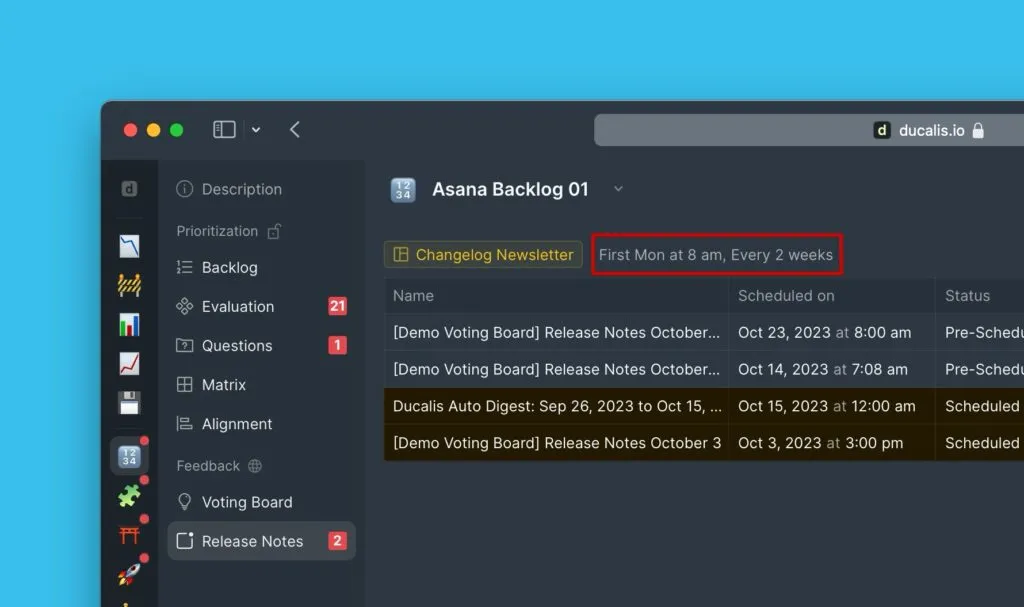
After an email is sent, the following auto-release note is generated the following day. It is generated with the status 'Pre-scheduled'.
An auto-release note with the 'Pre-scheduled' status will not be sent on the scheduled date until some activity happens on the Voting board (change in the progress status of an idea, or creation of a new public idea) within the chosen Date range.
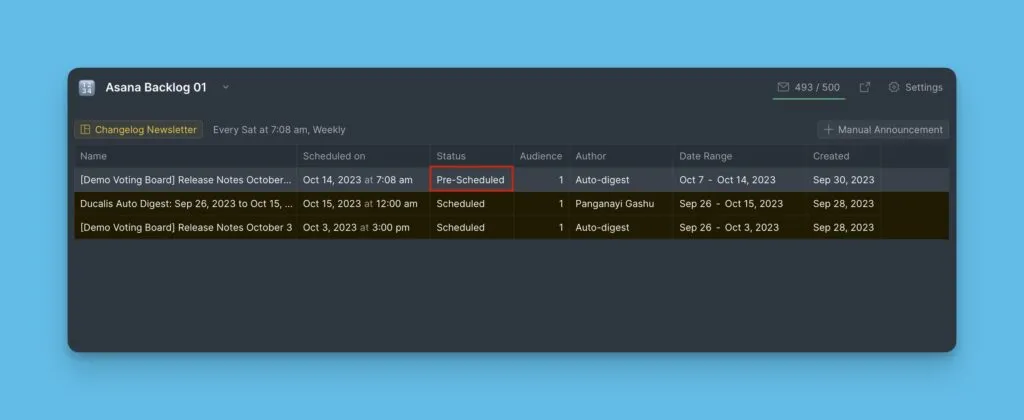
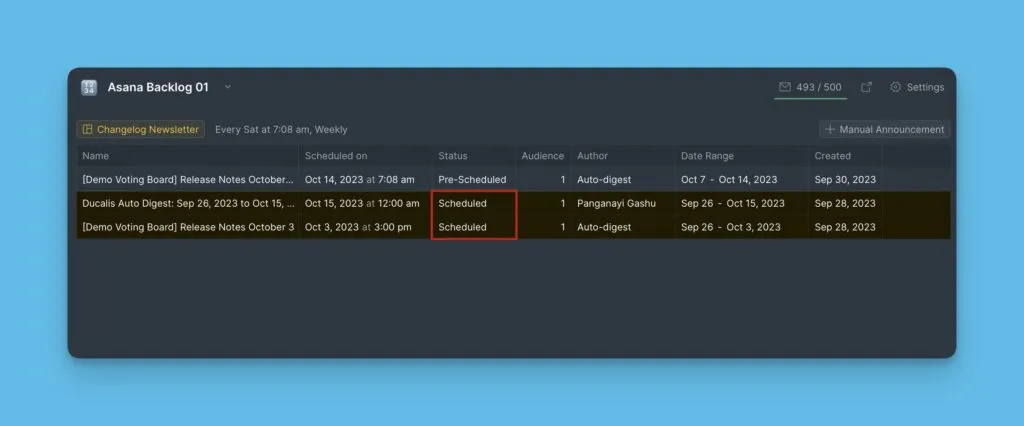
The status is changed to 'Scheduled' when information is added to the email, i.e., if there is any activity on the Voting board.
What's Next?
Learn how to compose a Release note.