Roadmap
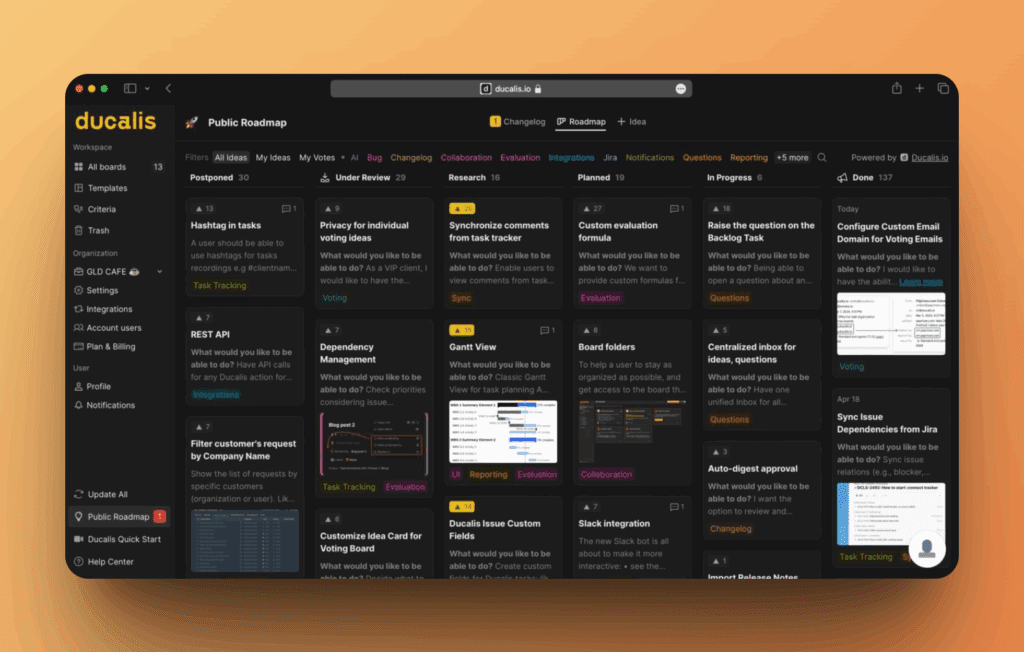
Create a public roadmap to visualize development progress and keep customers informed about upcoming features. Use it for internal planning, public transparency, or anything in between.
Overview
The Public Roadmap helps you plan, track, and communicate your development work to both internal teams and external users. Publish your roadmap to show what you're working on and collect feedback from customers.
Key capabilities:
- Unlimited filtering — Control what's displayed on each roadmap, down to individual columns
- Automatic sync — Connect Jira, Linear, or other trackers to automatically update roadmap status
- Custom branding — Match your brand with custom logos, colors, and themes
- Flexible embedding — Embed roadmaps in your app or website
- Access control — Share publicly or restrict to select customers
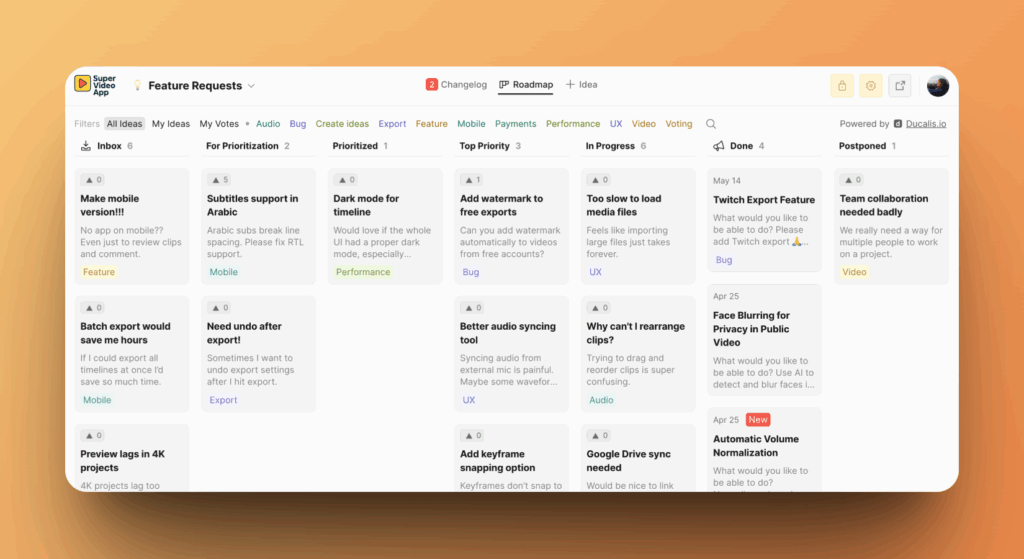
You can check Ducalis Roadmap.
Access the roadmap
You have two views of your roadmap: an internal Voting Board for management, and an external Public Roadmap for customers.
Internal view (Voting Board):
Go to Voting Board in the sidebar.
This is your internal view where you manage Ideas, convert them to Issues, and configure settings.
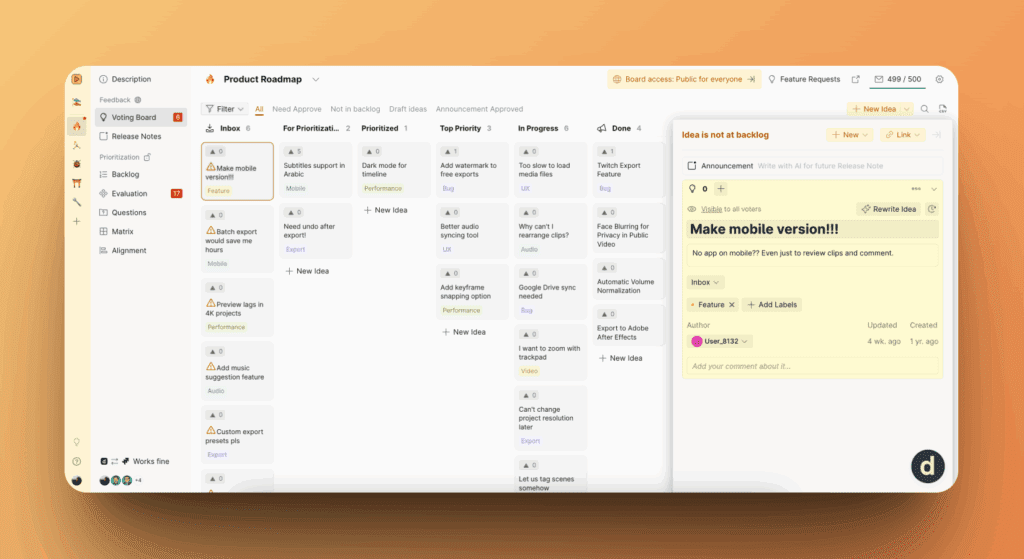
External view (Public Roadmap):
-
From the Voting Board, click the link icon in the top right.
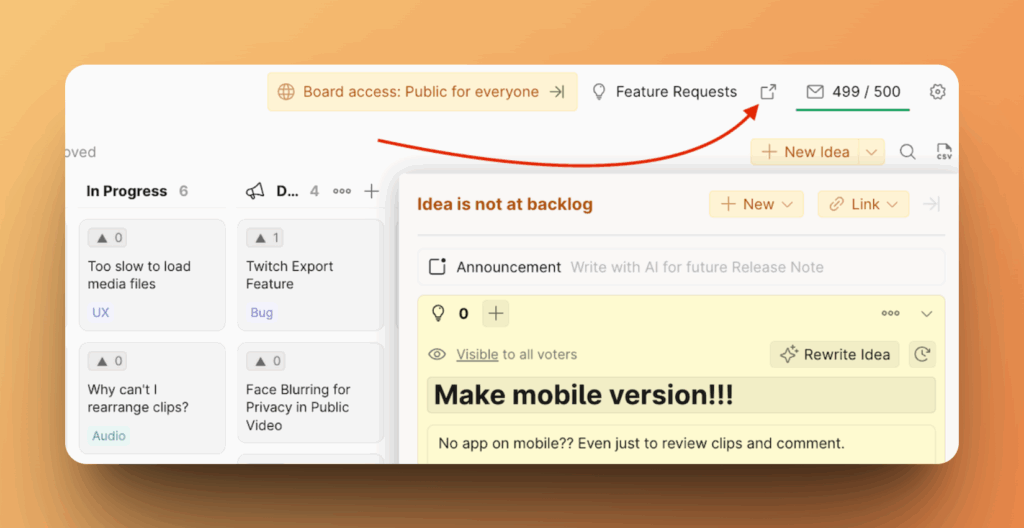
-
You'll see the public version of your roadmap at your-company.hi.ducalis.io.
Voters see only Ideas from boards they have access to.
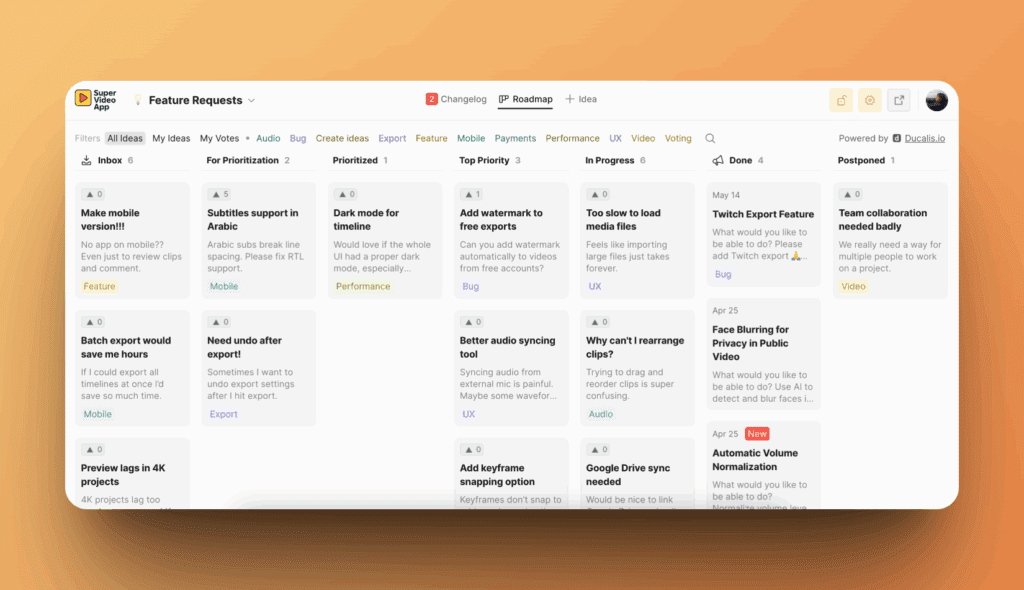
If you're an Admin or Member, you'll see the admin panel when viewing the Public Roadmap:
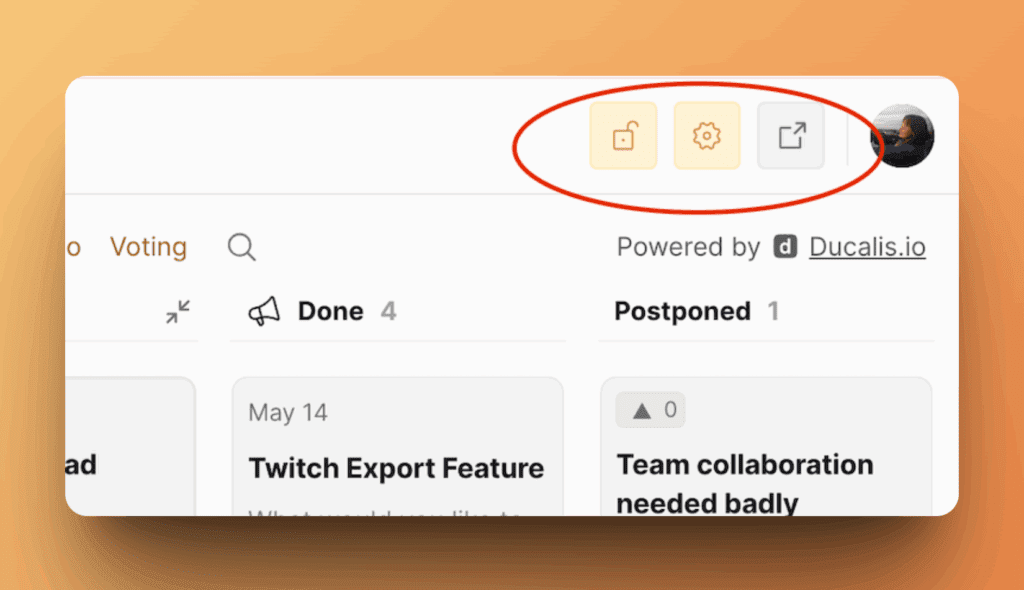
You can customize your Public Roadmap URL in domain settings.
Customize appearance
Brand your roadmap with your logo, colors, and theme so customers recognize it as part of your product.
Global appearance settings (apply to all Voting Boards):
-
Go to All Voting Boards in the sidebar.
-
Find the Appearance section.
-
Configure your branding:
- Logo
- Brand color
- Theme (light/dark)
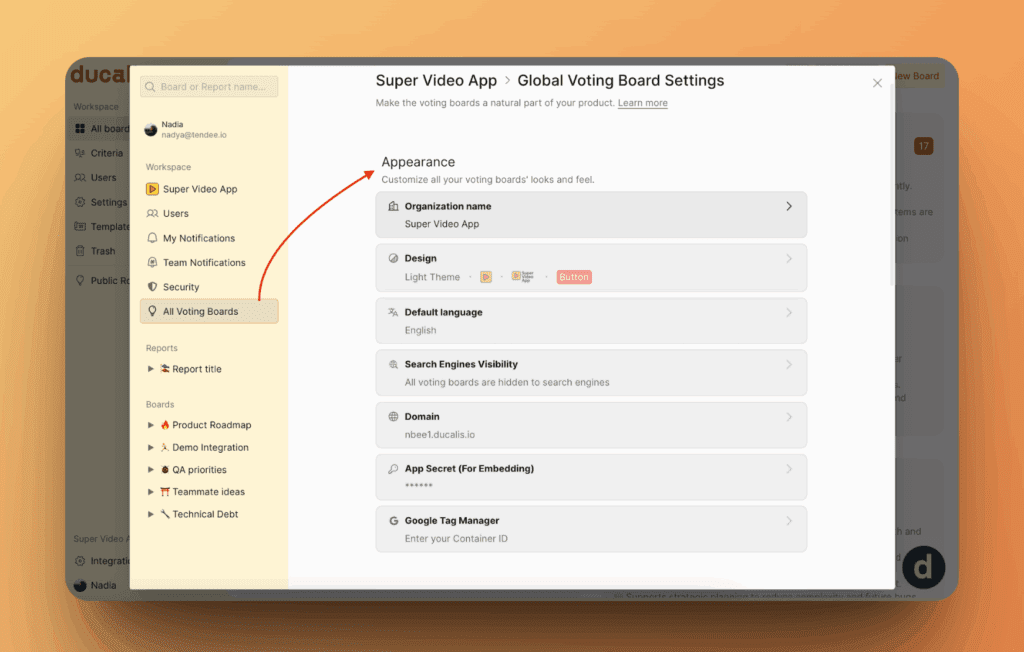
Changes apply to all your roadmaps.
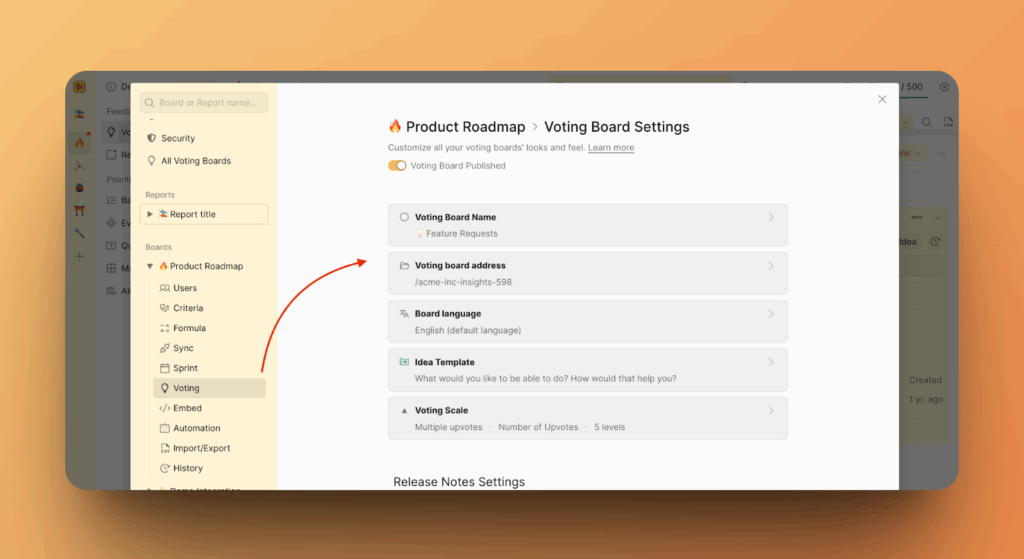
Board-specific settings (override global settings):
-
Go to the board.
-
Click Voting in the top menu.
-
Configure settings specific to this roadmap.
Learn more about customizing Voting Boards.
Add Ideas to your roadmap
Your roadmap displays development progress, so populate it with Ideas that represent your backlog and planned work.
Method 1: Create Ideas from tracker Issues
-
Connect your task tracker:
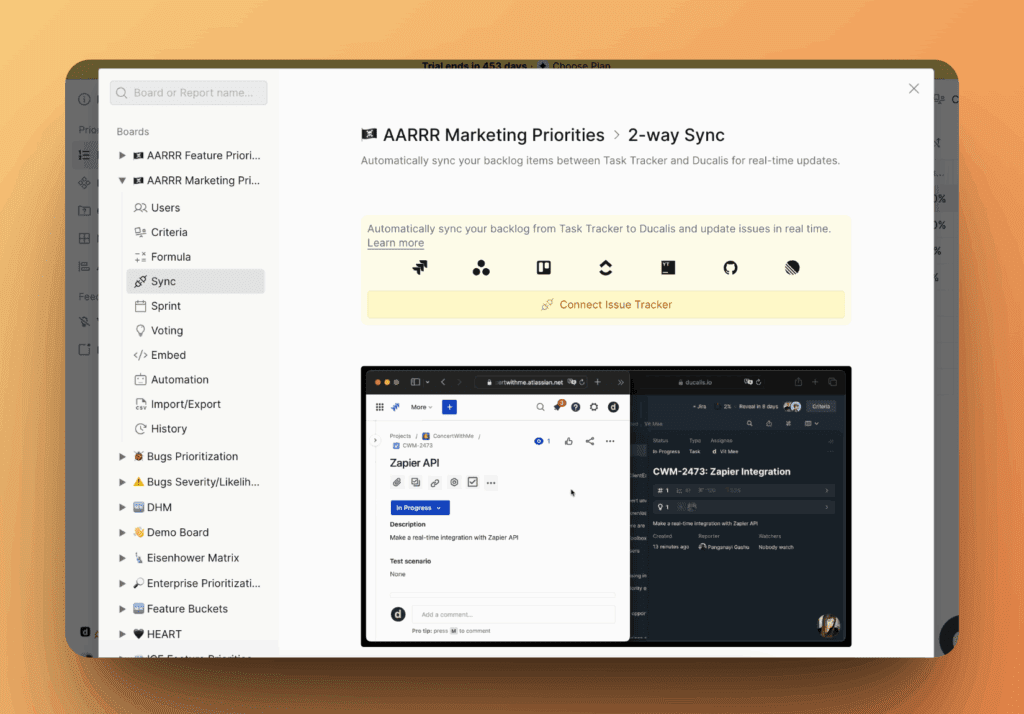
-
Use AI to generate Ideas from your tracker Issues.
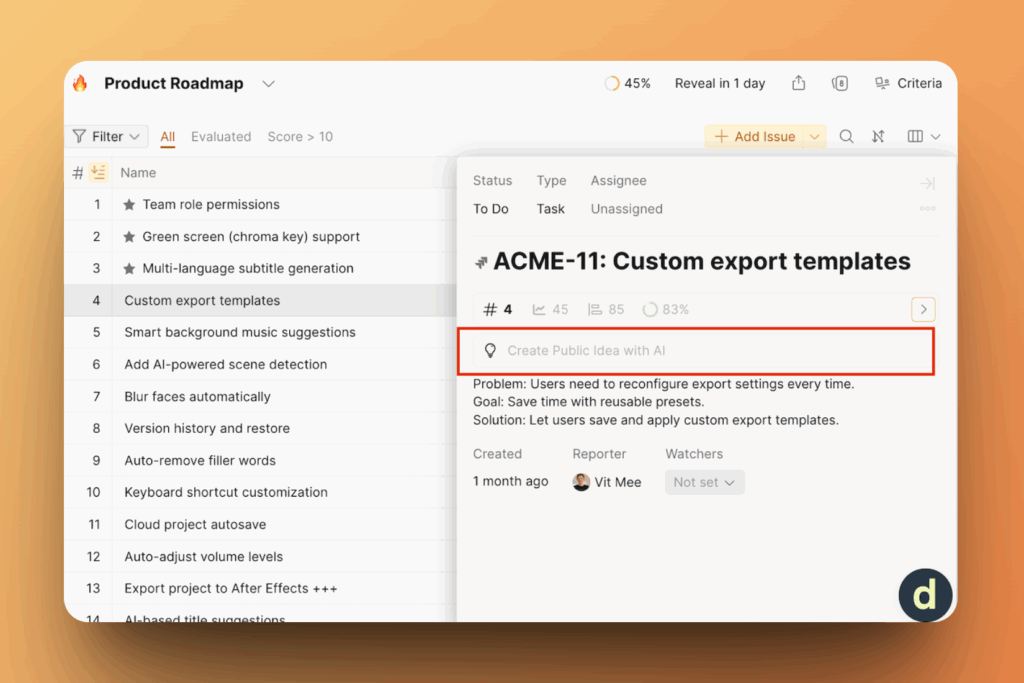
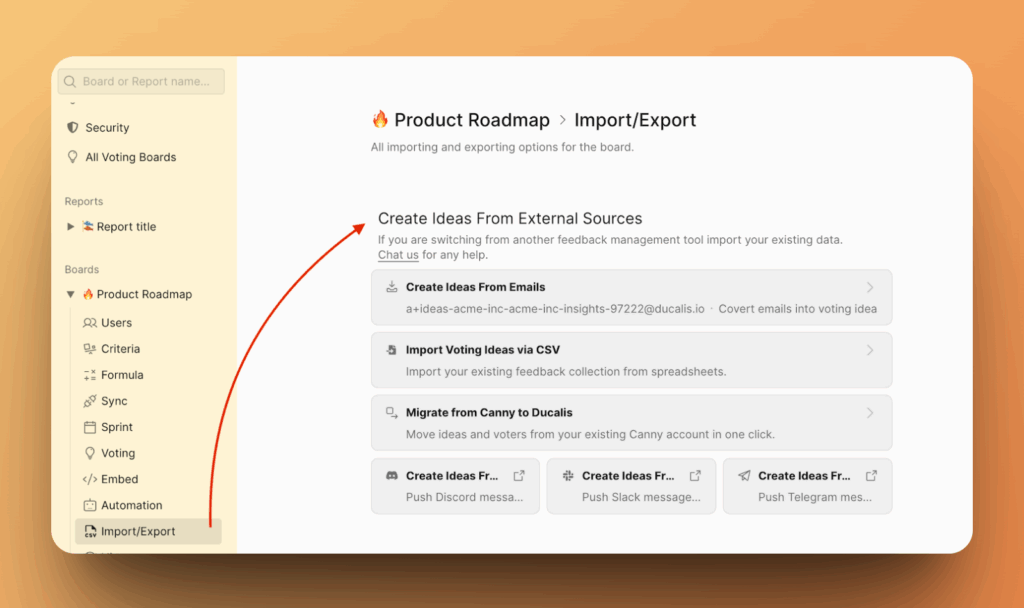
Method 2: Create Ideas from external sources
Import Ideas from customer feedback collected via email, support tickets, or other channels.
Method 3: Create Ideas manually
Create Ideas directly in the Voting Board when you want to manually add roadmap items.
Once you create Ideas, drag them between status columns as work progresses.
Learn more about creating Ideas.
Define Idea statuses
By default, Ducalis displays Ideas in these statuses:
- Inbox — The "inbox" of your voting board.
- For Prioritization – Added to the backlog, but not evaluated.
- Prioritized — Added to the backlog, NOT placed in Top Priority.
- Top Priority – Added to the backlog, and placed in Top Priority.
- In Progress — Actively being worked on.
- Done — Completed and released.
- Postponed – Won't be implemented.
Customize statuses to match your workflow:
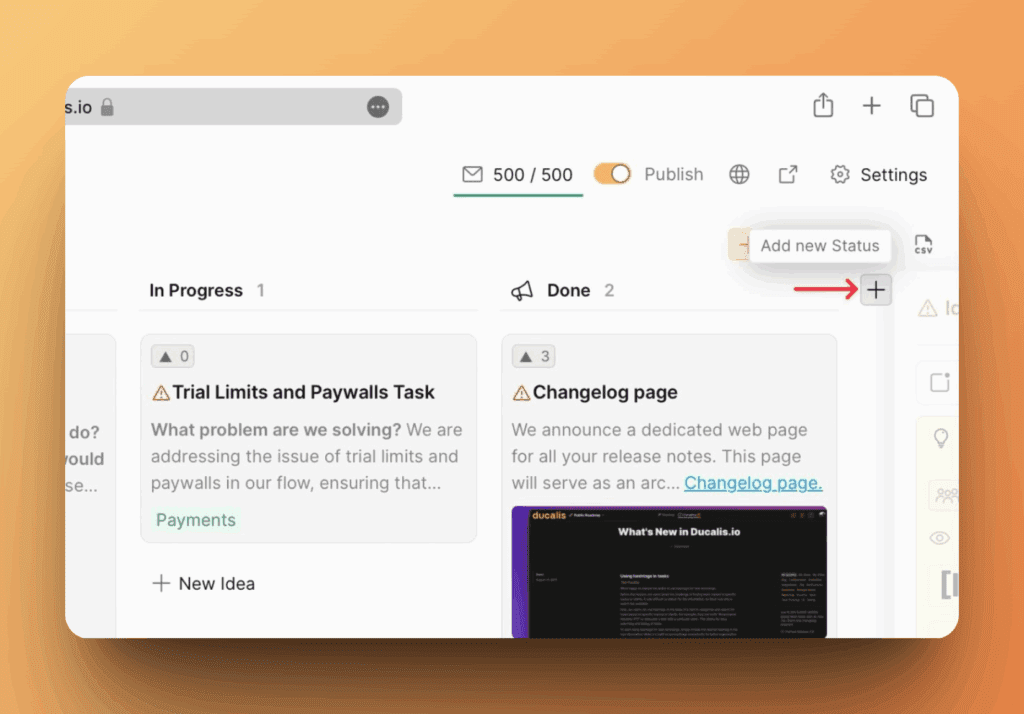
When you change an Idea's status, its position automatically updates on the roadmap. Ducalis also notifies Voters via email about status changes to Ideas they're following.
Learn more about Idea statuses and Voter notifications.
Set up roadmap privacy
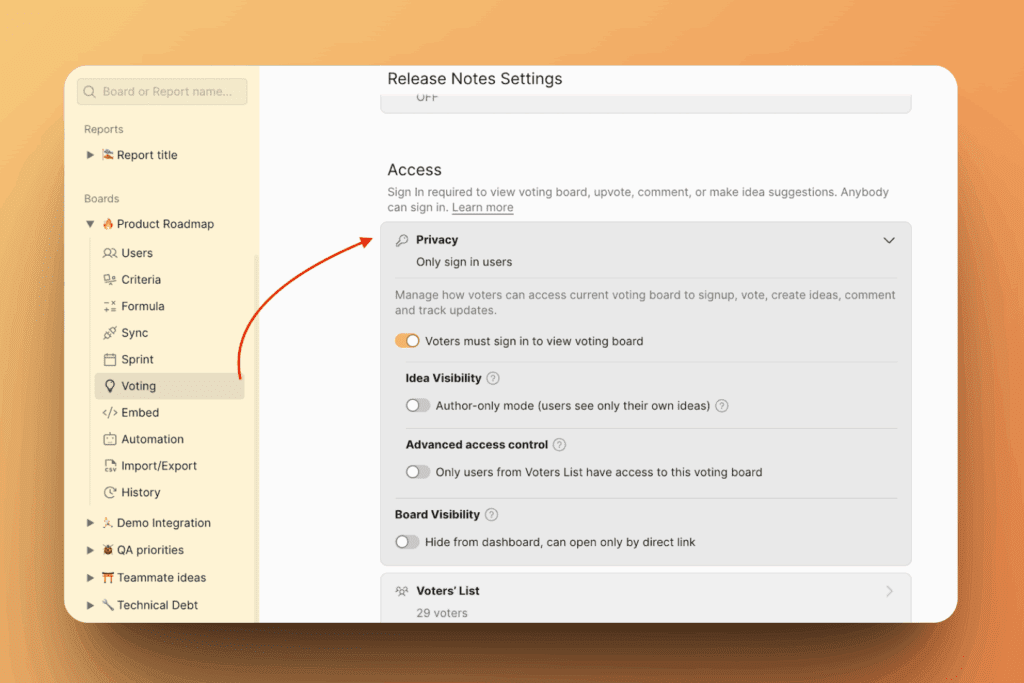
Control who can access your Public Roadmap — make it fully public or restrict to specific customers.
-
Go to Voting > Access in the board menu.
-
Choose your access level:
- Public — Anyone with the link can view
- Private — Only invited Voters can access
- Domain-restricted — Only users from specific email domains
Learn more about Voting Board privacy.
Collect feedback on your roadmap
Voters can submit feedback directly on your roadmap by upvoting existing Ideas or creating new ones.
Get notified when feedback is submitted:
- Slack or Telegram integration — Receive instant notifications in your team chat
- Email notifications — Get updates via email when Voters interact with Ideas
Embed your roadmap
Embed the Public Roadmap in your website or product to keep customers informed without redirecting them to an external page.
Learn more about embedding Voting Boards.