Sort by priority ranking
After creating custom fields and syncing your Issues' priority rankings to Jira Server, you can create a Kanban or Scrum board with these Issues and sort them by priority ranking.
Complete Sync Back first to sync priority rankings to Jira Server custom fields.
Before sorting Issues by priority ranking, add the Ducalis custom fields to your board cards. These custom fields appear on:
- Kanban board (if you created a Kanban board)
- Backlog view and Active view (if you created a Scrum board)
Add custom fields to cards
Scrum board
-
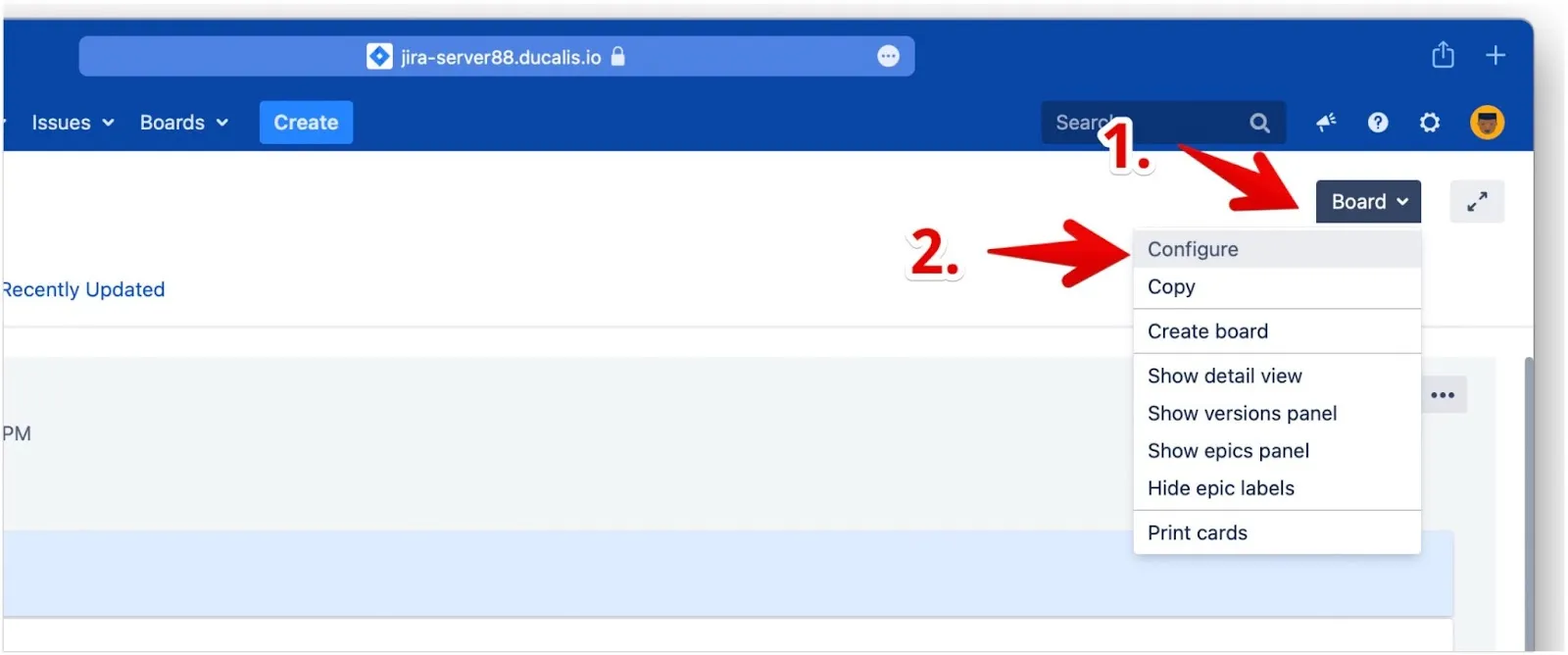
Click Board to access board settings.
-
Select Configure from the dropdown menu.
-
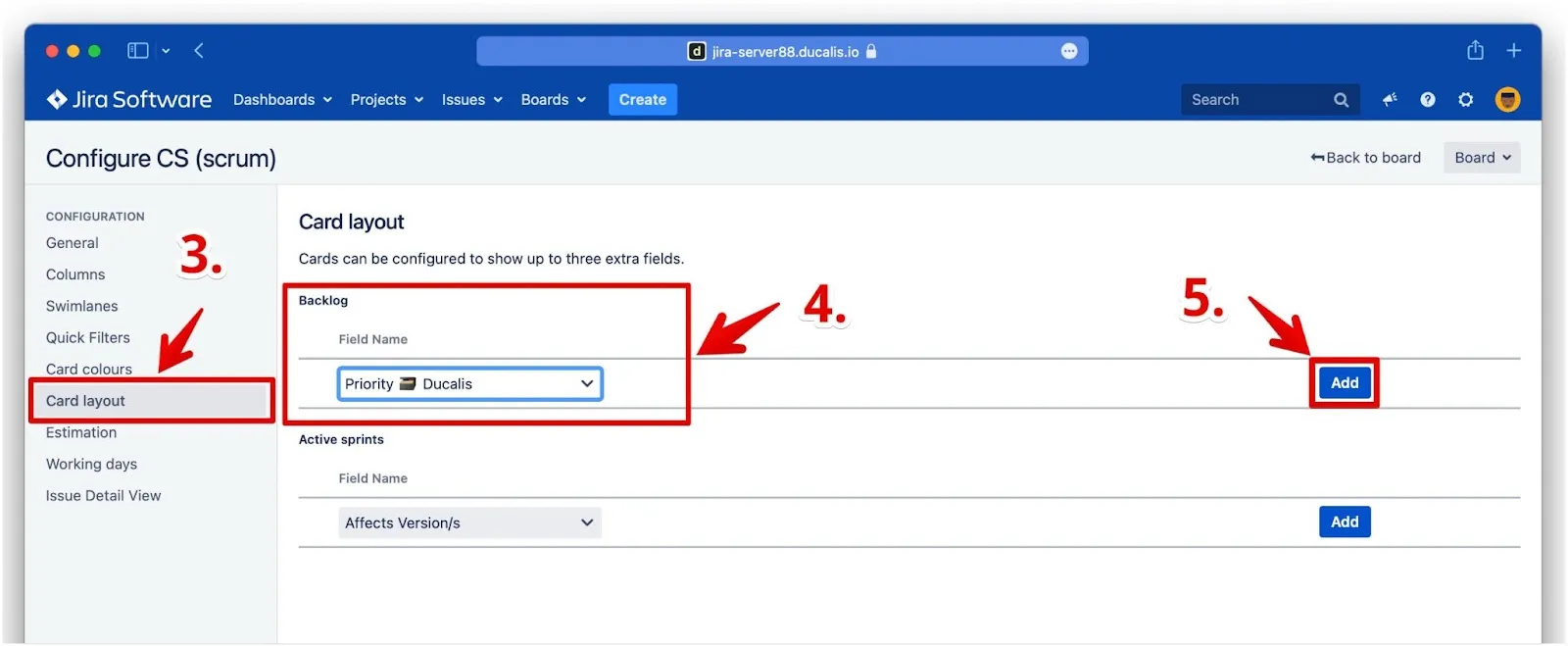
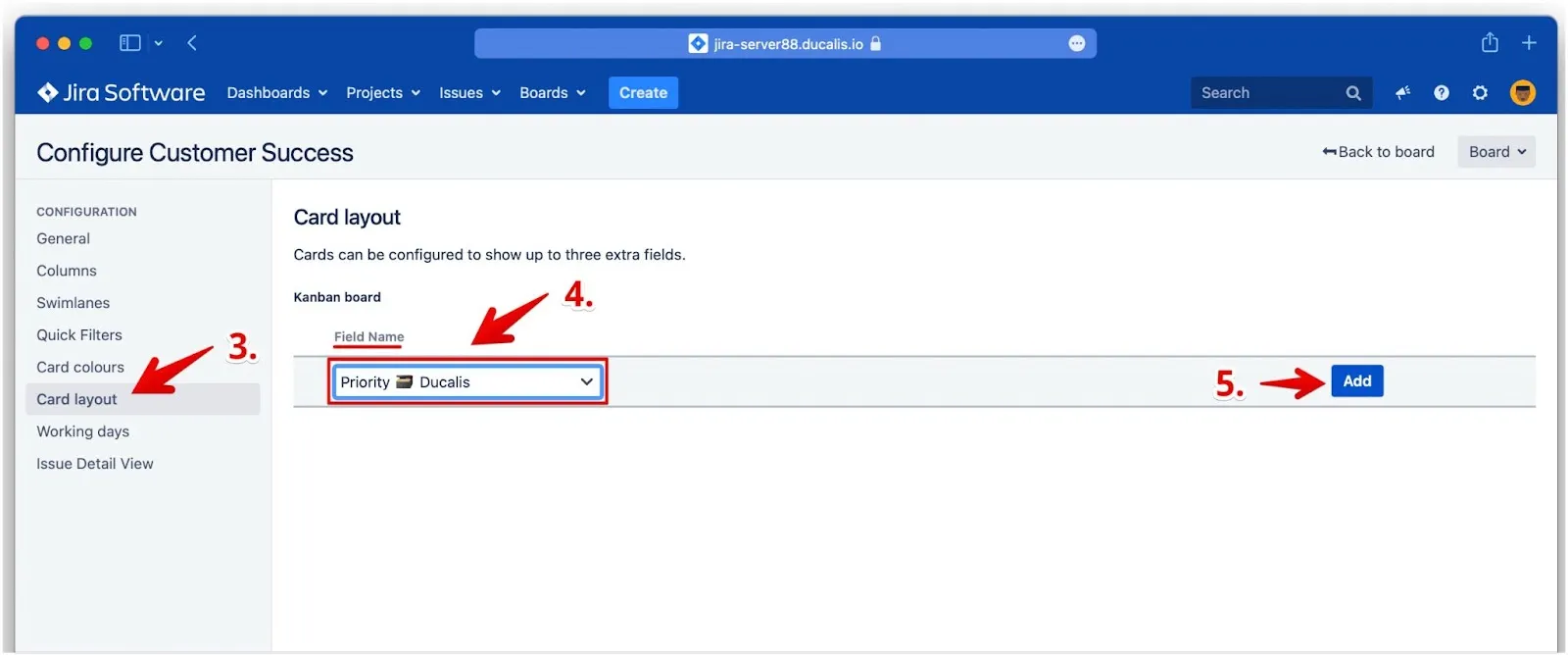
Under Configuration, click Card layout.
-
For the Backlog view, select Priority Ducalis as the Field Name from the dropdown.
-
Click Add.
-
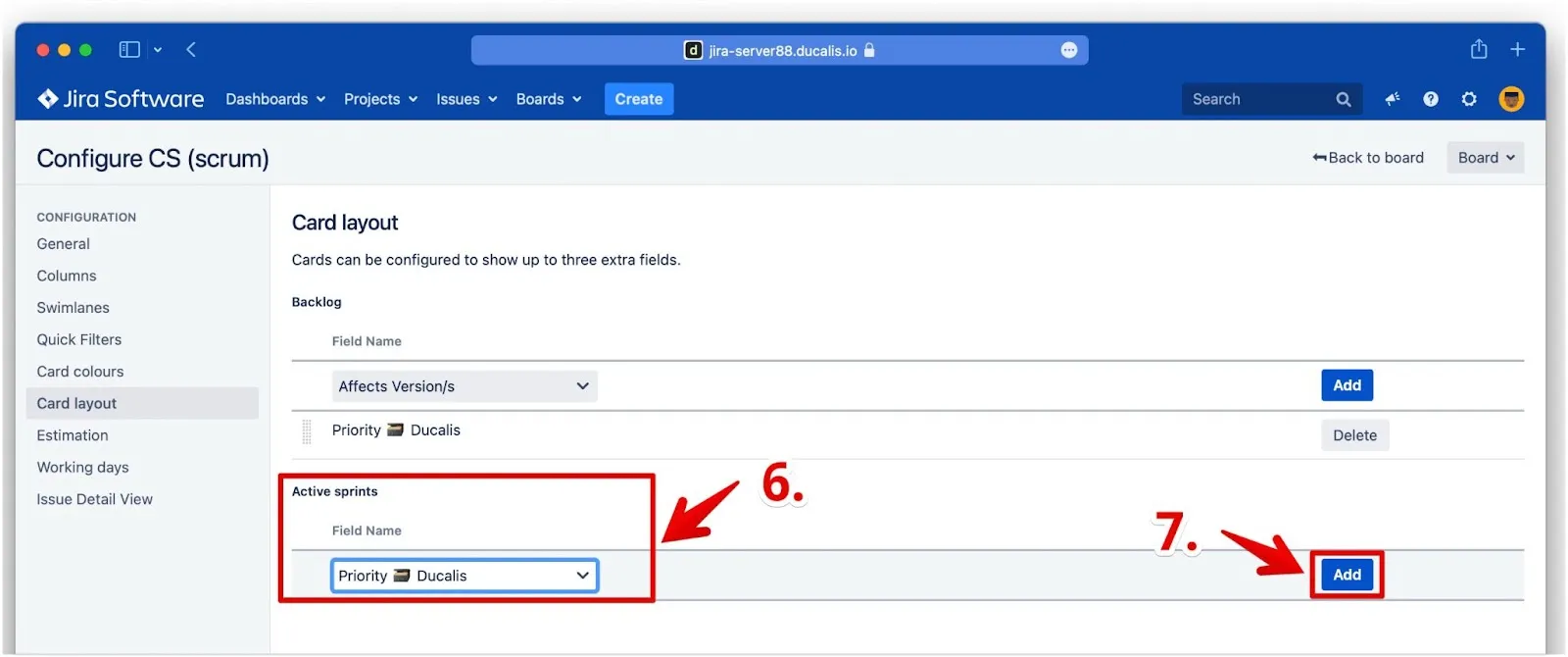
For the Active sprints view, select Priority Ducalis as the Field Name from the dropdown.
-
Click Add.
Kanban board
-
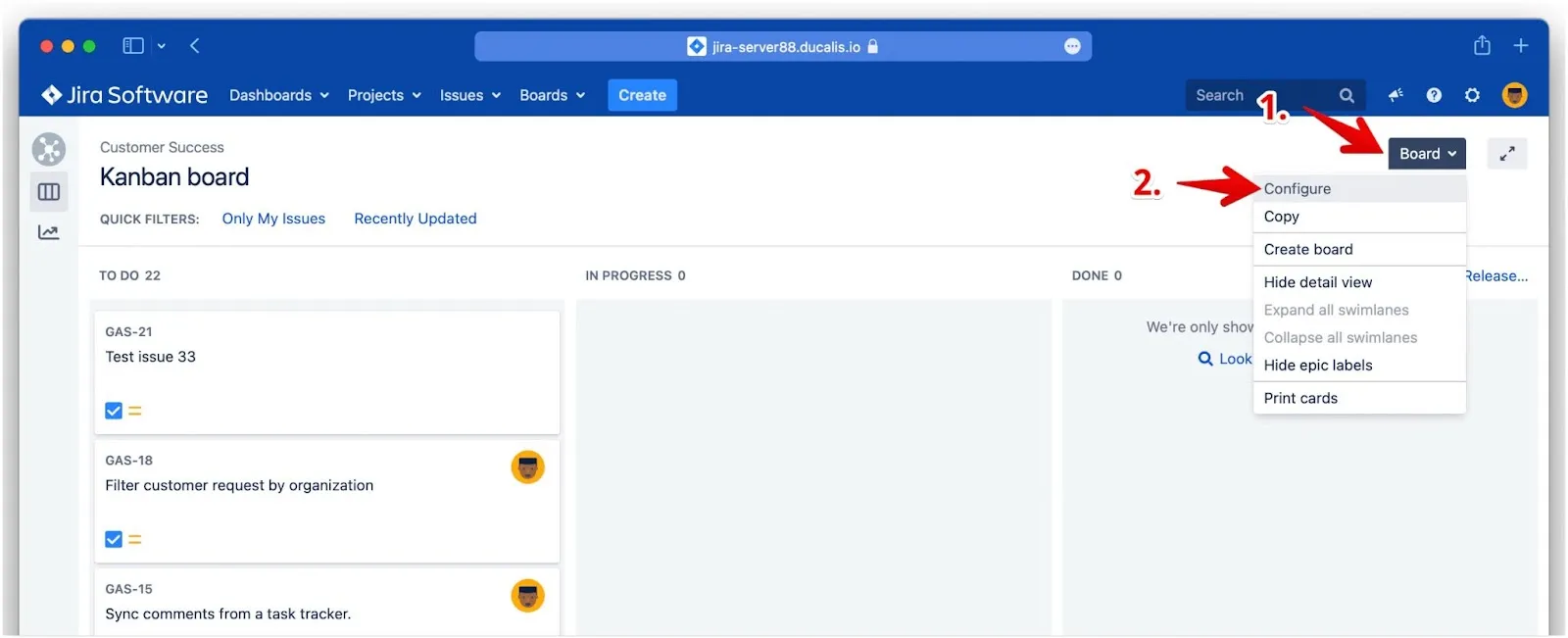
Click Board to access board settings.
-
Select Configure from the dropdown menu.
-
Under Configuration, click Card layout.
-
Under Kanban board, select Priority Ducalis as the Field Name from the dropdown.
-
Click Add.
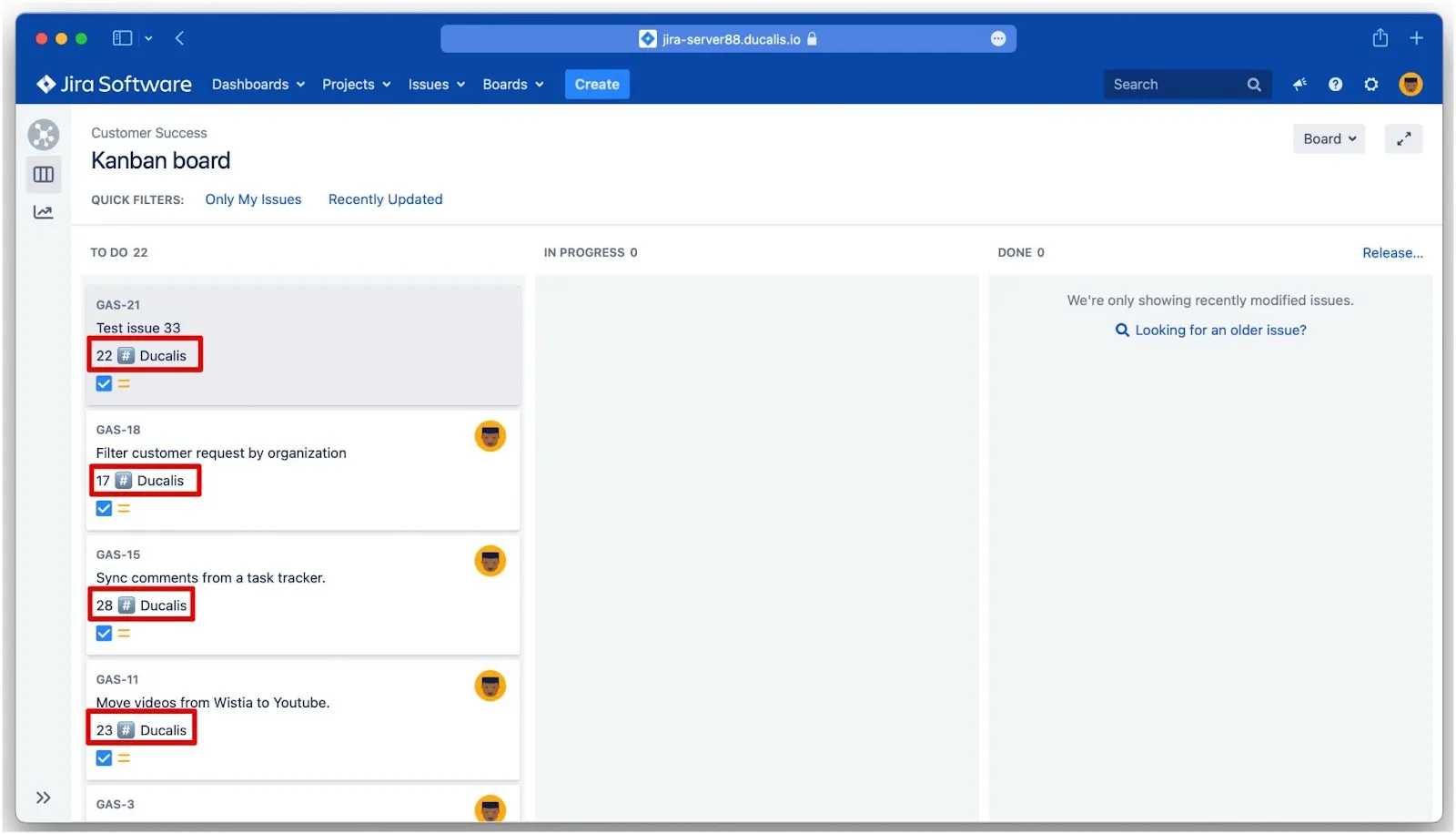
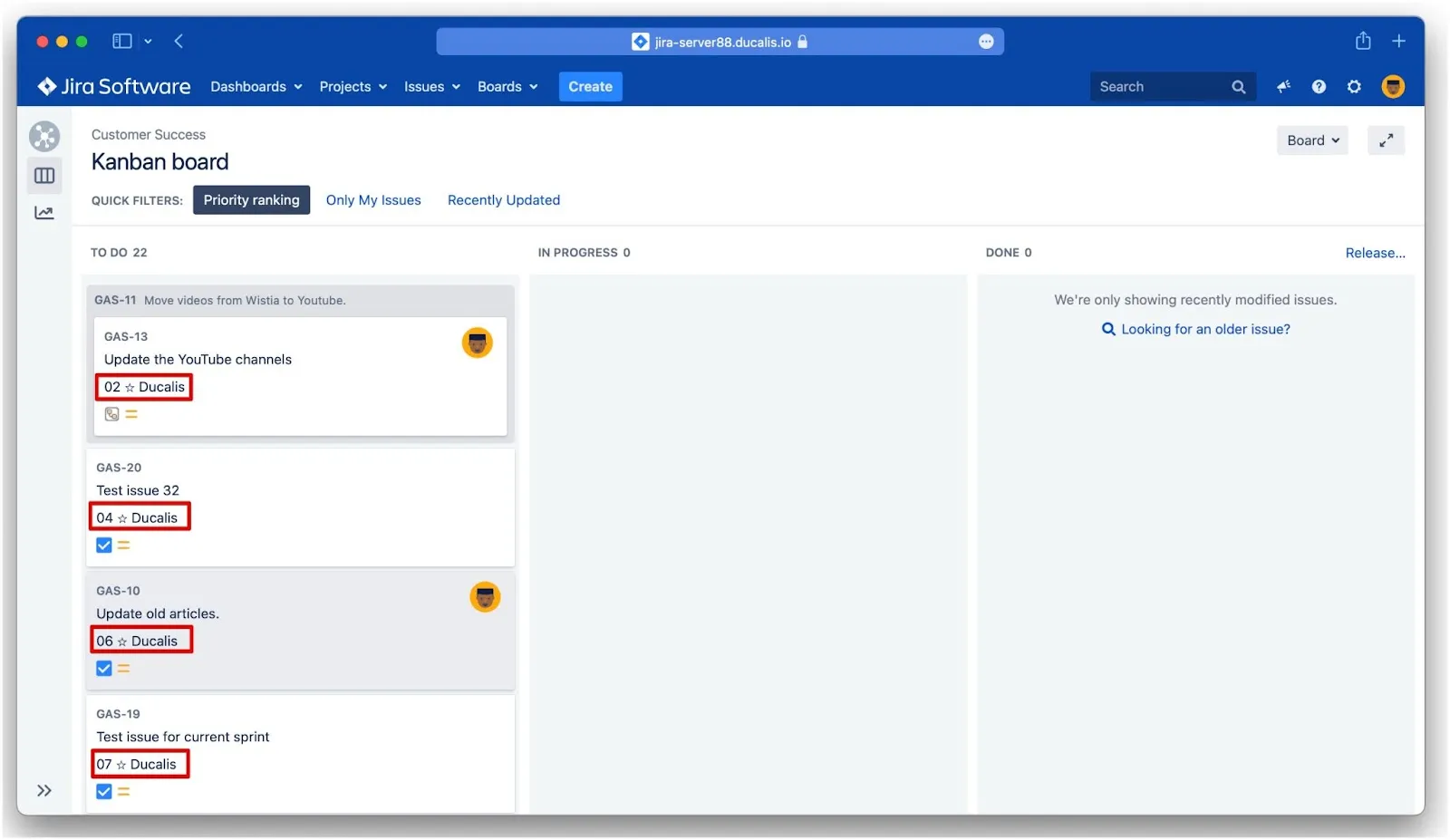
Priority ranking appears on your Kanban board cards:
Sort Issues by priority ranking
These steps apply to both Scrum and Kanban boards.
-
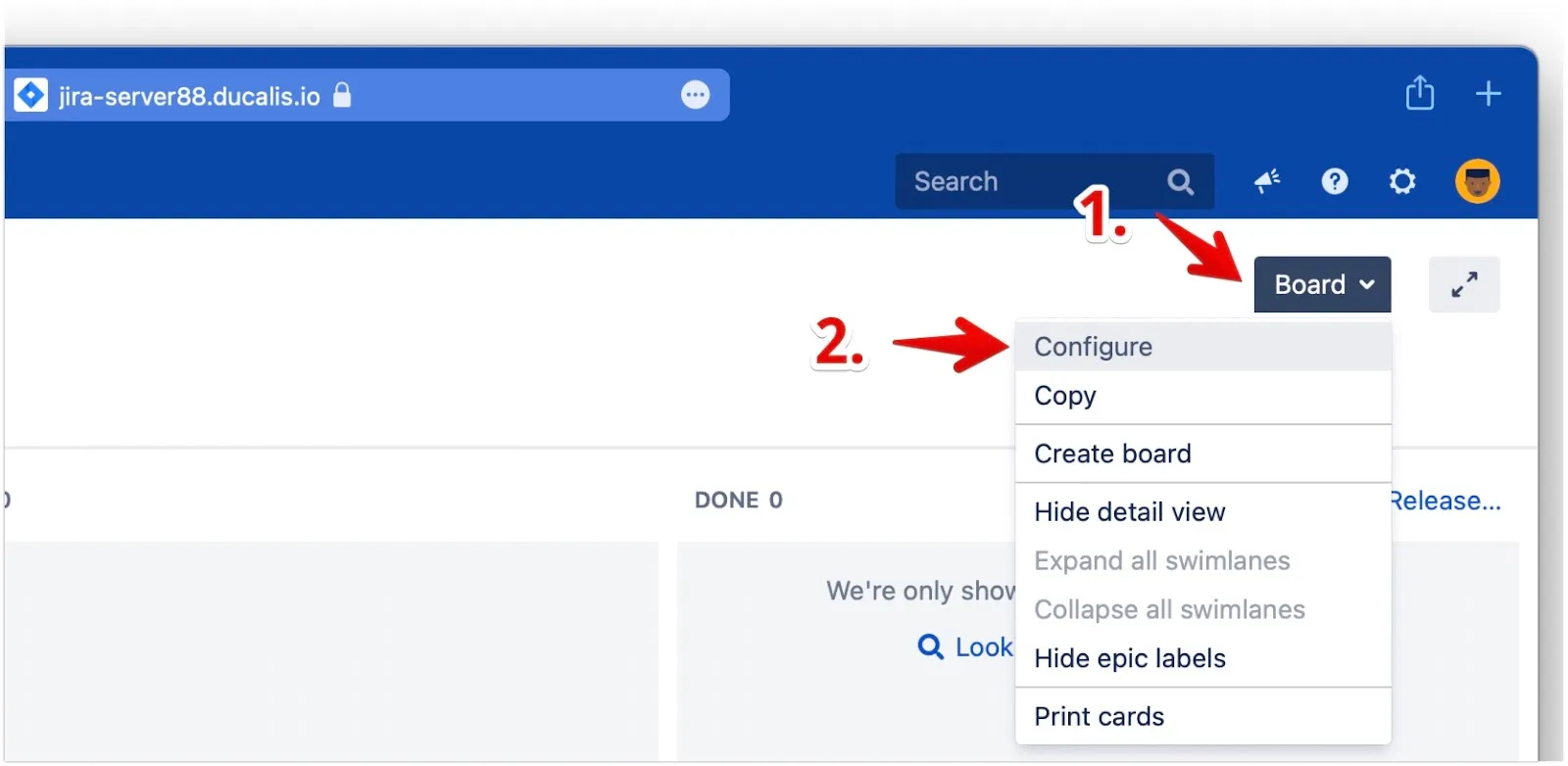
Click Board to access settings.
-
Select Configure from the dropdown menu.
-
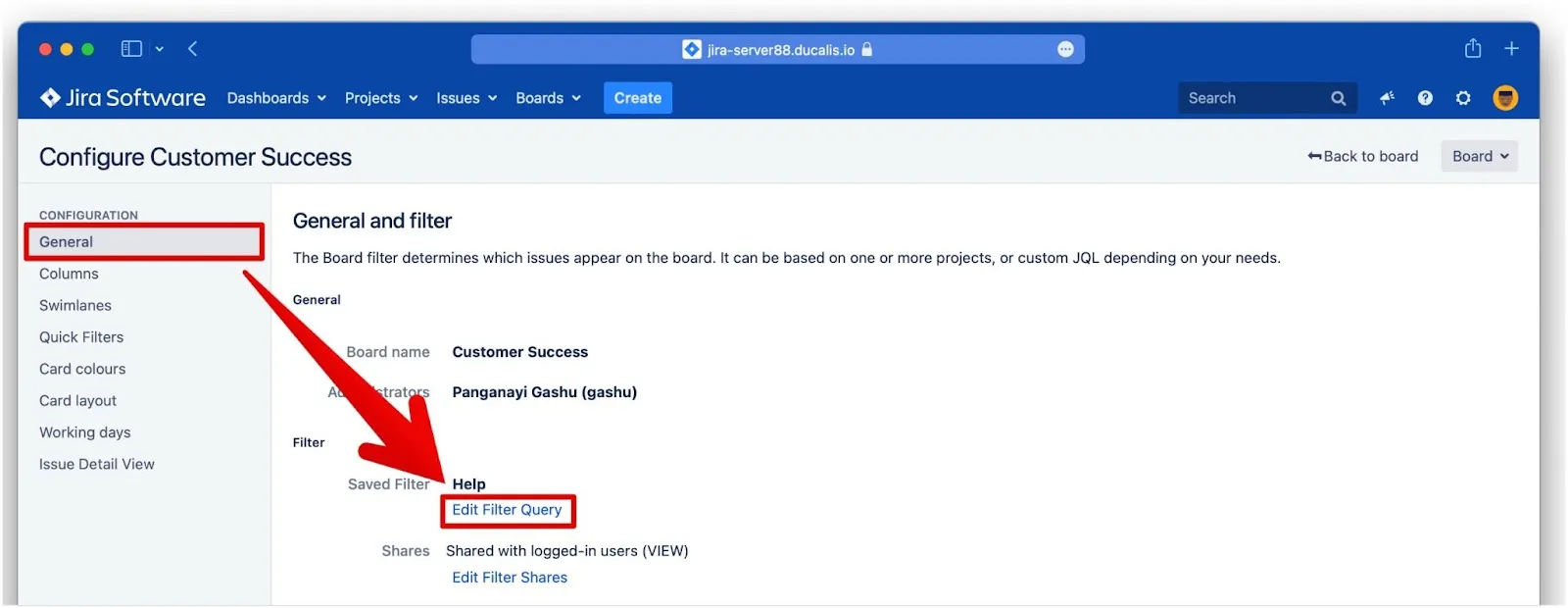
Under General, click Edit Filter Query.
-
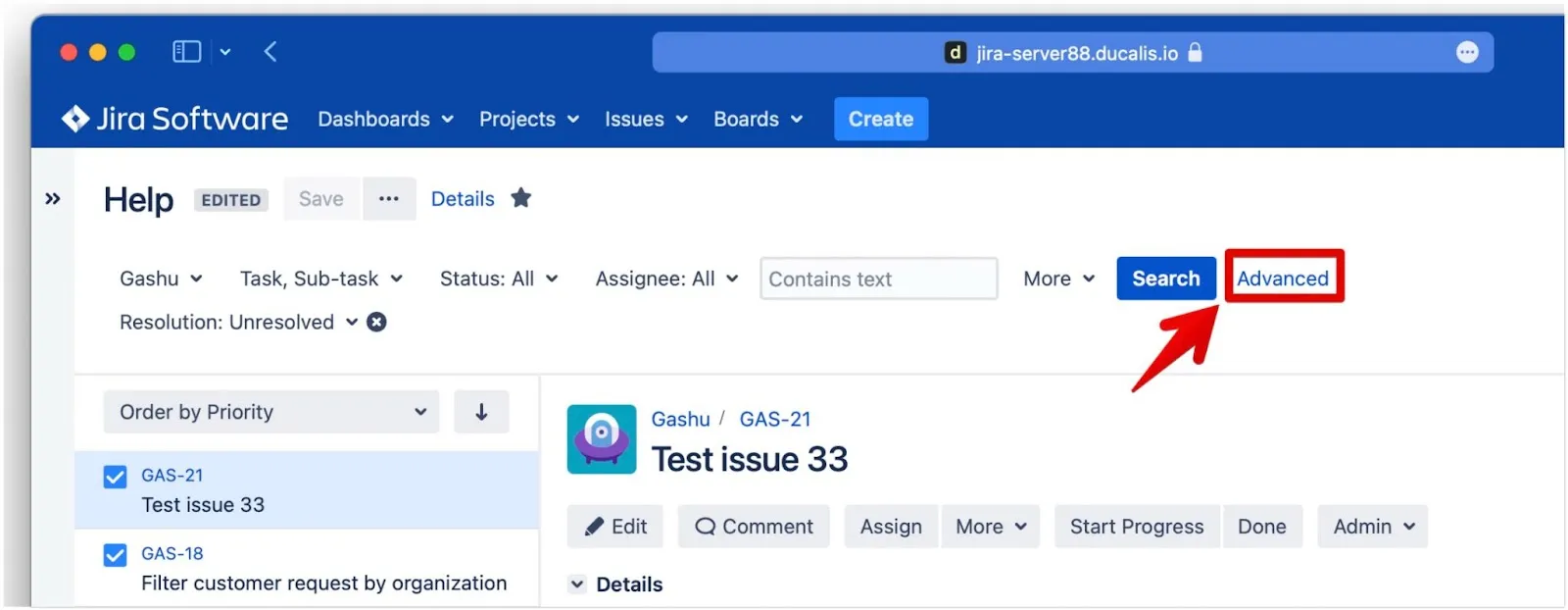
Click Advanced to access advanced search using JQL.
-
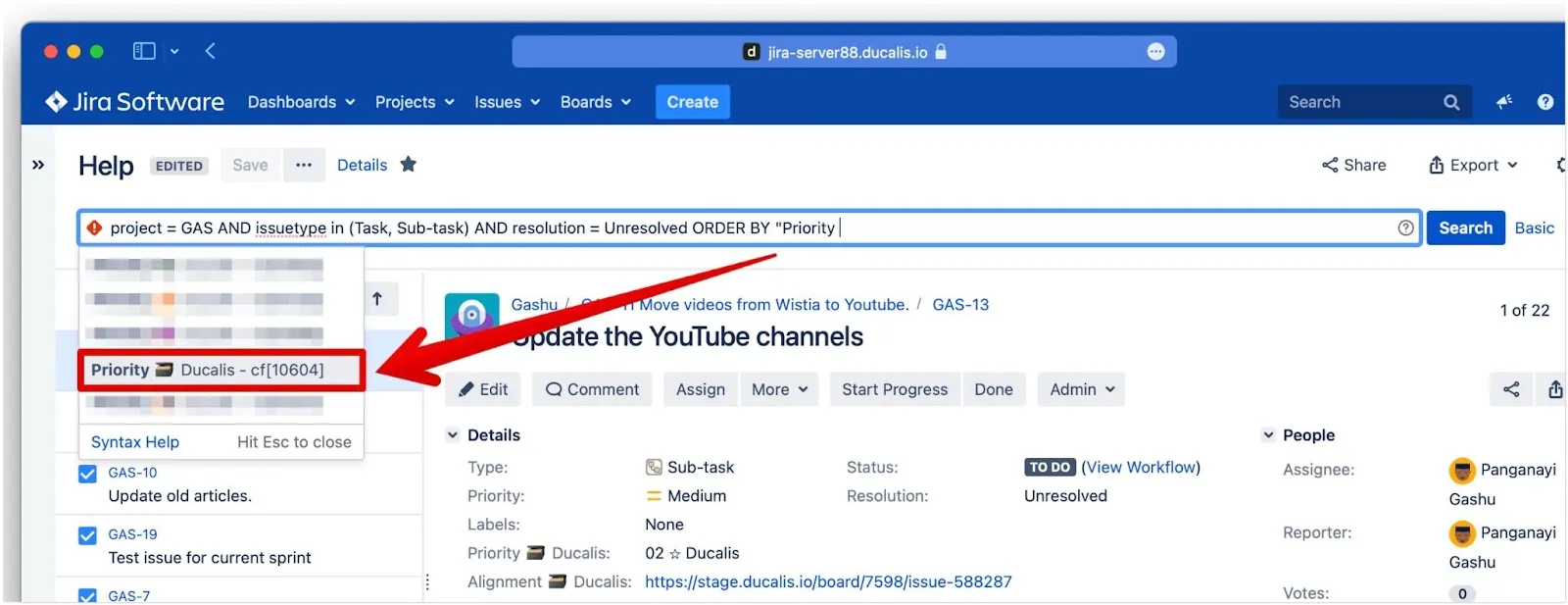
In the query after ORDER BY, type priority and choose the Priority {your emoji} Ducalis custom field from the dropdown menu.
-
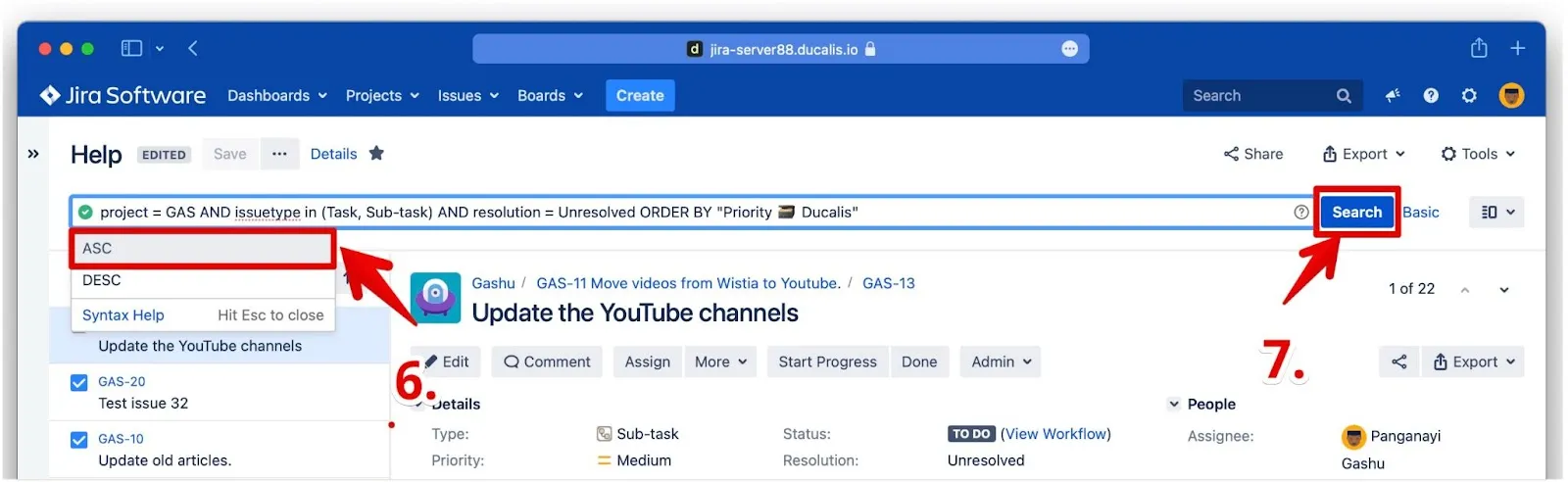
After a space, type ASC or choose ASC from the dropdown to sort priority ranking in ascending order.
-
Click Search.
-
Click Save.
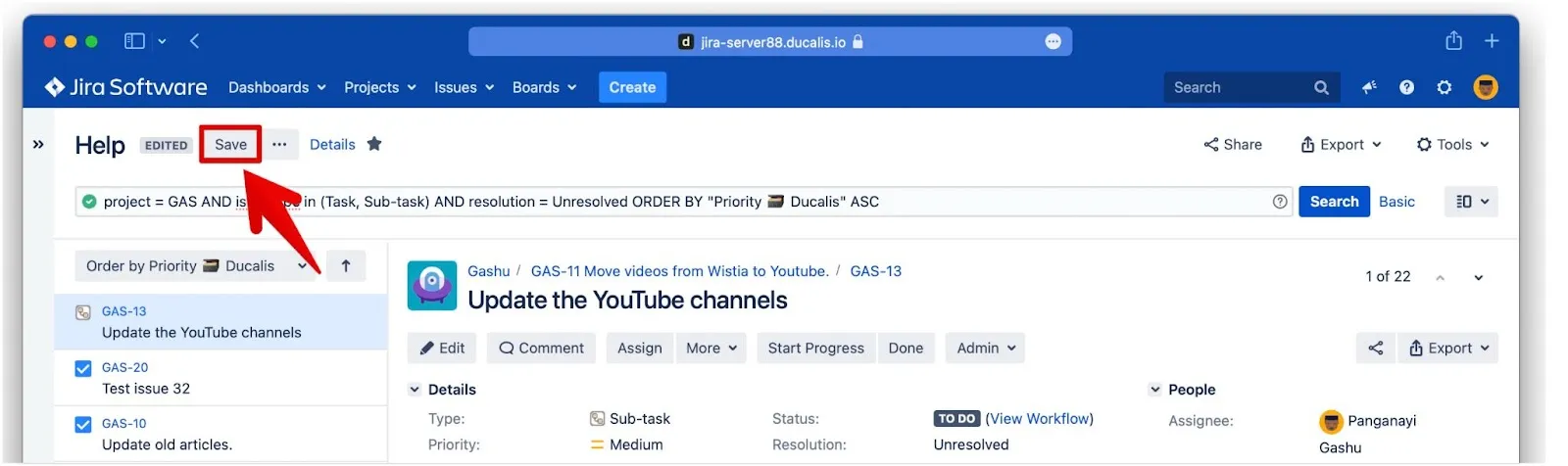
Your Issues are now sorted by priority ranking:
You can also use other data from Ducalis like total scores and criterion scores to sort your Issue cards.