JQL filters
JQL (Jira Query Language) filters let you import specific Issues from Jira Server based on advanced query criteria. Use JQL to find exactly the Issues you want to prioritize, regardless of how they're structured in Jira.
After connecting Ducalis to Jira Server, you can import Issues using three filter types:
- Ducalis filters - Basic field-based filters
- Jira filters - Saved Jira filters
- JQL filters - Advanced query language (this guide)
JQL filters offer the most flexibility for complex searches. For example, you can combine multiple conditions, use custom fields, or search across projects with precise criteria that aren't available in basic filters.
Import Issues with JQL
-
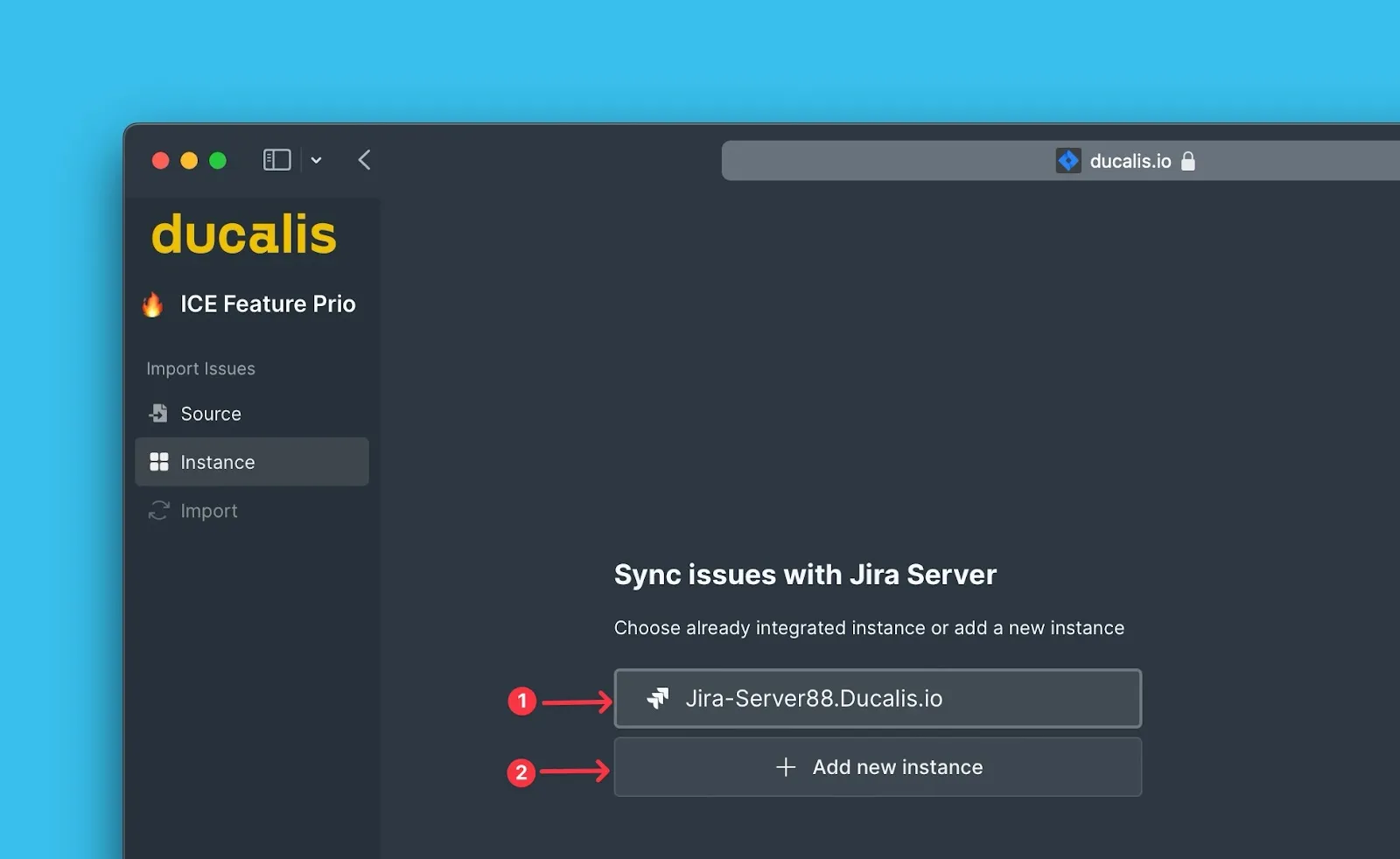
Select the Jira Server instance you want to import from.
- Choose an existing connection, OR
- Click Connect new instance and follow the OAuth authentication guide
-
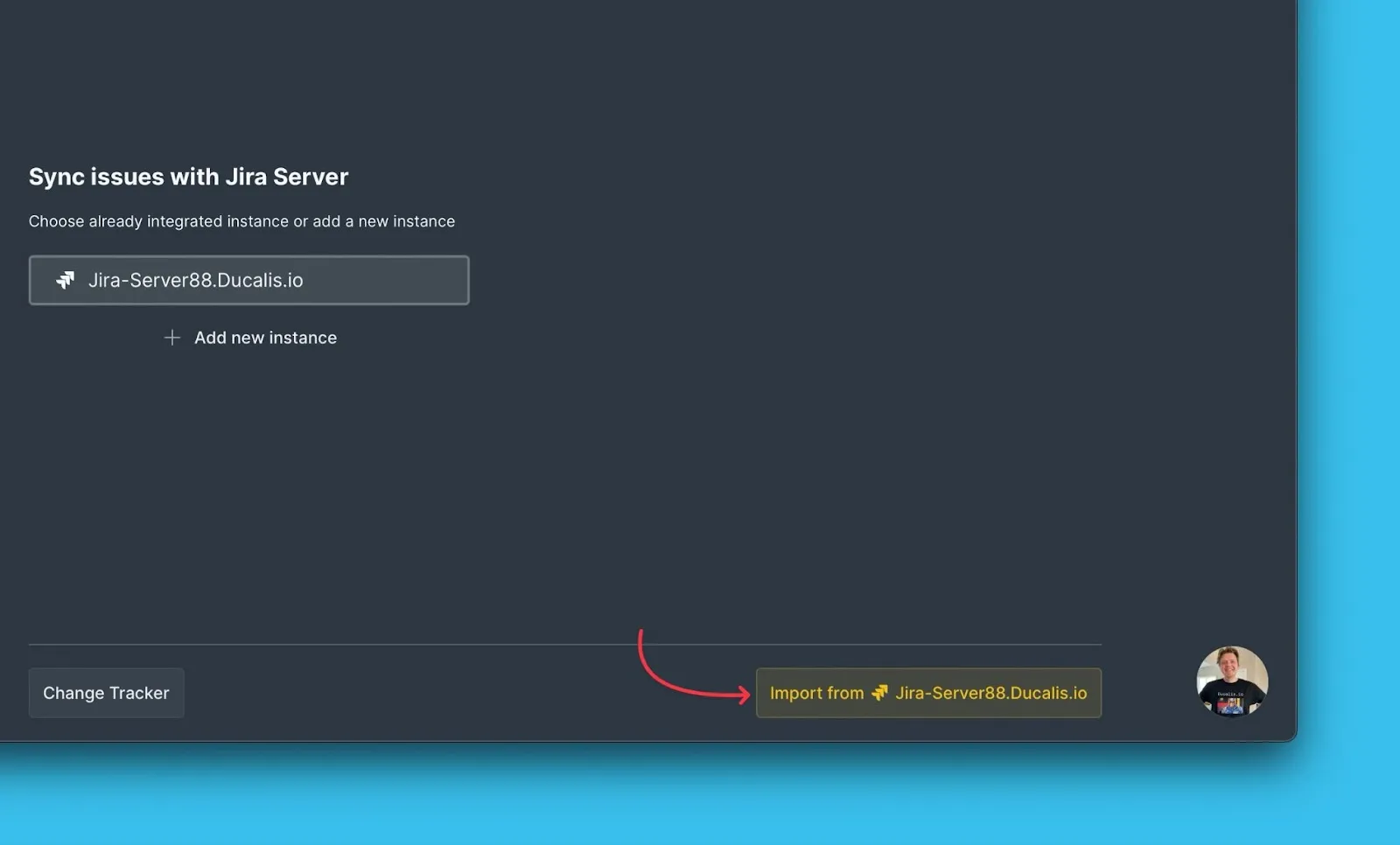
Click Import from [instance] to start the import process.
-
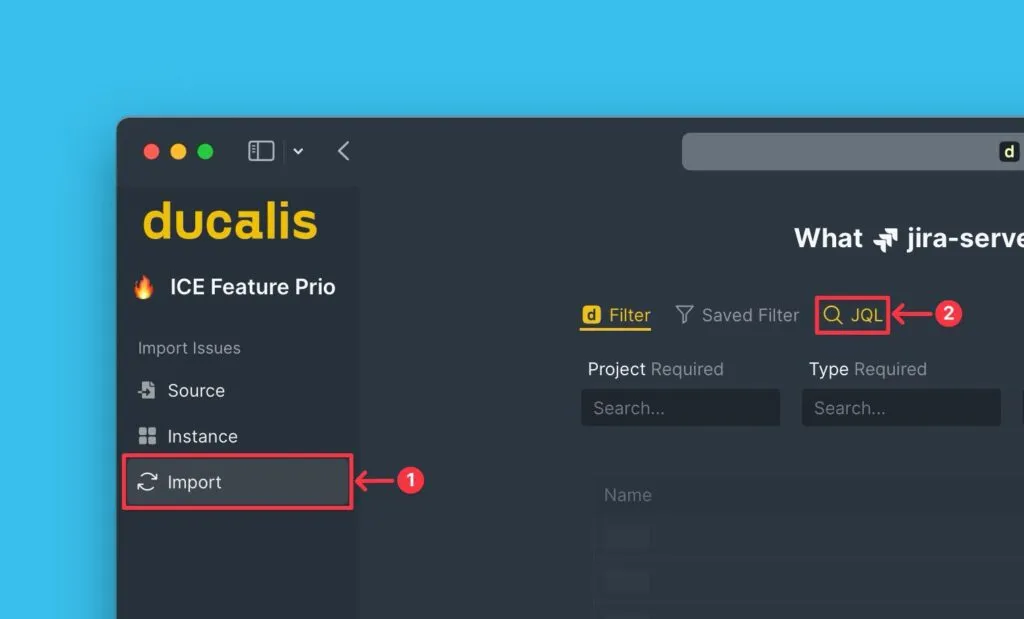
On the Import step, select the JQL filters option.
-
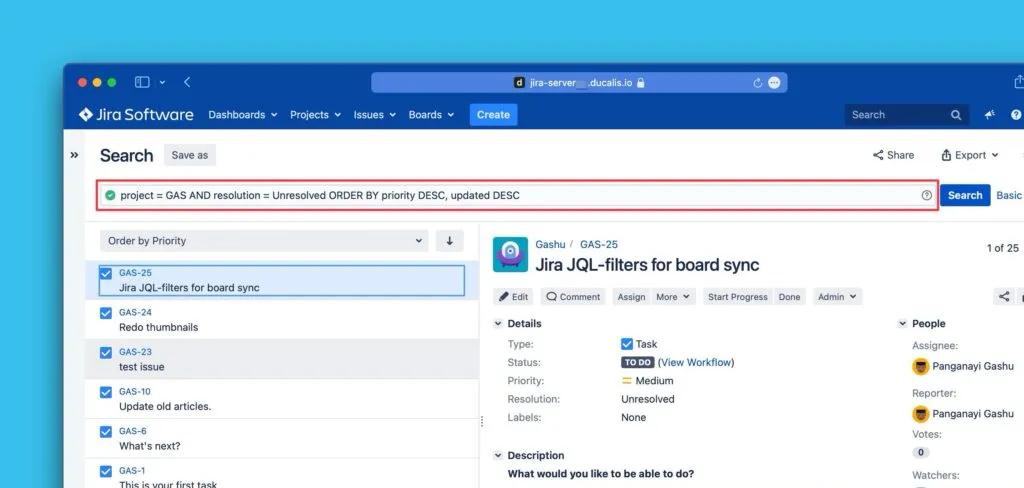
Copy your JQL query from Jira Server.
-
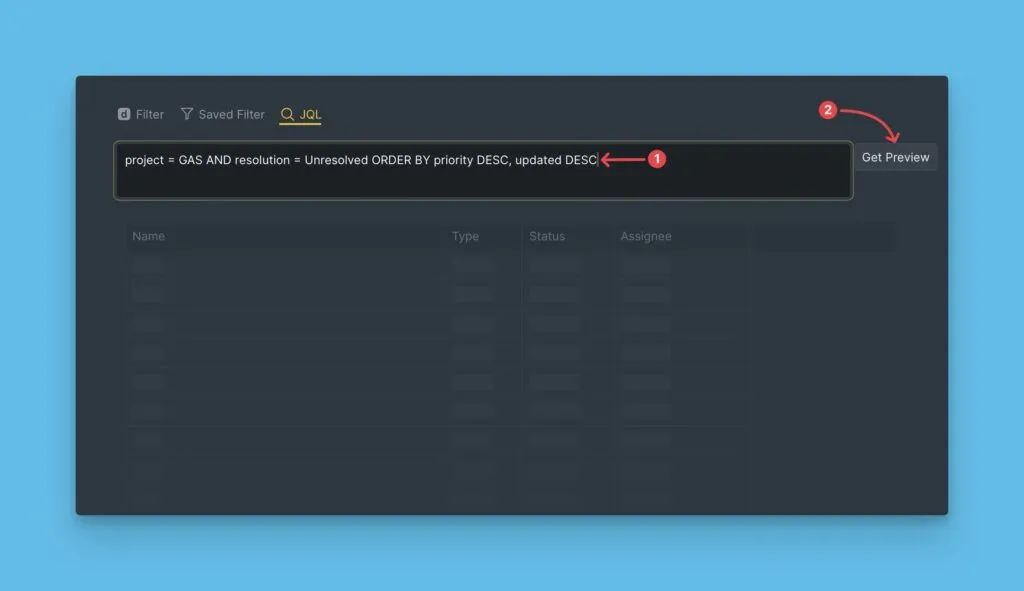
Paste the query into Ducalis, then click Get Preview to see matching Issues.
-
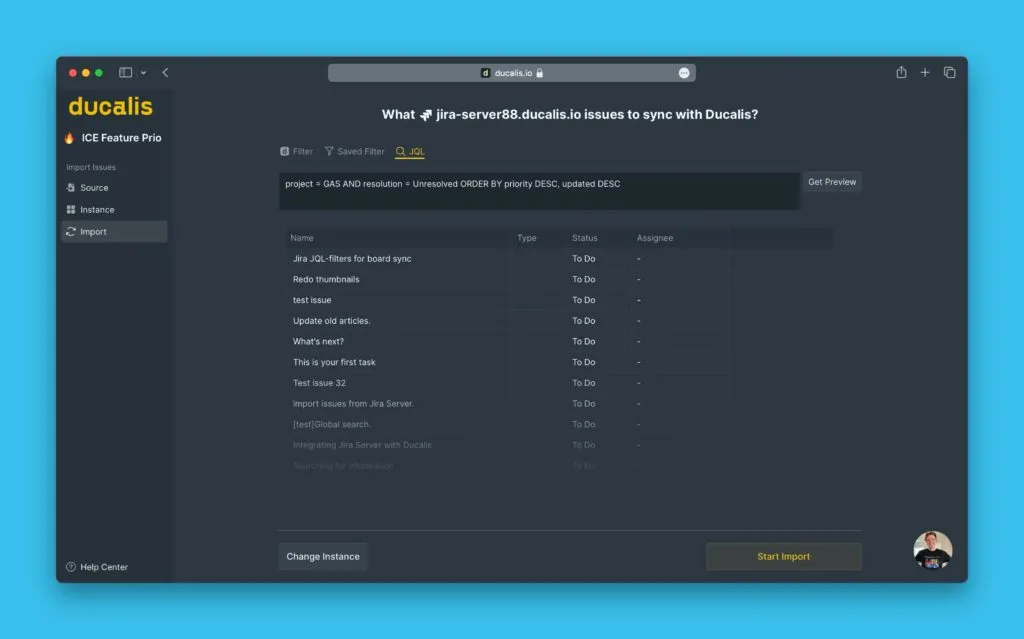
Review the preview to verify the correct Issues are selected.
-
Click Start import to begin importing the Issues.
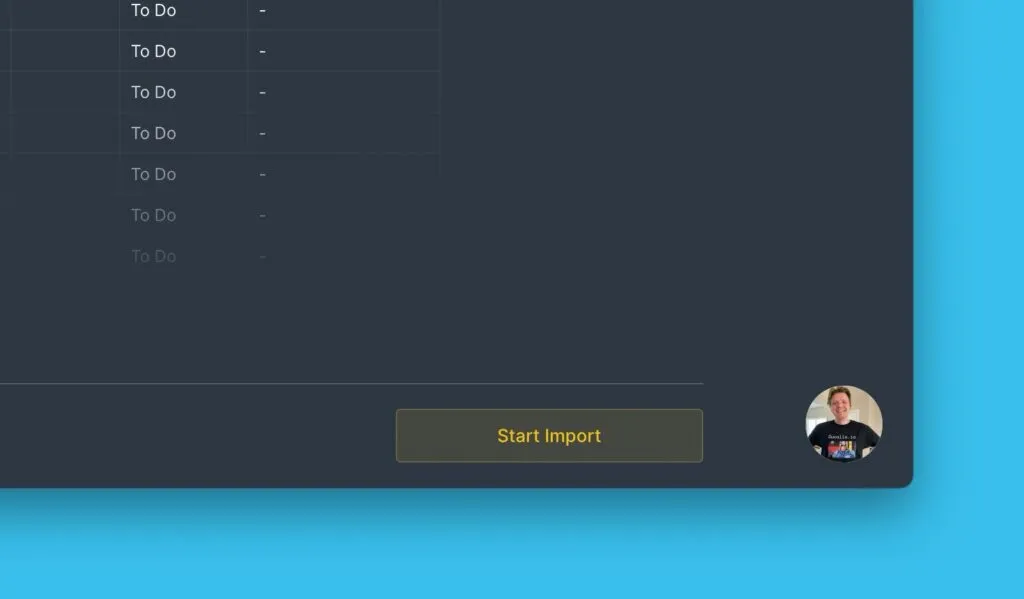
The import runs in the background. You'll receive a notification when it completes.
Edit the JQL filter
You can modify the JQL filter after importing to change which Issues sync from Jira Server.
-
Click the Sync settings icon on your Board.
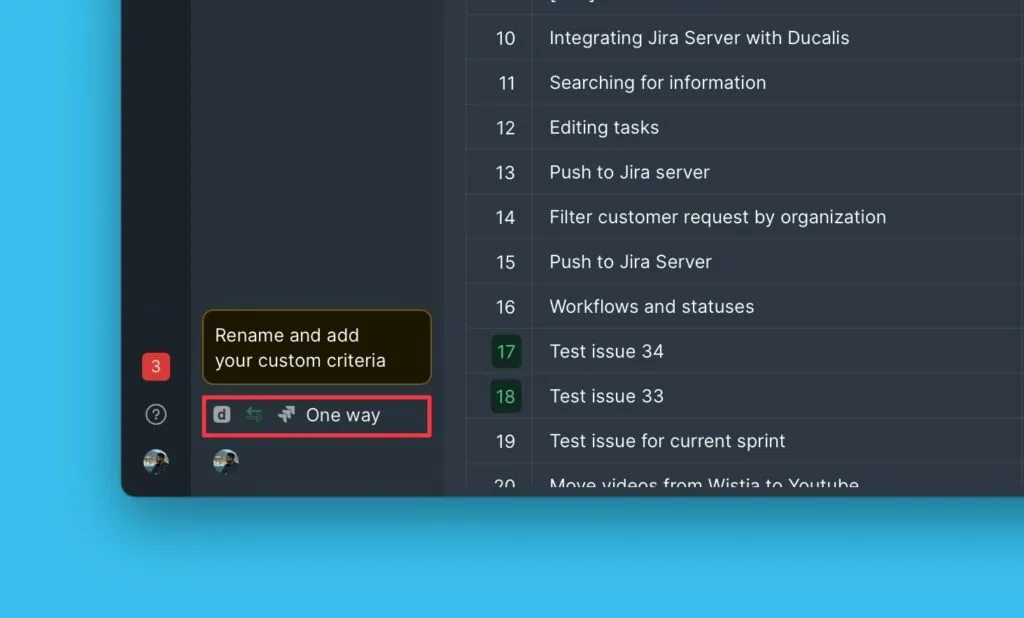
-
Under Sync settings, click Edit Sync-In Conditions.
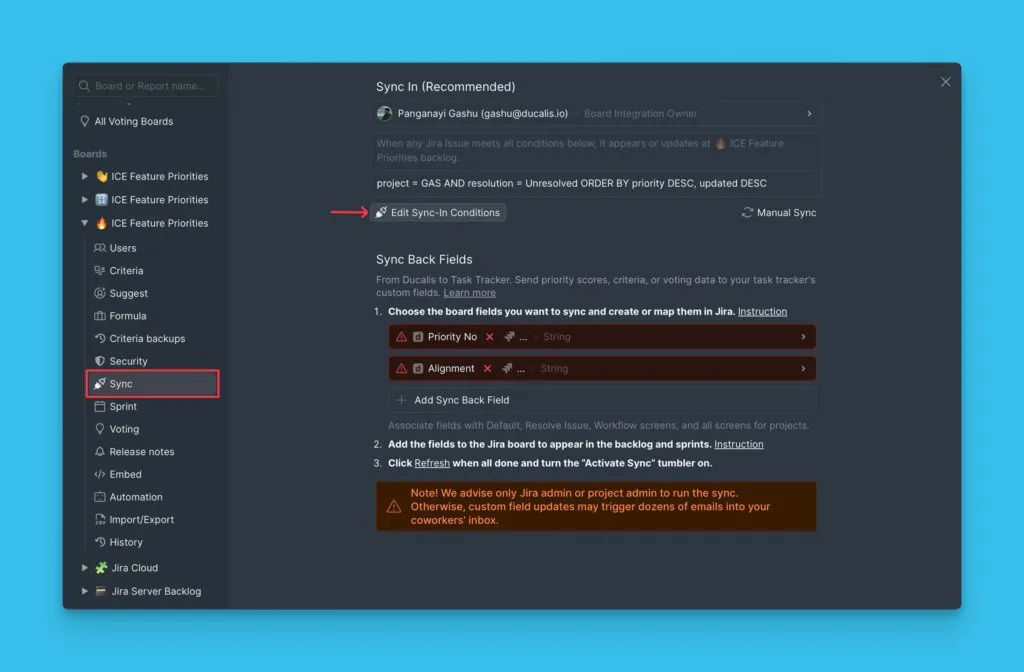
-
Update your JQL query, then click Save to apply changes.
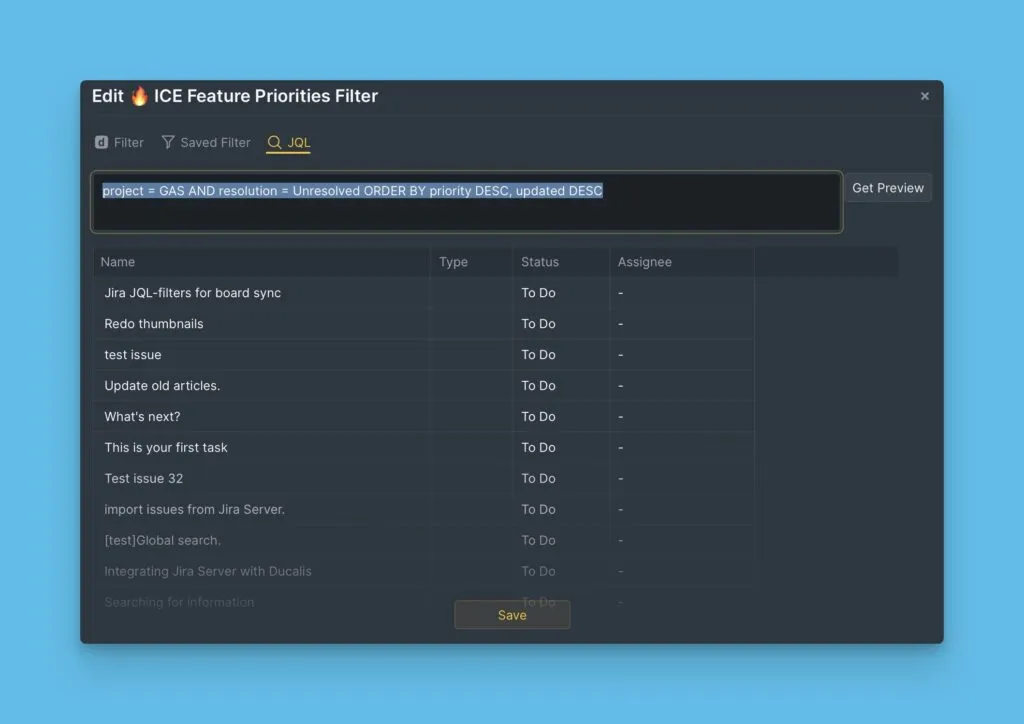
The new filter takes effect on the next sync cycle.
What's next
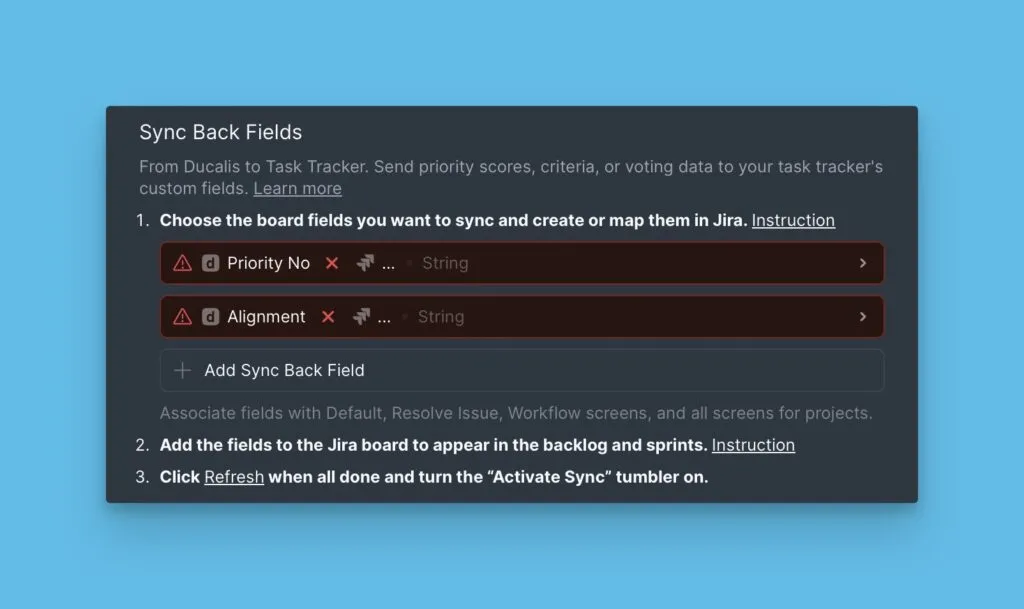
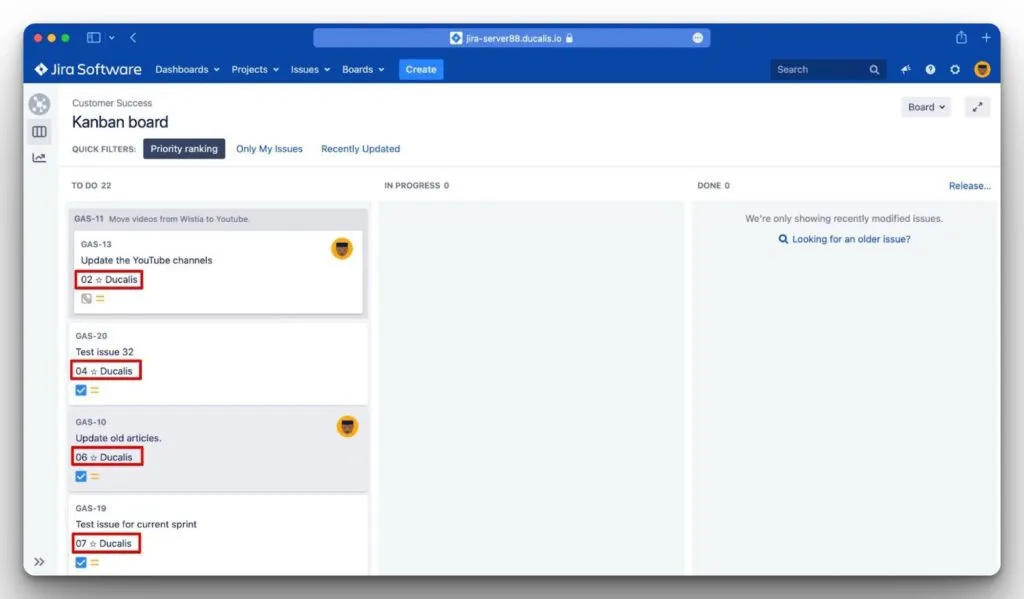
After importing Issues from Jira Server, enable Sync Back to send prioritization results back to Jira custom fields.
Learn how to set up Sync Back with Jira Server.