Connect
Connect Ducalis to Trello to import cards as issues and prioritize them alongside your other work. Once connected, you can sync data between systems in real time.
Connect Trello
-
In your board, click Connect to open the Sync settings.
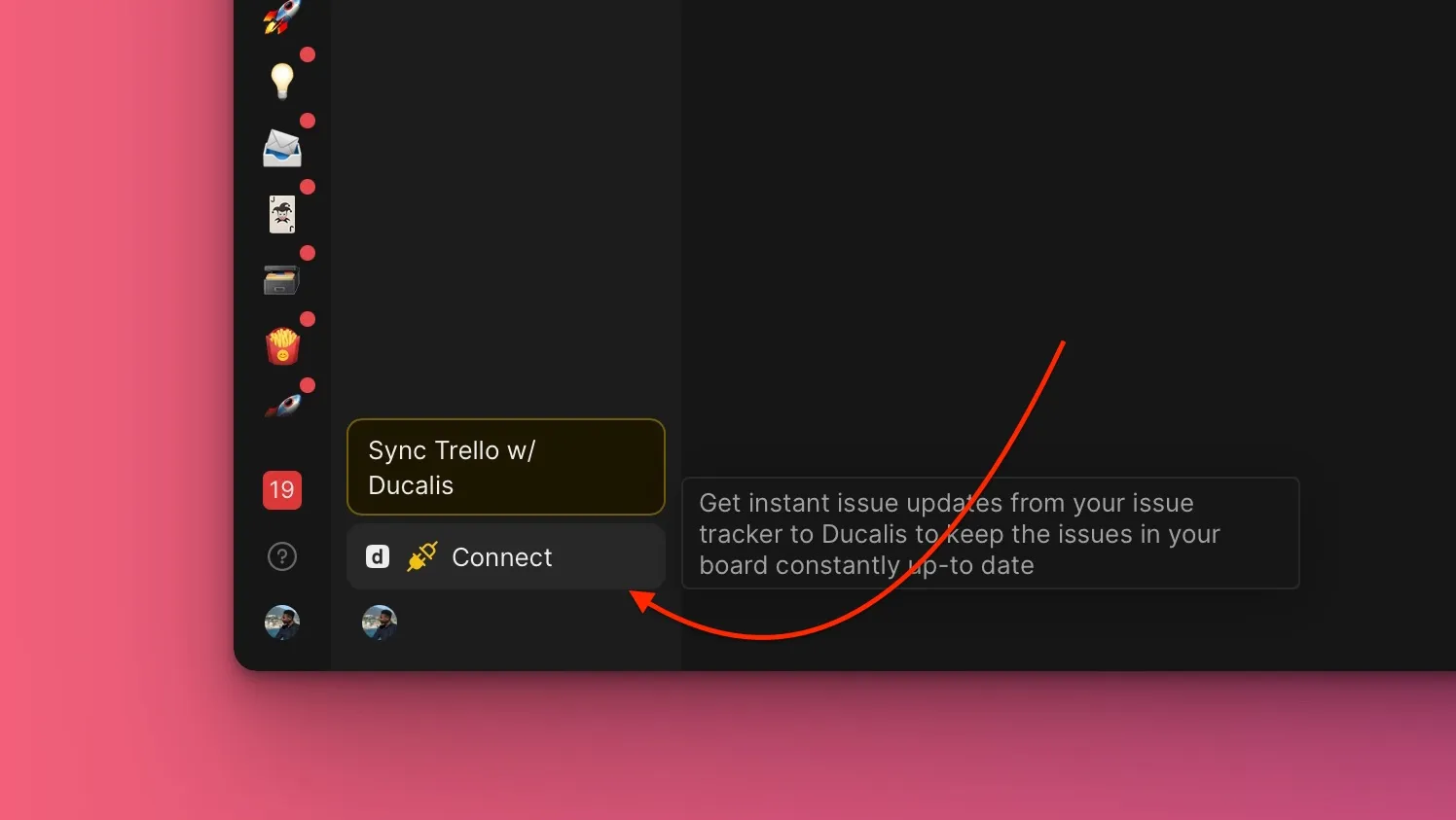
-
Under Sync settings, click Connect Issue Tracker.
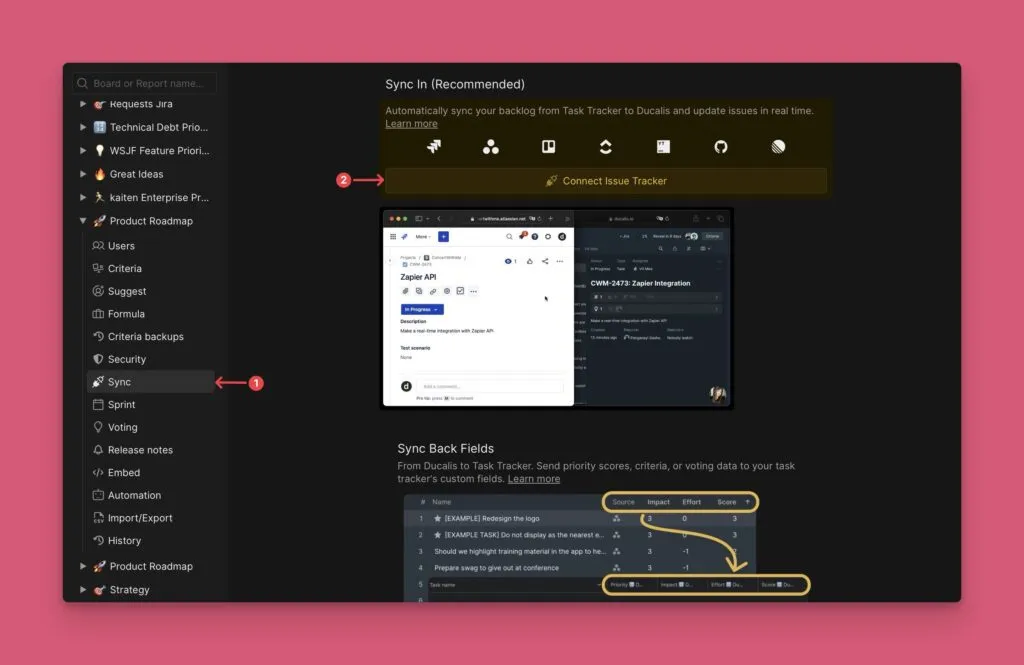
-
Select Trello from the list of task trackers.
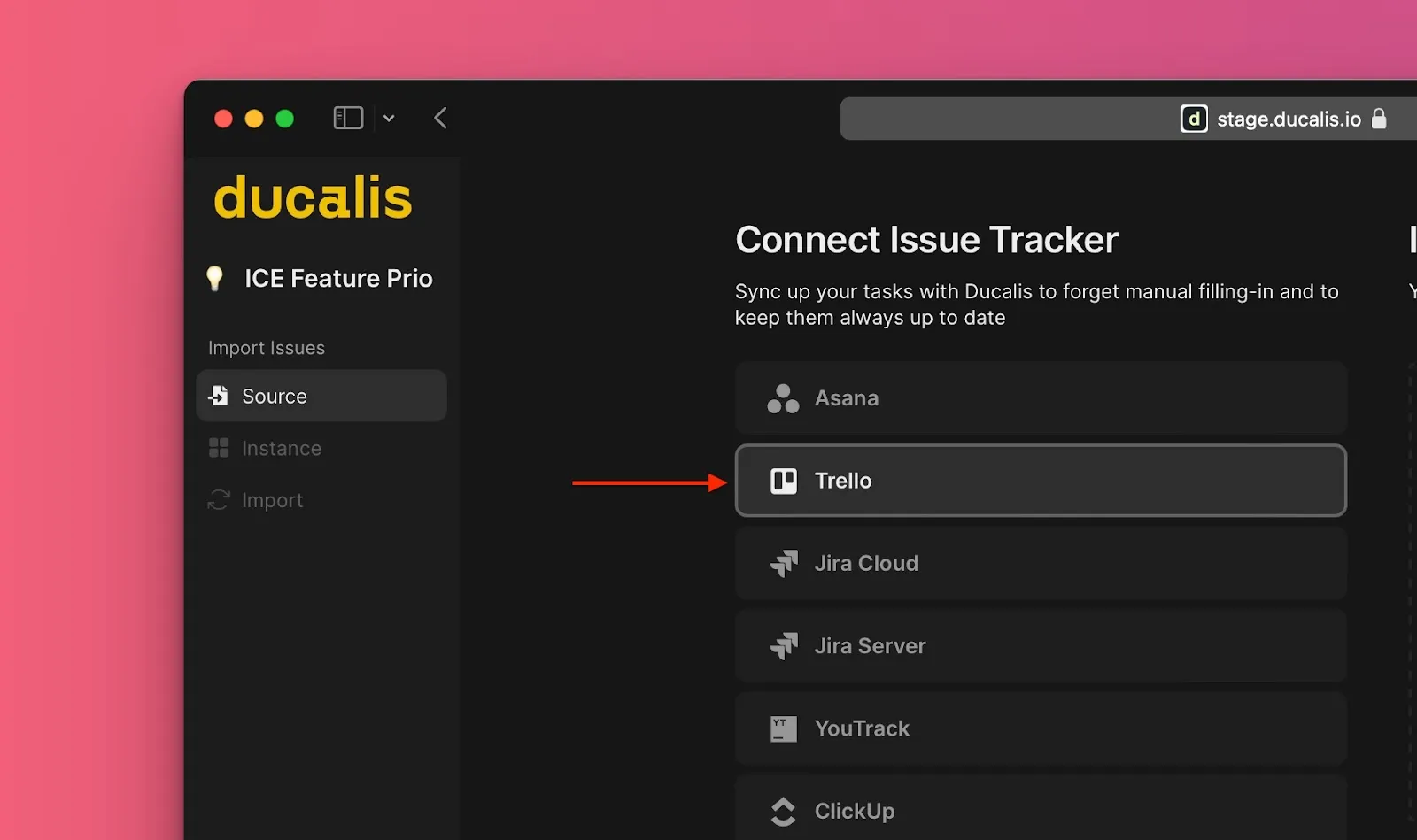
-
Click 🔌 Connect Trello.
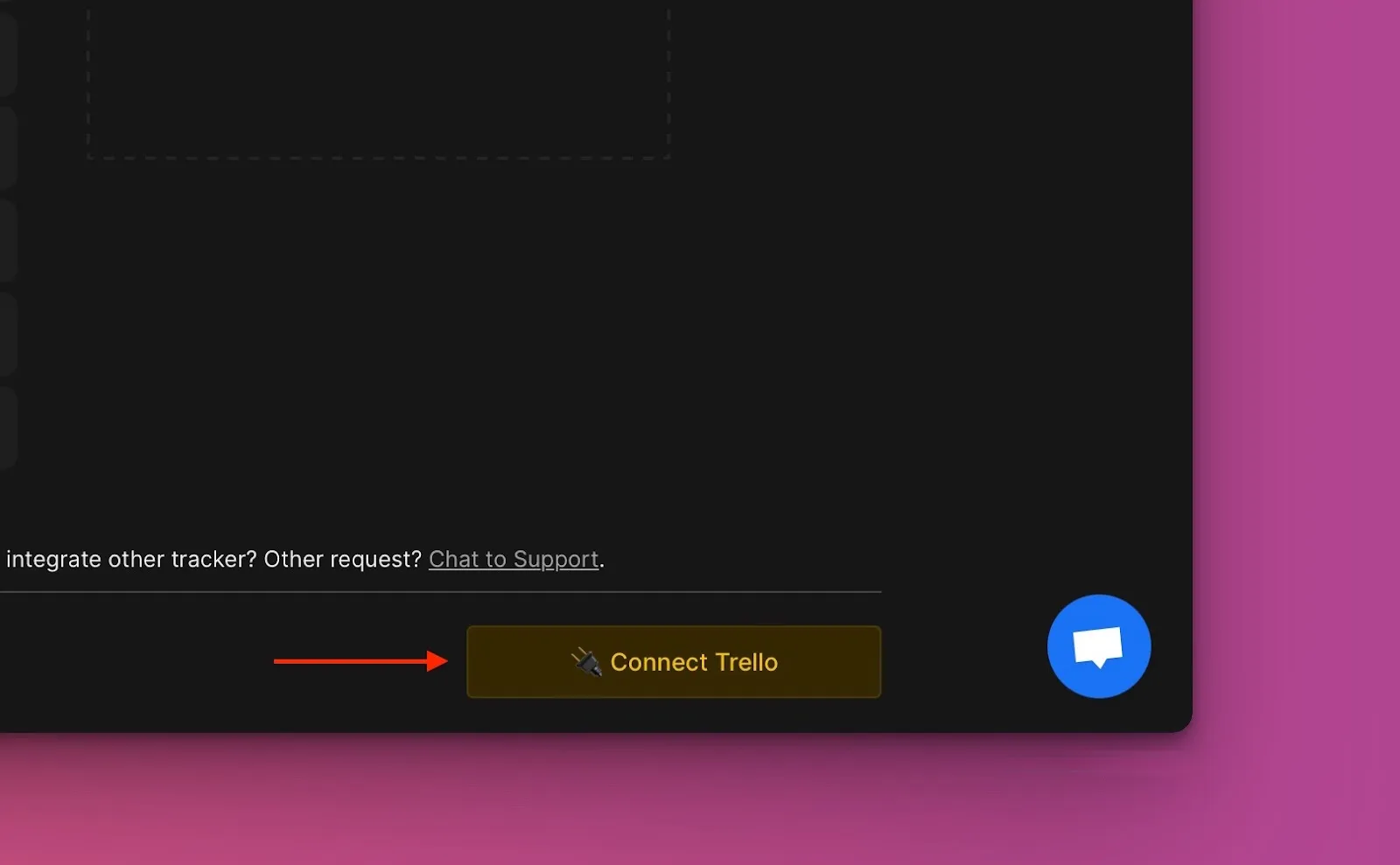
-
Click Authorize to allow Ducalis to access your Trello account.
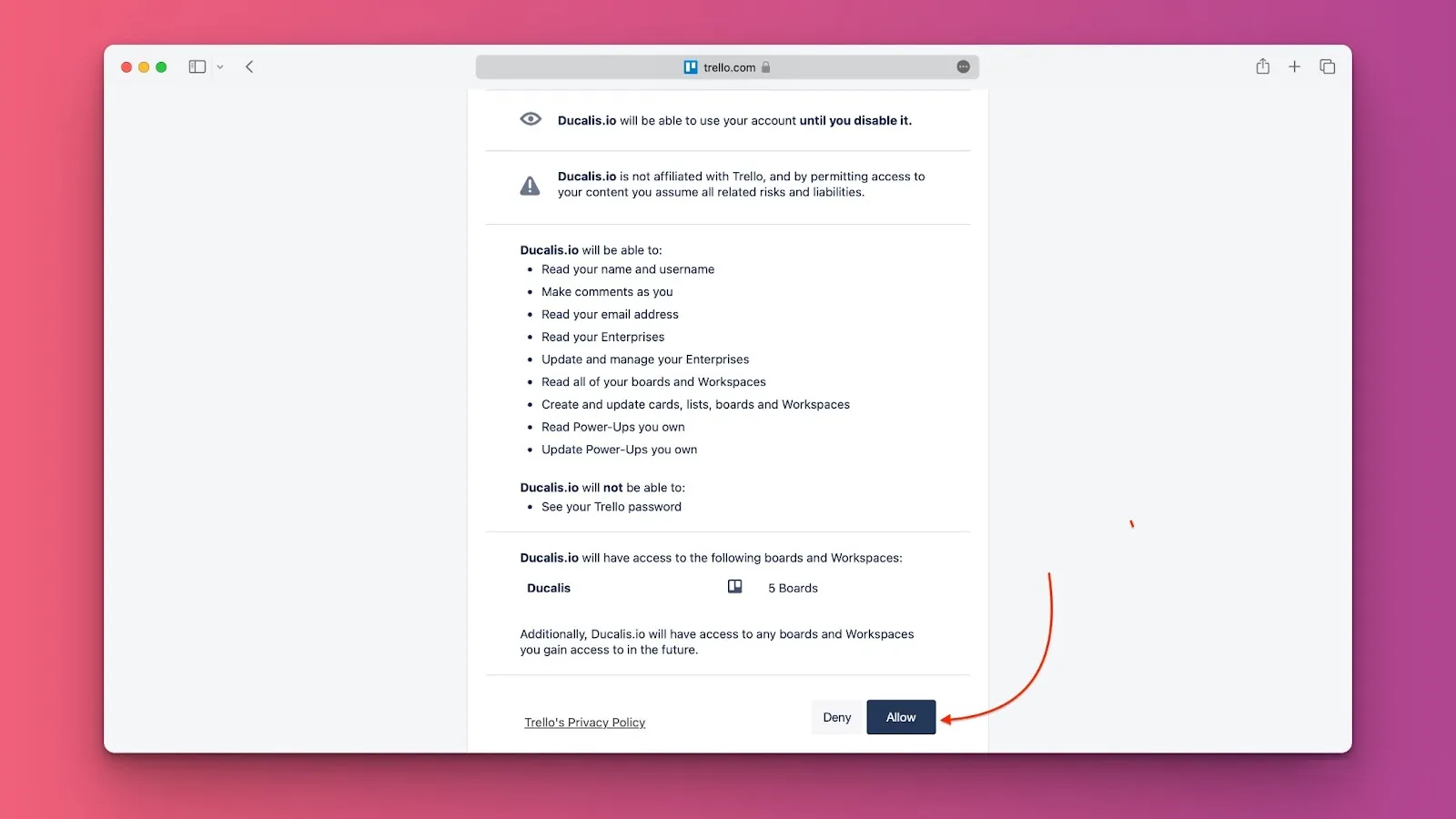
Import cards
-
Choose the workspace you want to import from, or add a new workspace by clicking Add a new instance. Then click Connect [Instance].
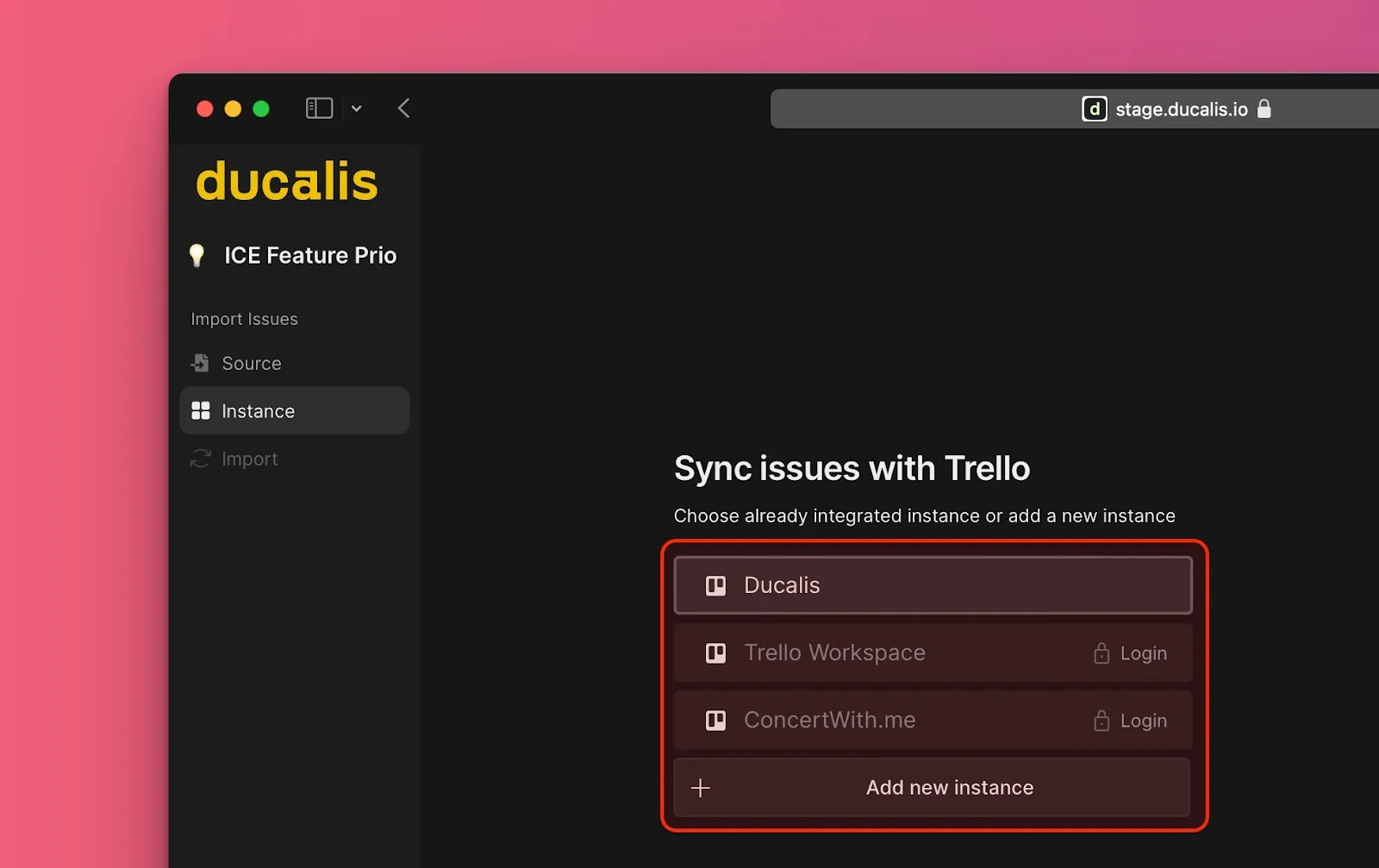
-
Apply filters to choose which cards to import.
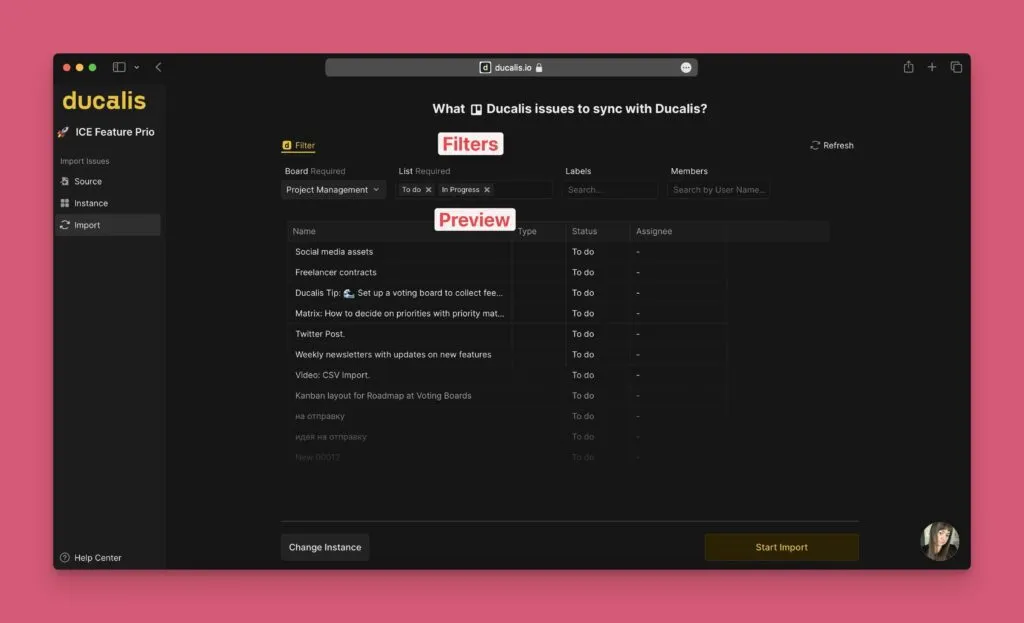
-
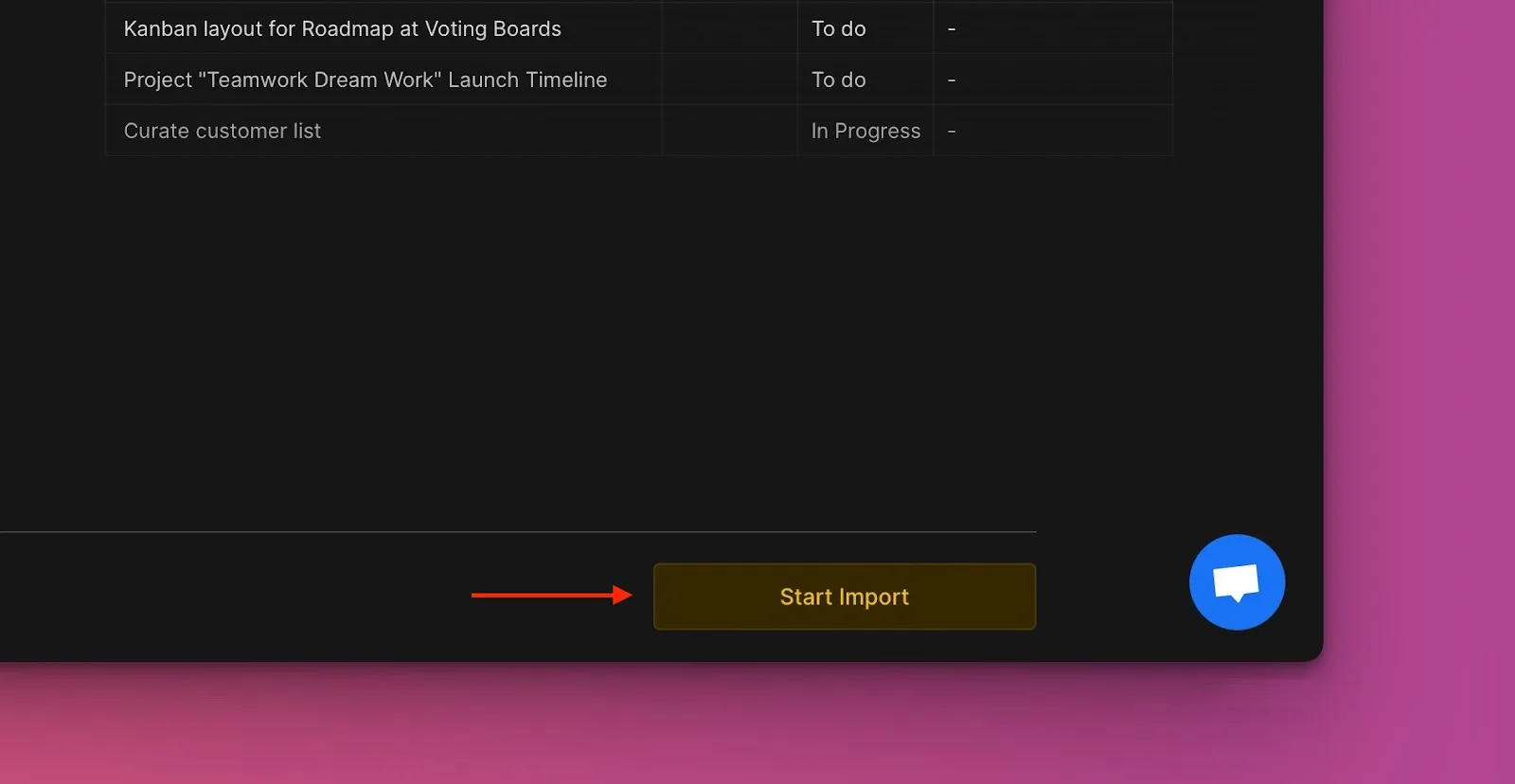
Click Start Import.
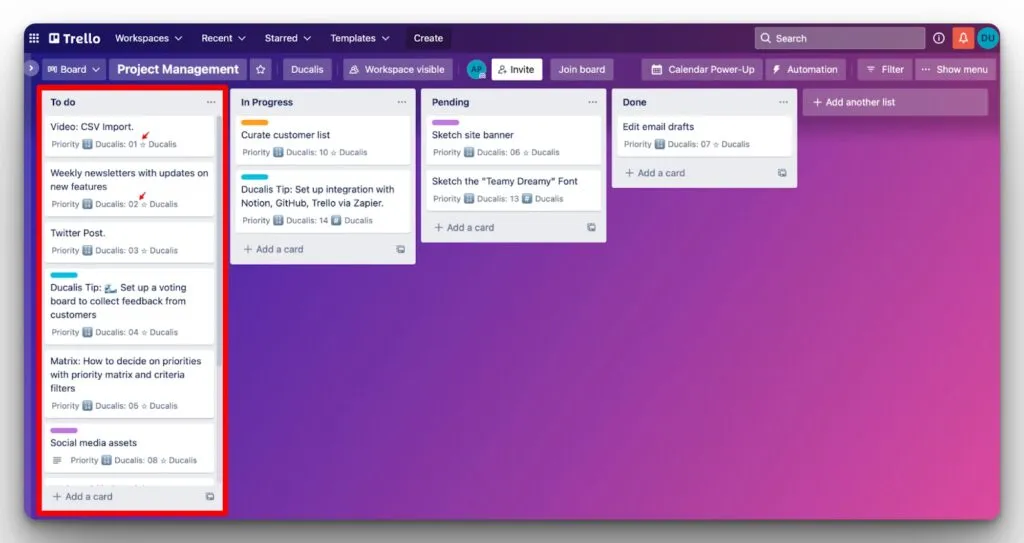
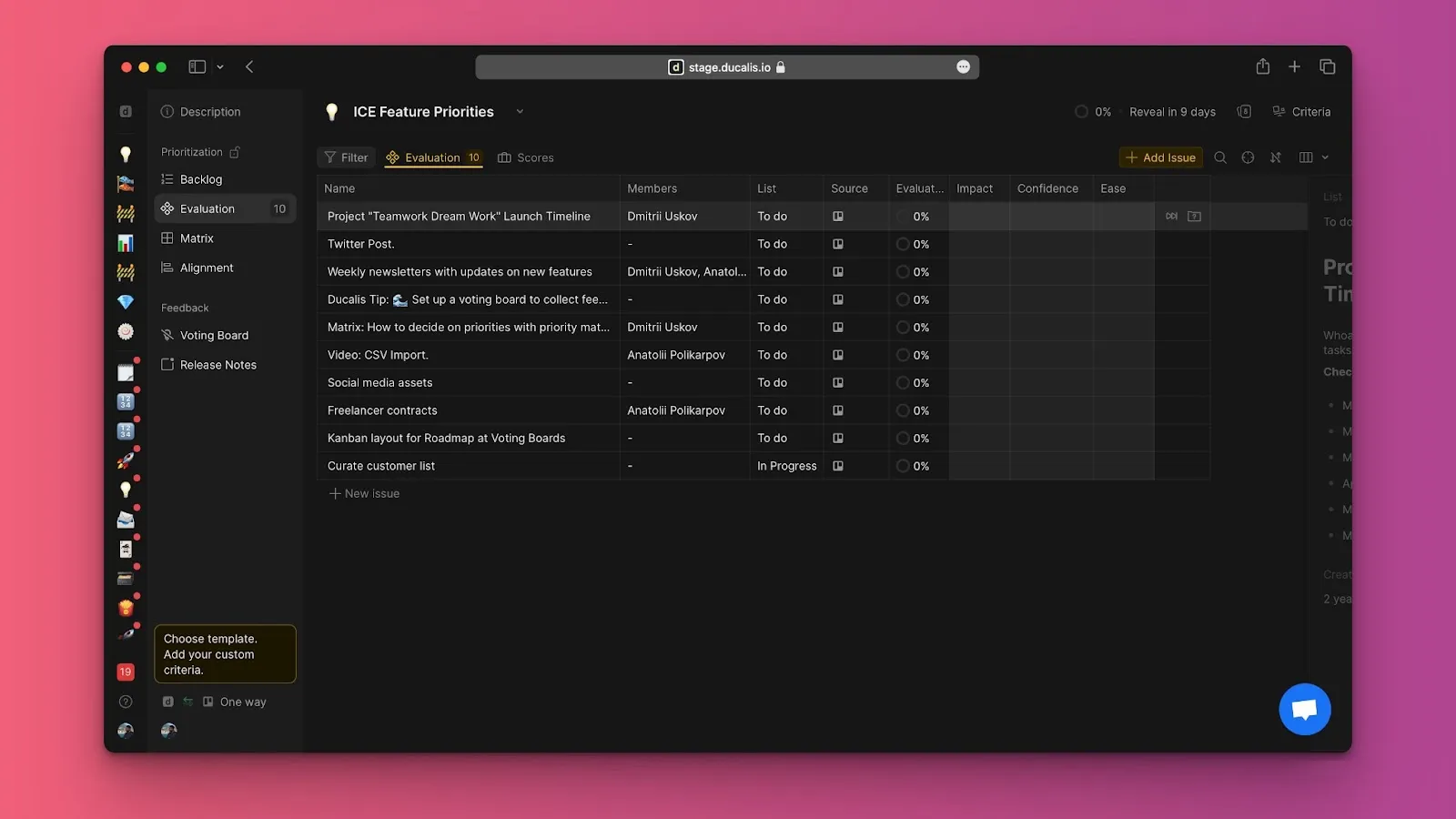
Your board now shows imported Trello cards as issues:
Edit import filters
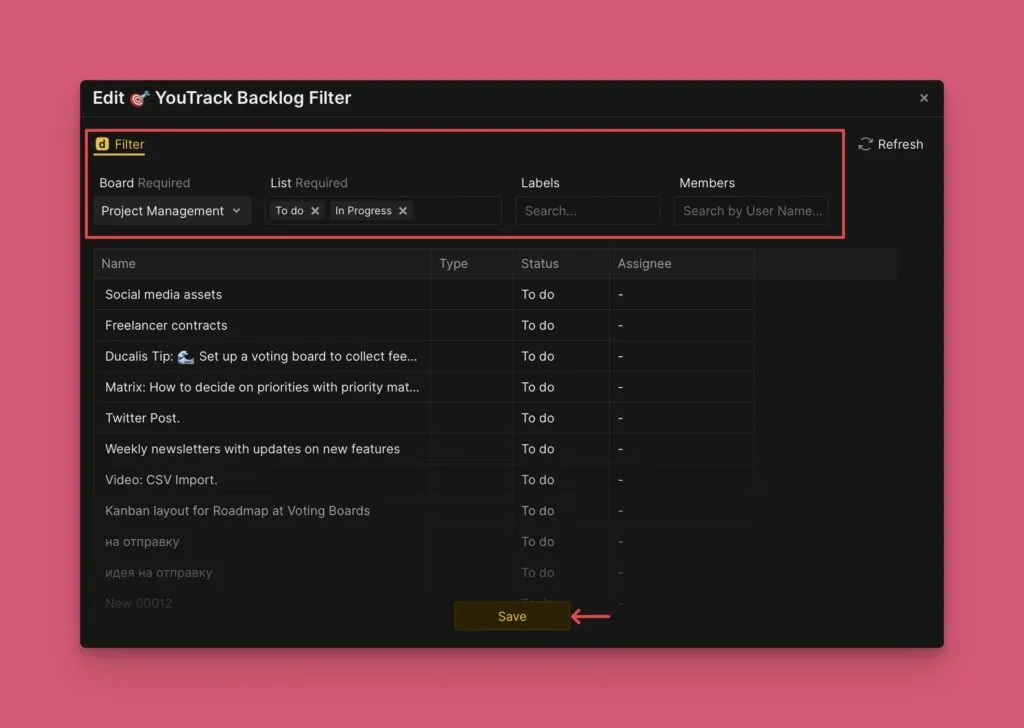
Edit import filters to import additional cards or remove specific cards from your board without disconnecting the integration.
-
Go to Sync settings.
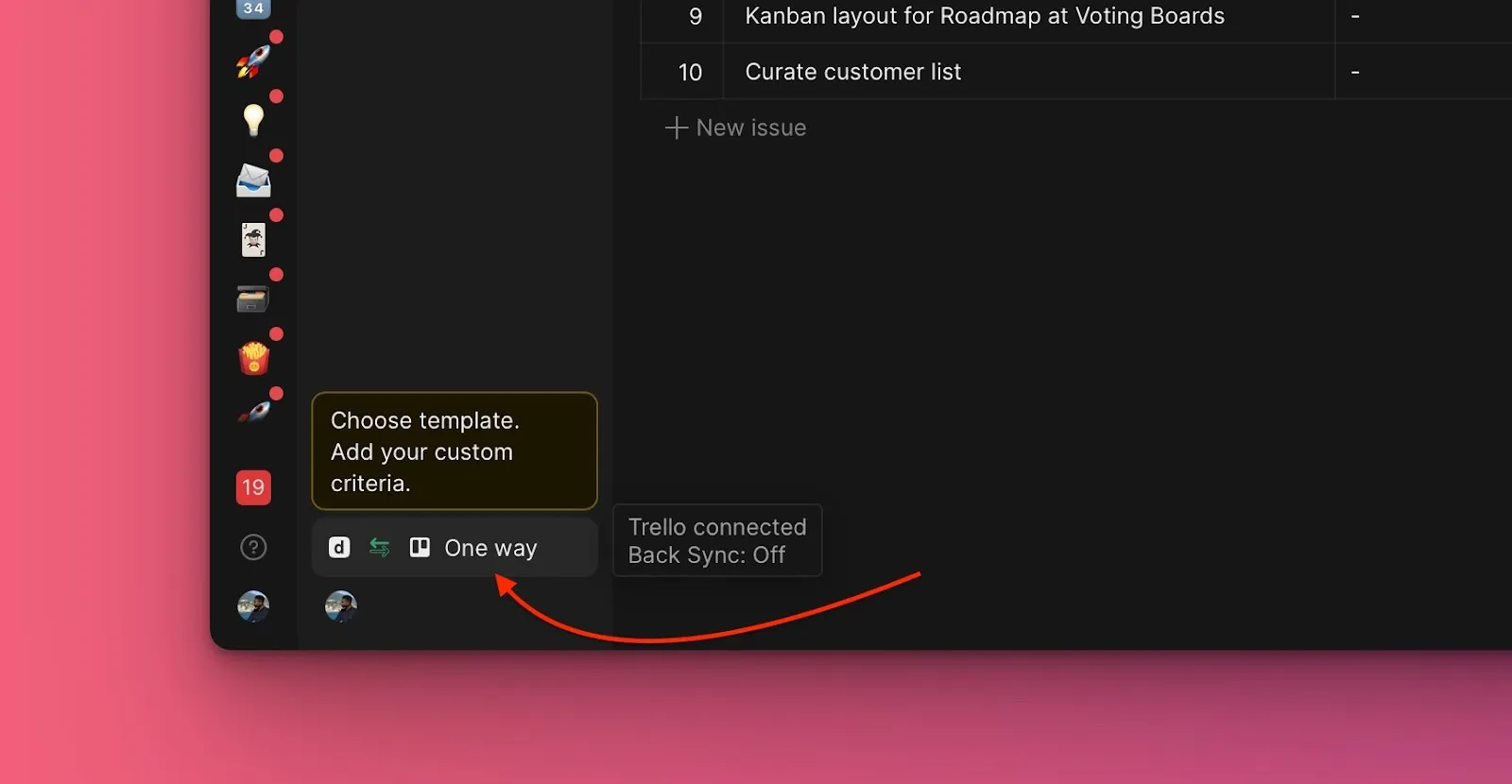
-
Scroll to Sync and click Edit Sync-In Conditions.
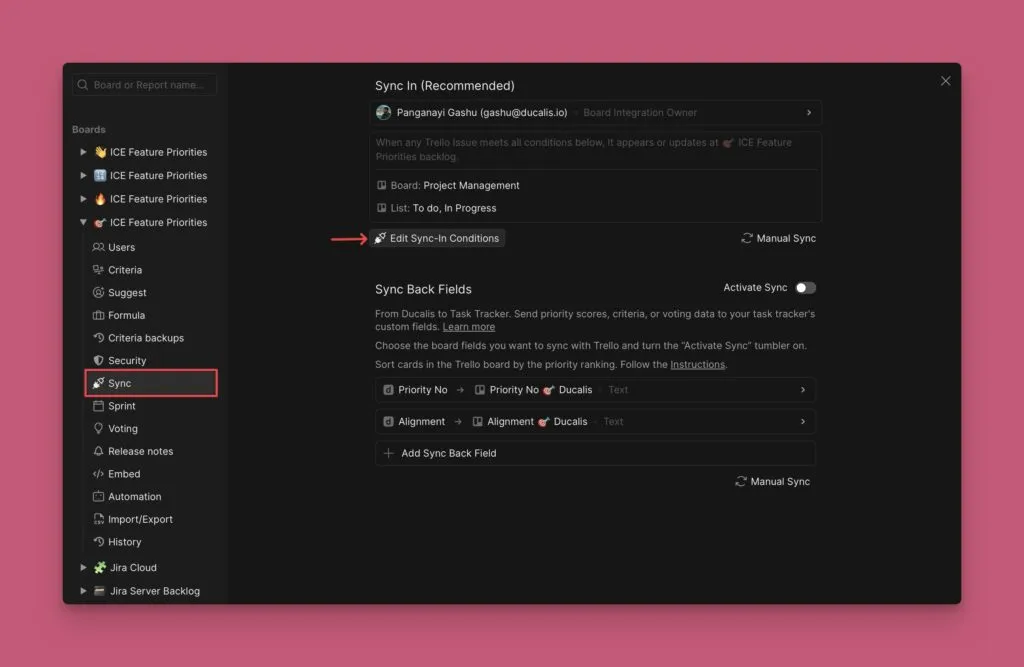
-
Add or remove filters to adjust which cards are imported.
-
Click Save.
Related articles
- 2-way sync with Trello - Sync priority rankings back to Trello custom fields
- Push prioritized issues to Trello - Create new Trello cards from prioritized issues
- Remove a task tracker integration - Disconnect Trello integration
What's next
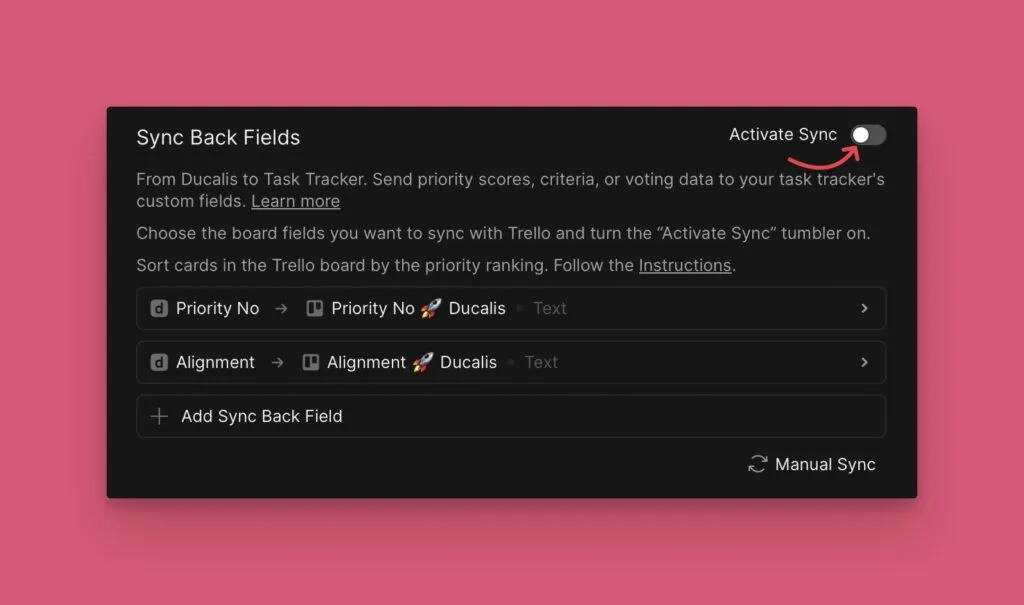
Enable 2-way sync to send priority rankings back to Trello. Rankings appear in a custom field on your Trello cards, sorted by priority order.