Push issues
Create Issues in Ducalis and send them to YouTrack to add them to your development backlog. This is useful when you're prioritizing alongside imported YouTrack tasks and need to quickly add new items to your tracker.
Push from Backlog
Push Issues you created in Ducalis to YouTrack.
-
Open your prioritization Board connected to YouTrack.
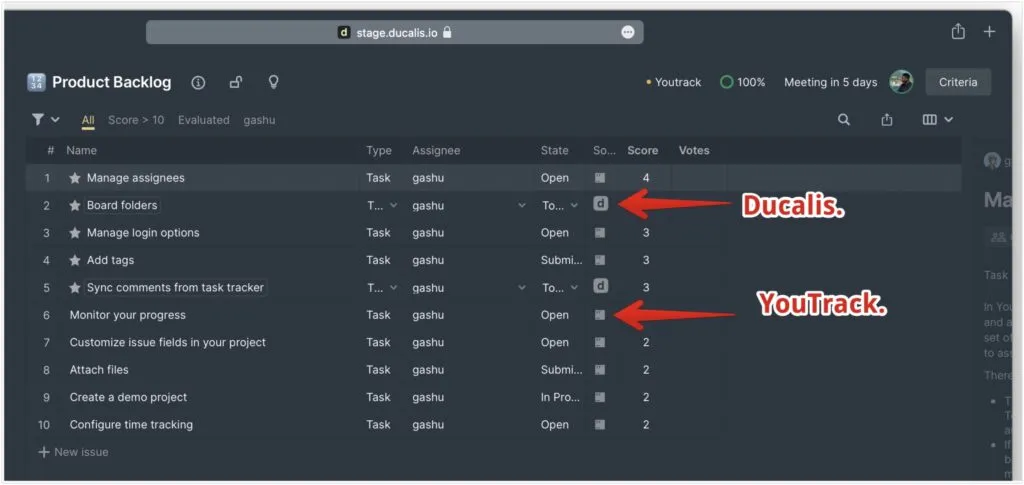
Issues have different source indicators:
- YouTrack icon: Imported from YouTrack
- Ducalis icon: Created in Ducalis
-
Select the Issue you want to send to YouTrack.
-
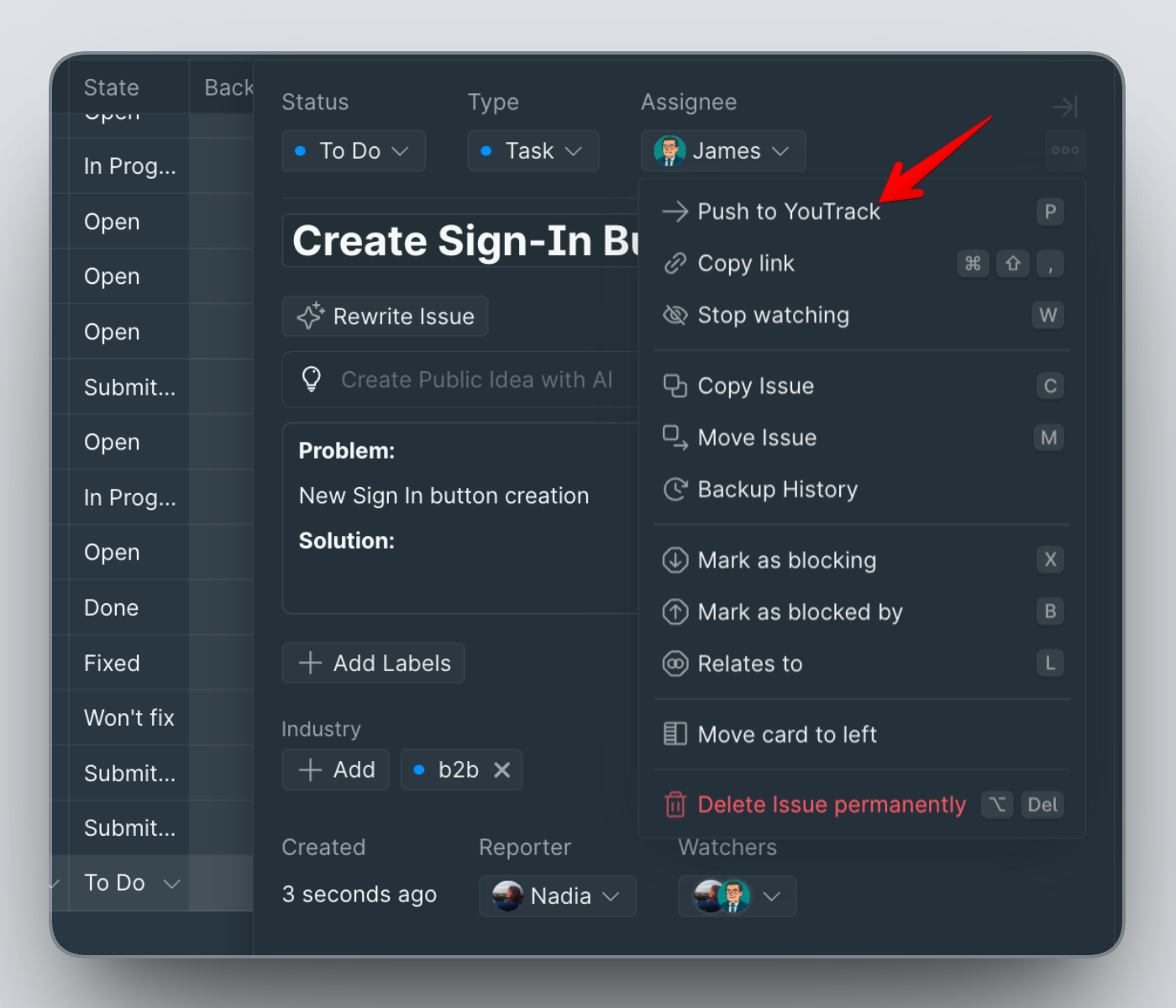
Click Push to YouTrack on the Issue card.
-
Choose the YouTrack project from the dropdown.
Available projects are those you selected during integration setup.
-
Review or edit the Issue name and description.
-
Select an assignee from the dropdown.
infoOnly YouTrack users appear in the assignee list. Board Users not in YouTrack won't be available.
-
Click Create issue.
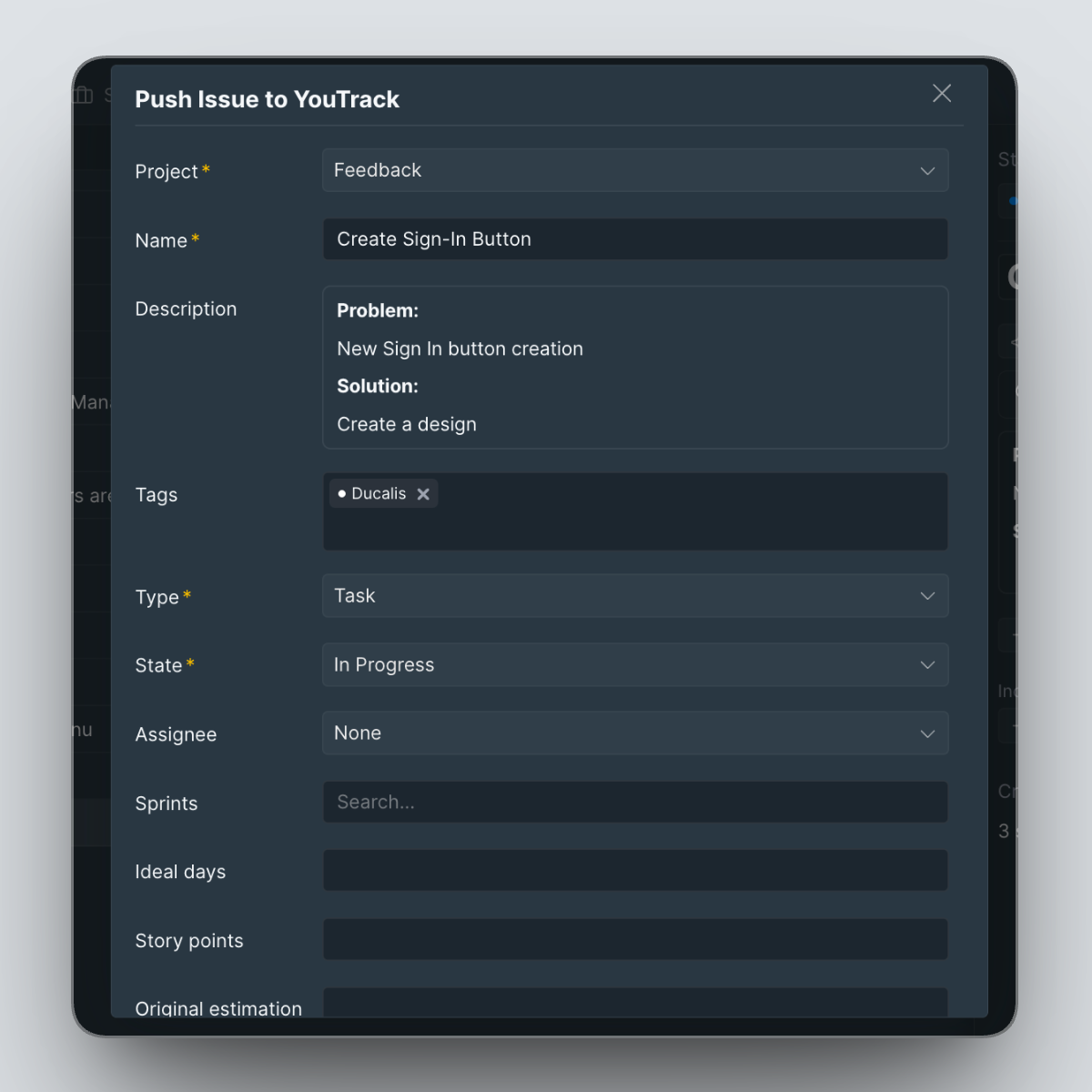
The Issue is created in YouTrack and linked to your Ducalis Issue.
Push from Voting Board
Send customer feedback from your Voting Board directly to YouTrack.
-
Open the Idea under Public Ideas.
-
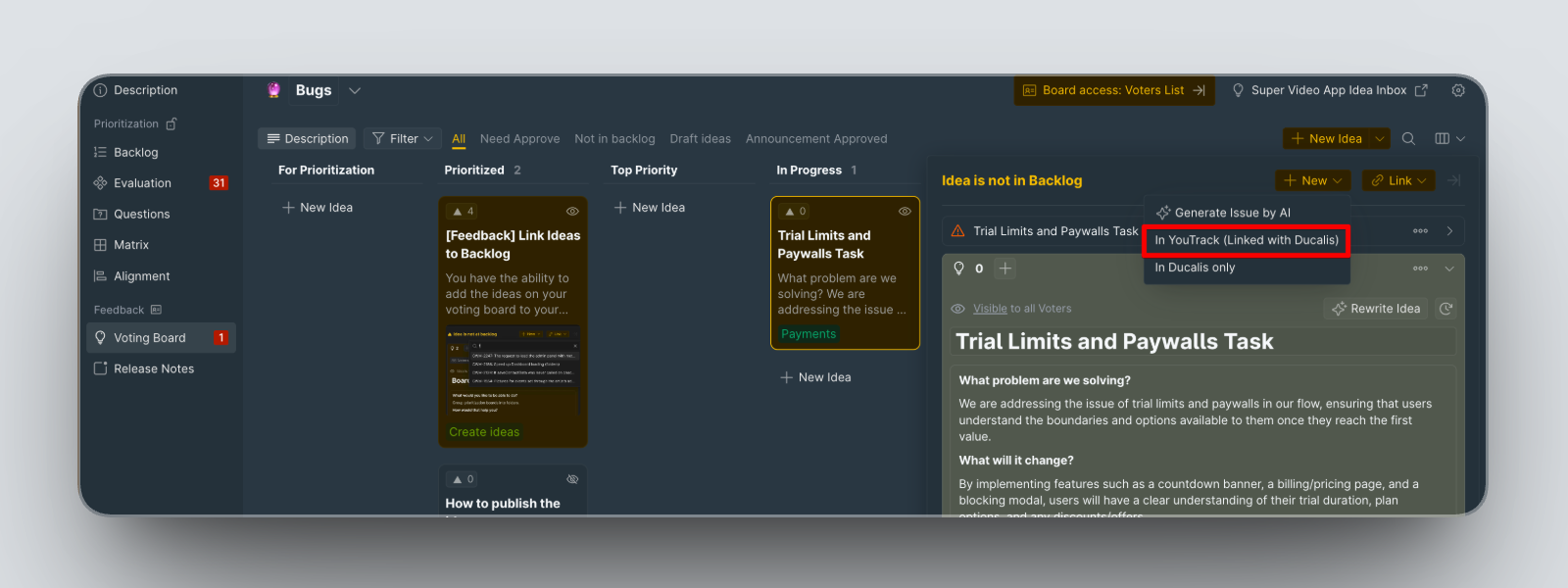
Click + New on the Idea card.
-
Select In YouTrack (Linked with Ducalis) from the dropdown.
-
Choose the YouTrack project from the dropdown.
Available projects are those you selected during integration setup.
-
Review or edit the Issue name and description.
-
Select an assignee from the dropdown.
infoOnly YouTrack users appear in the assignee list. Board Users not in YouTrack won't be available.
-
Click Create issue.
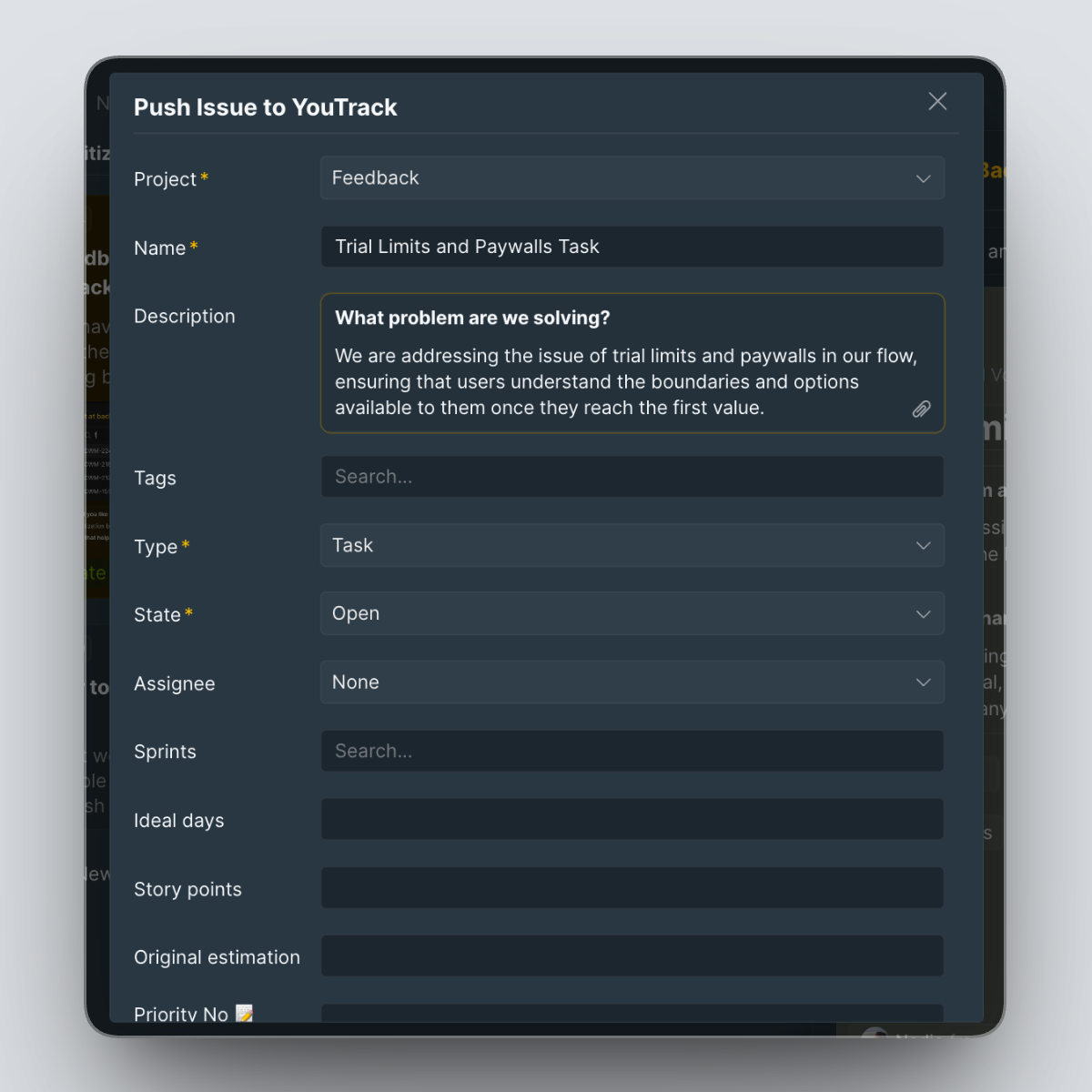
An Issue is created in both Ducalis and YouTrack, linked together.