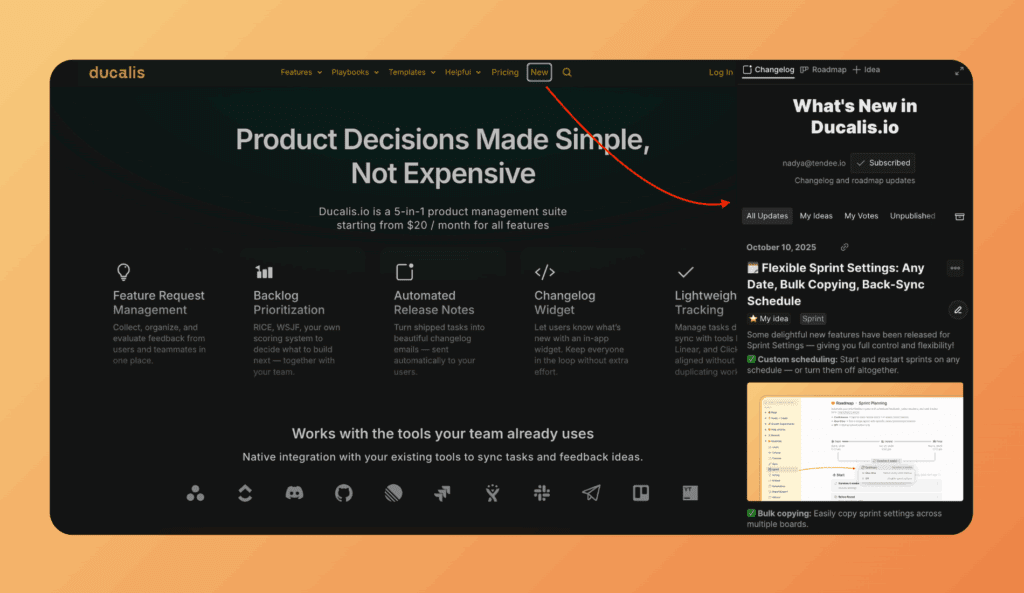
Create changelog
Announce product updates on a public changelog page where users can view all release updates in one place.
How the changelog works
When you move an Idea on the Voting Board to Done status (the final column), Ducalis automatically creates an Announcement. After you approve it, the Announcement appears on the public Changelog page.
Access the changelog
-
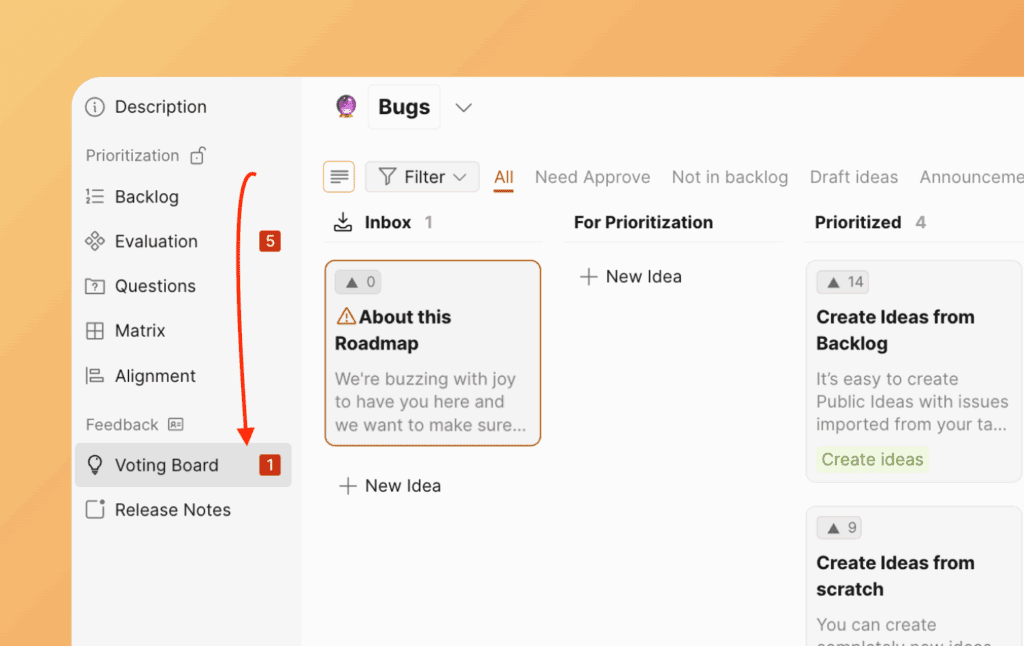
Go to Voting Board.
-
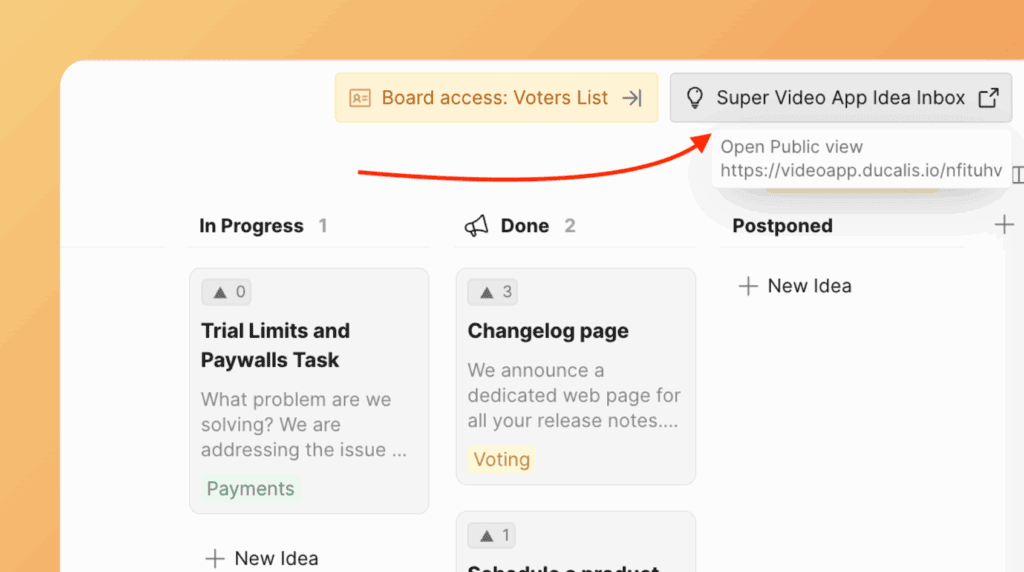
Open the Public View of the Voting Board.
-
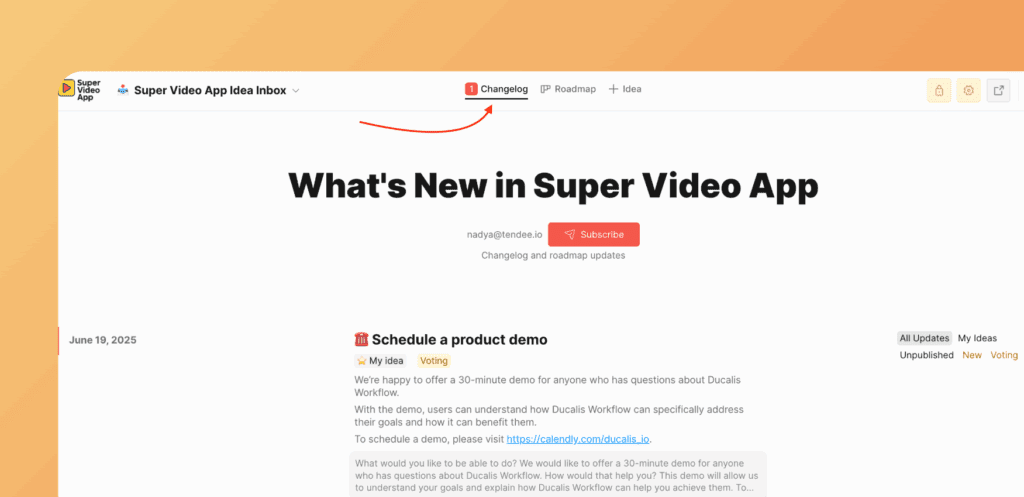
Click the Changelog tab.
Create an announcement
-
Create an Idea on the Voting Board.
-
Click the Announcement stripe on the Idea.
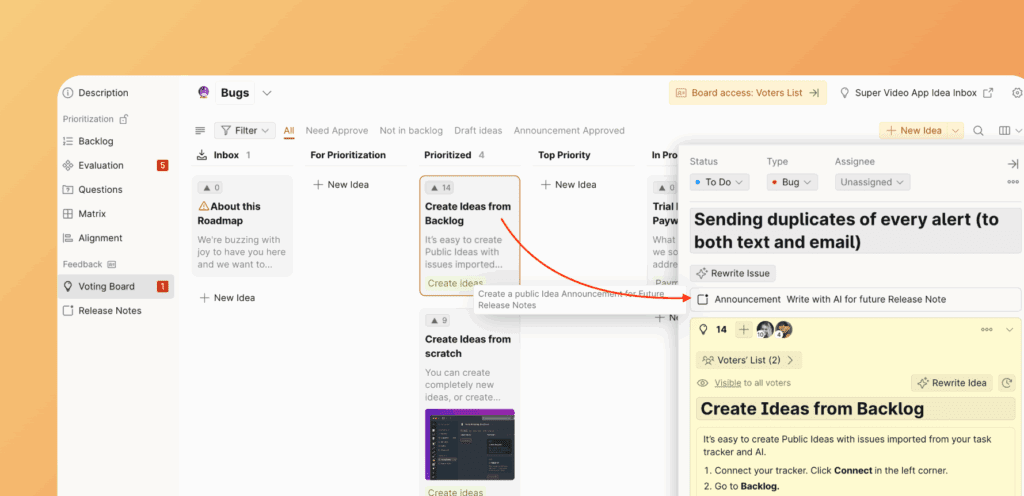
-
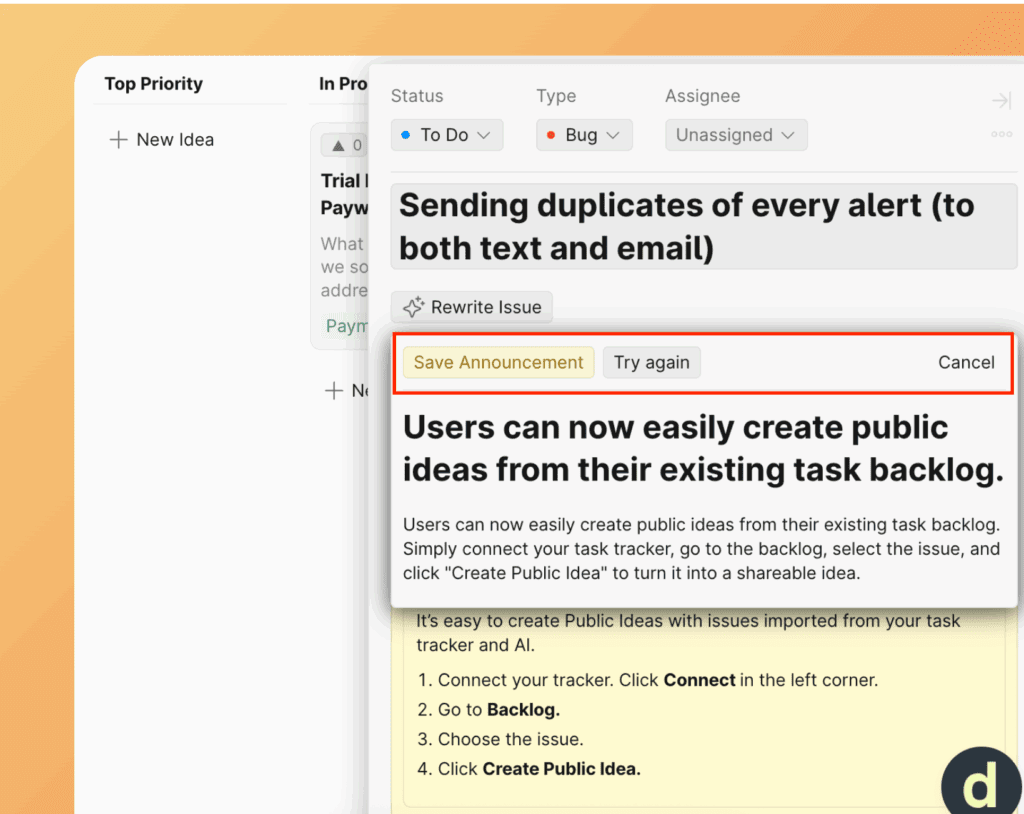
Choose the announcement option, then click Save Announcement.
-
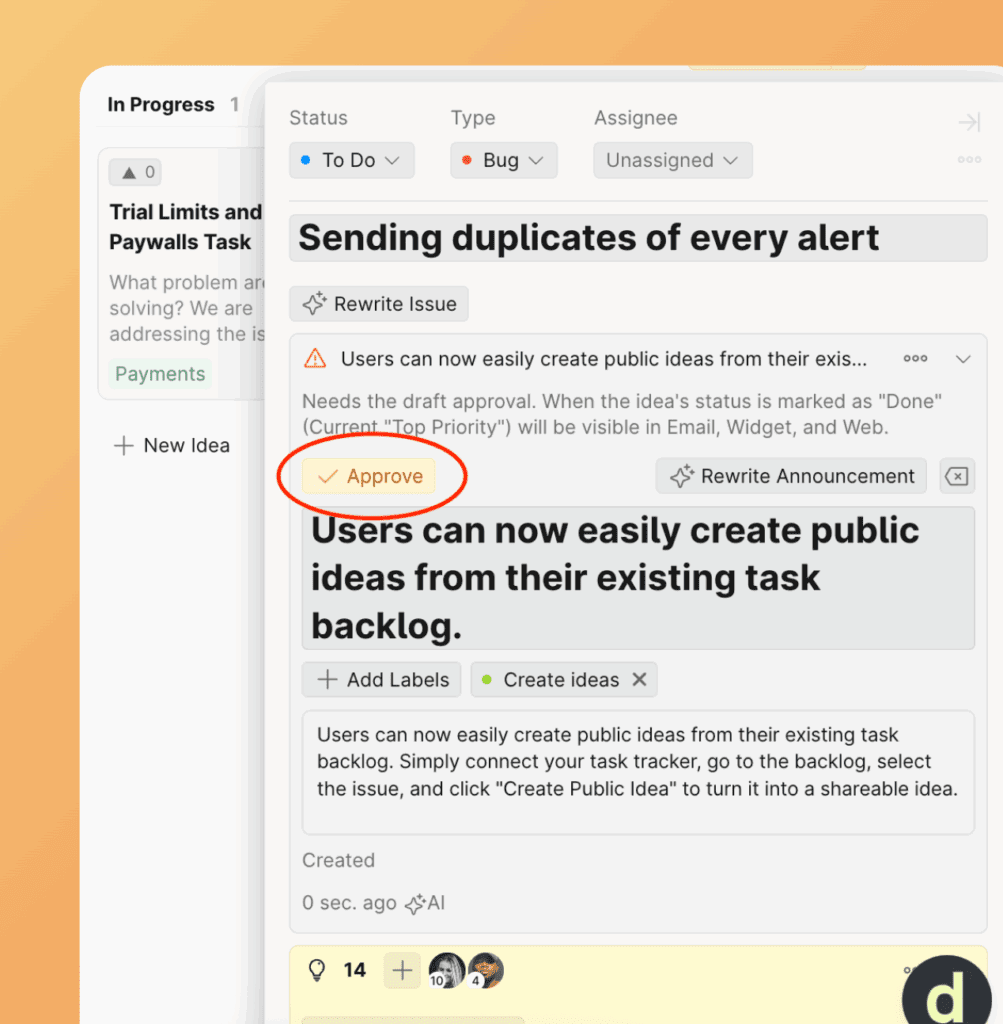
Click Approve to publish the announcement to the Changelog page.
-
Move the Idea to the Done status (the final column).
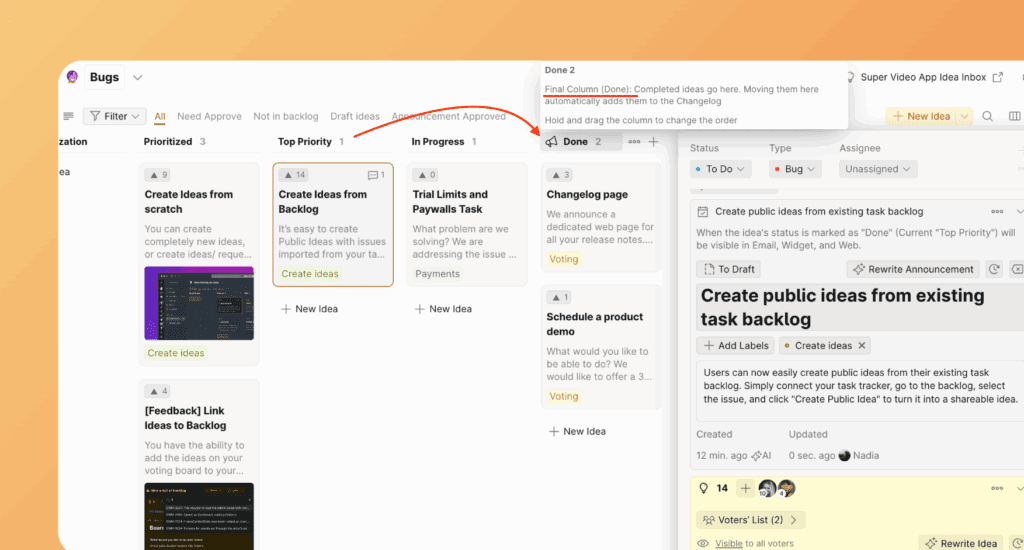
The Announcement now appears on the Changelog page.
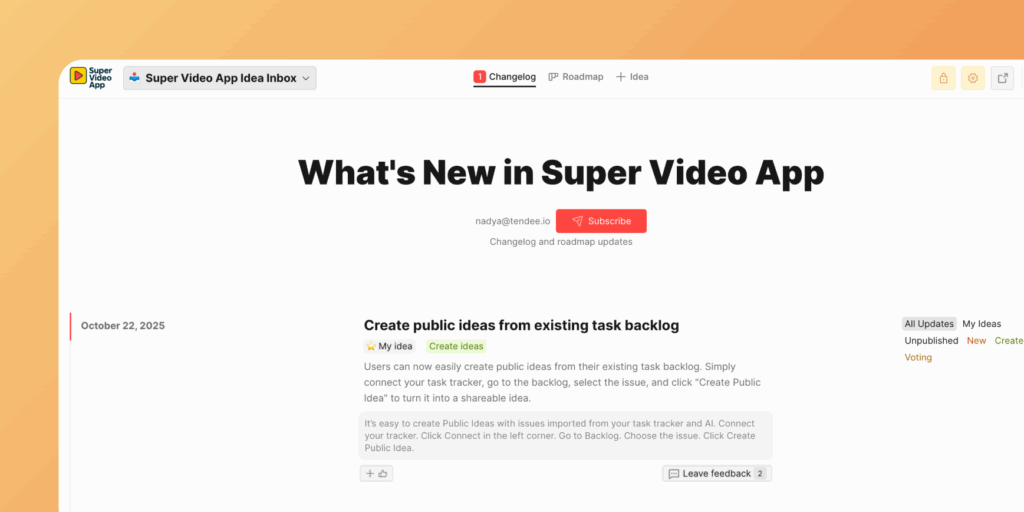
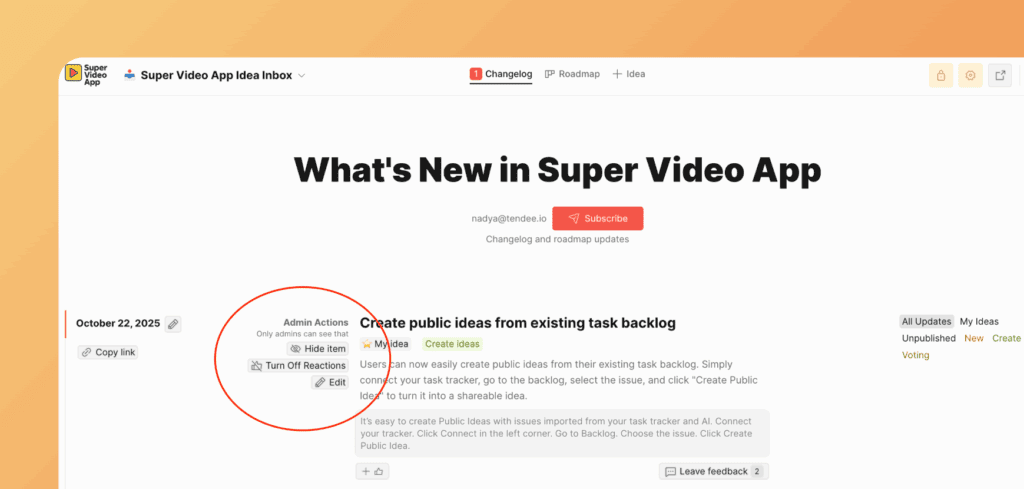
Edit announcements
Edit announcement posts directly from the Changelog page. As an Admin, you have access to the editor.
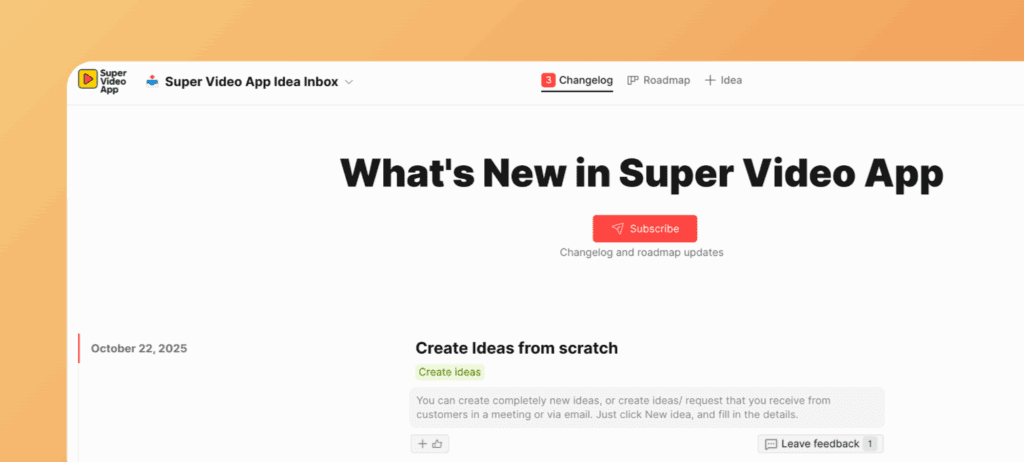
Changelog without announcements
If you don't create and approve an Announcement, the Idea you created will still appear on the Changelog page without custom announcement content.
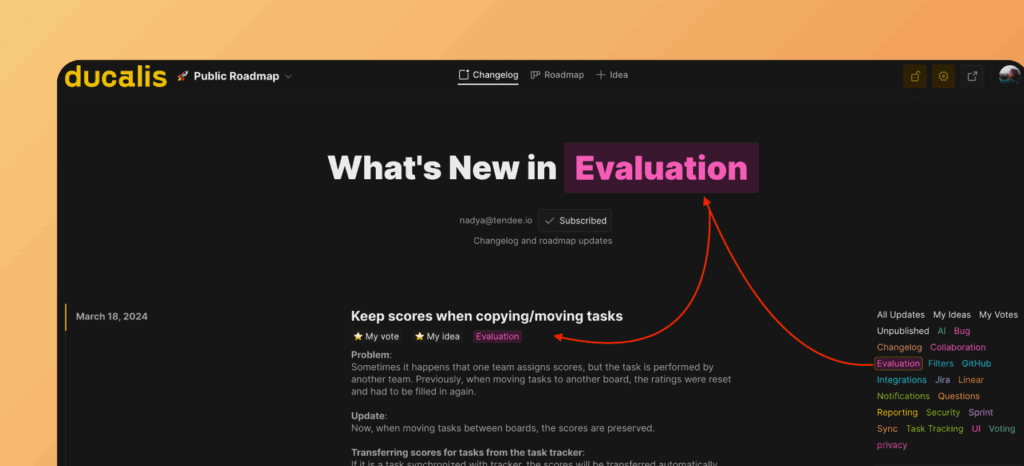
Use labels for filtering
Use labels to categorize changelog entries and make them filterable.
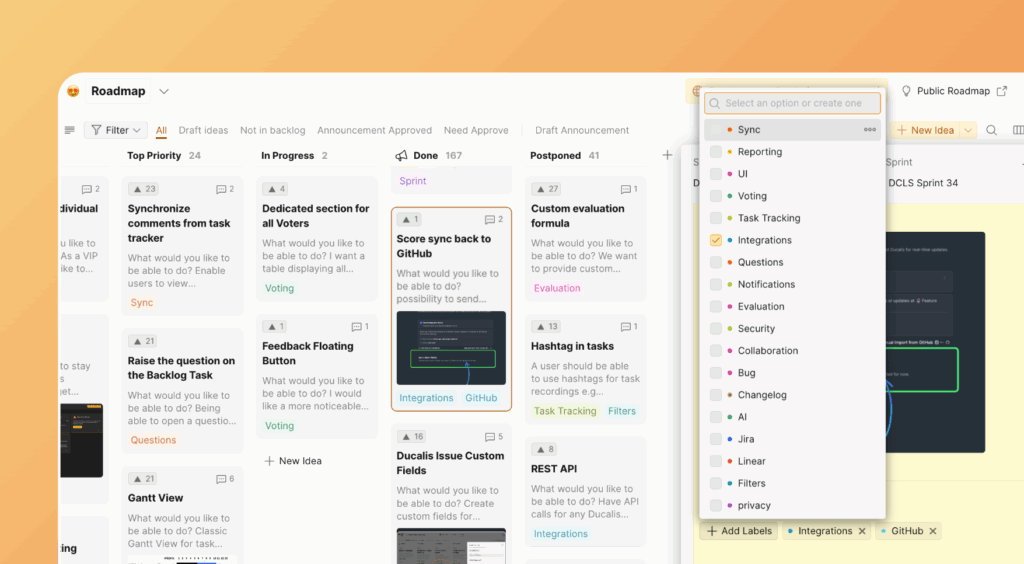
Users can filter the changelog page by label.
Embed the changelog
Embed the changelog directly in your product, just like Ducalis:
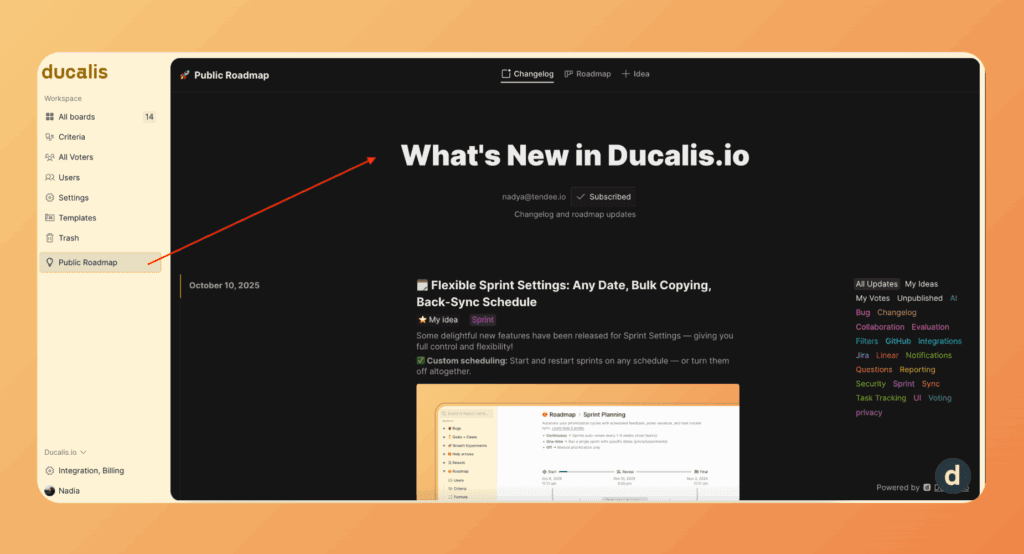
Or embed a widget with your changelog: