Create Ideas
An Idea is a suggestion or bug submitted to Ducalis for your team to consider. Voters can vote and comment on Ideas, and receive email updates when the Idea status changes.
You can create Ideas in several ways:
Create Ideas from Backlog
Create public versions of the Issues you already have in your internal Backlog.
-
Import Issues from your task tracker. Connect Asana, ClickUp, Linear, Trello, YouTrack, GitHub, Jira Cloud, or Jira Server.
Or create Issues manually on the Backlog page.
-
Go to Backlog, choose the Issue, and click Create Public Idea with AI.
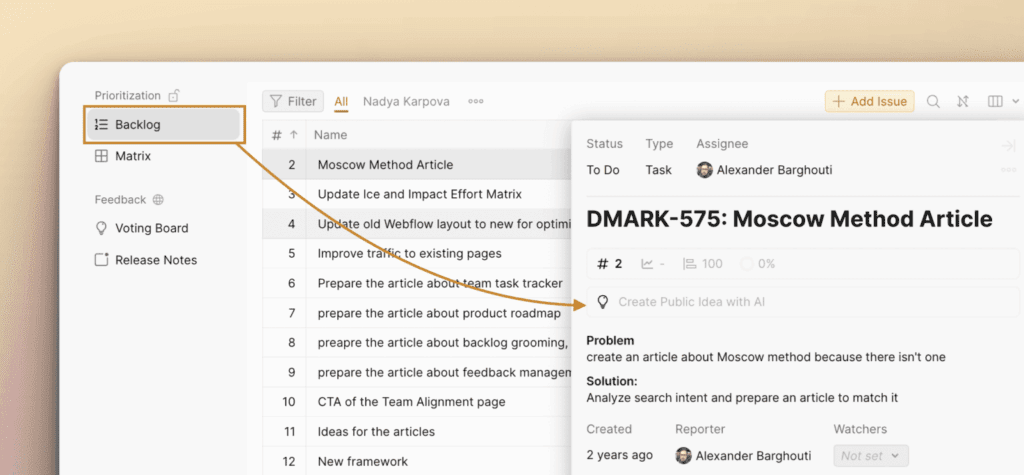
-
The Idea title and description will start generating using your public Ideas template.

-
Click Stop writing if you don't need to continue.
-
Click Rewrite Idea if you don't like the previous AI description. A new description will be generated.
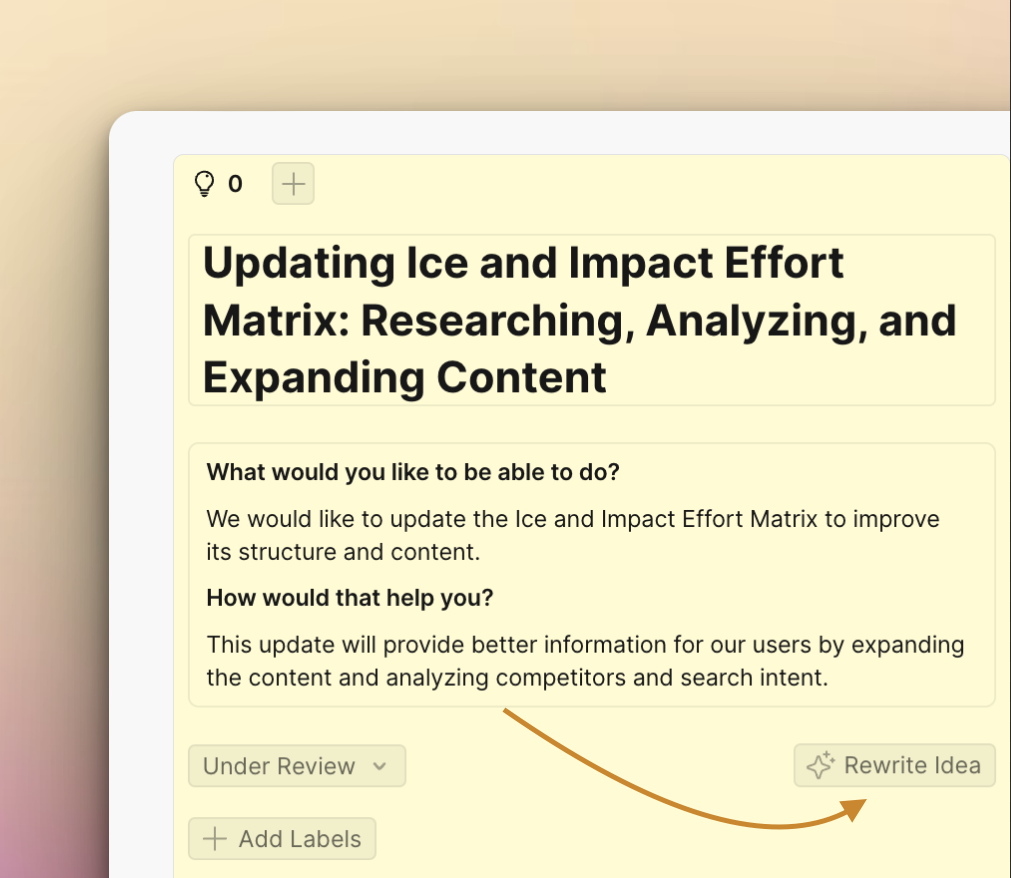
Choose AI language
Choose the language for AI-generated Idea descriptions:
- Default language – The default language for all Voting Boards
- Board language – The language for the current Voting Board
Go to Voting Board Settings > Appearance > Language.
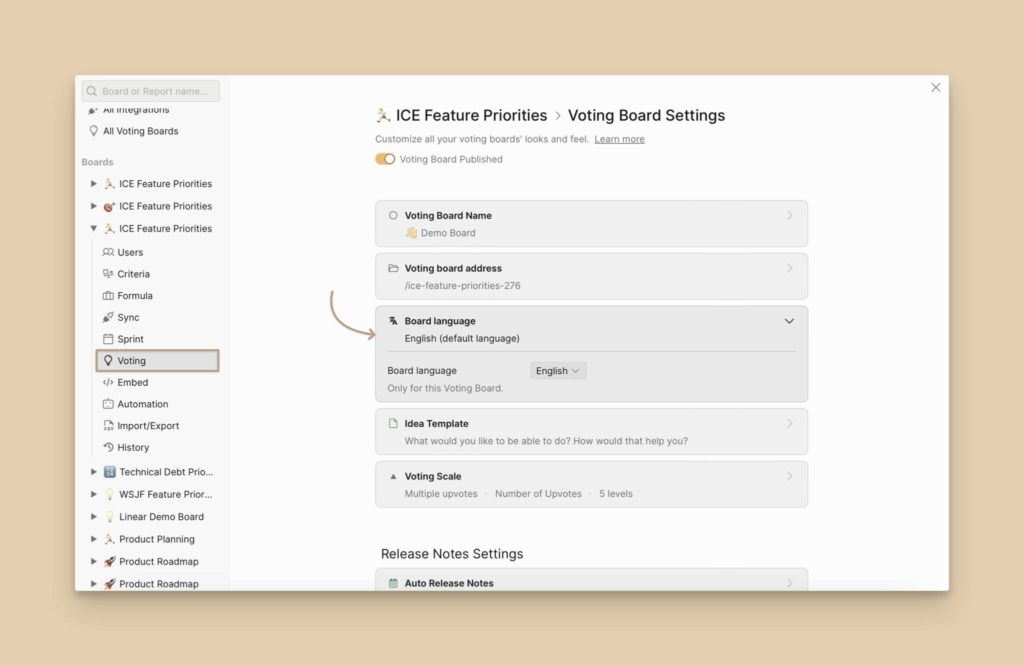
Publish the Idea
After you're done filling in the details, click Publish. The Idea will be made public. Anyone who visits and has access to the Voting Board will see it.
Manually create an Idea within Ducalis
Create an Idea from the Voting Board tab using the + New Idea button at the top right of the page.
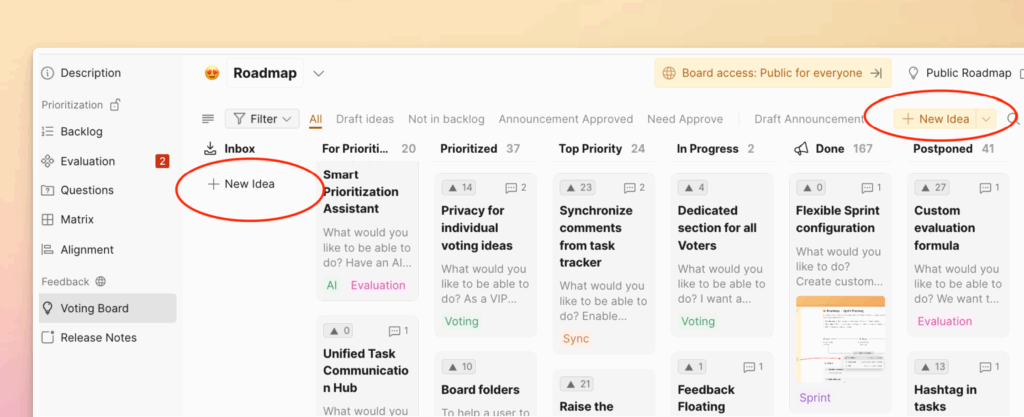
You can also create Ideas or add votes on behalf of someone else.
From your Ducalis page (e.g. yourcompany.Ducalis.io)
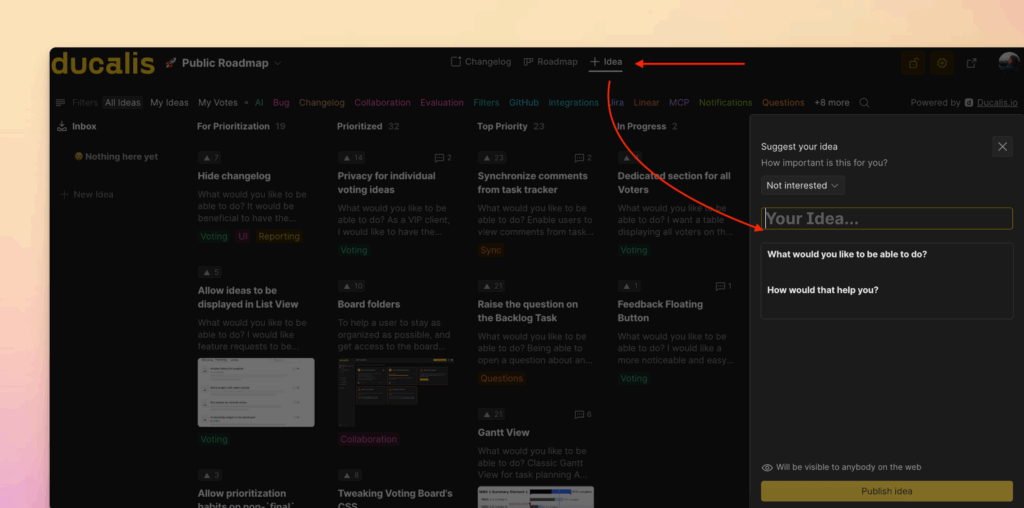
This is where end-users will primarily submit feedback. Anyone with access to a Board can create a new Idea post.
Import Ideas via CSV
Ducalis lets you import a spreadsheet with the data for multiple Ideas at a time. This is especially useful for teams who are just getting Ducalis set up.
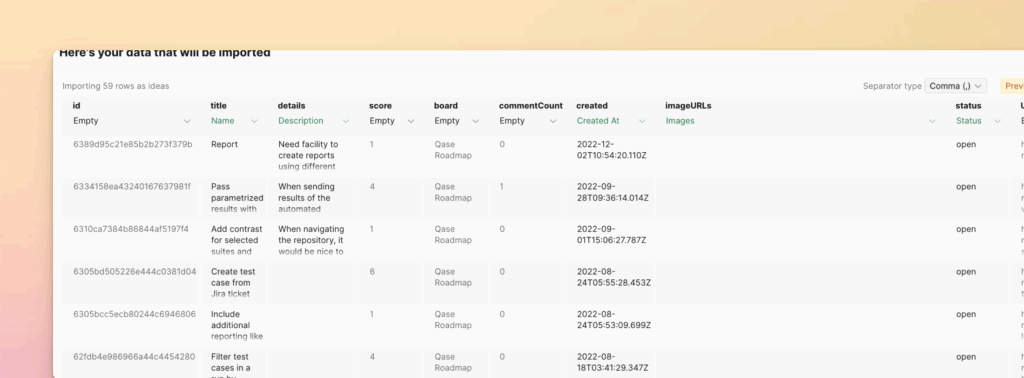
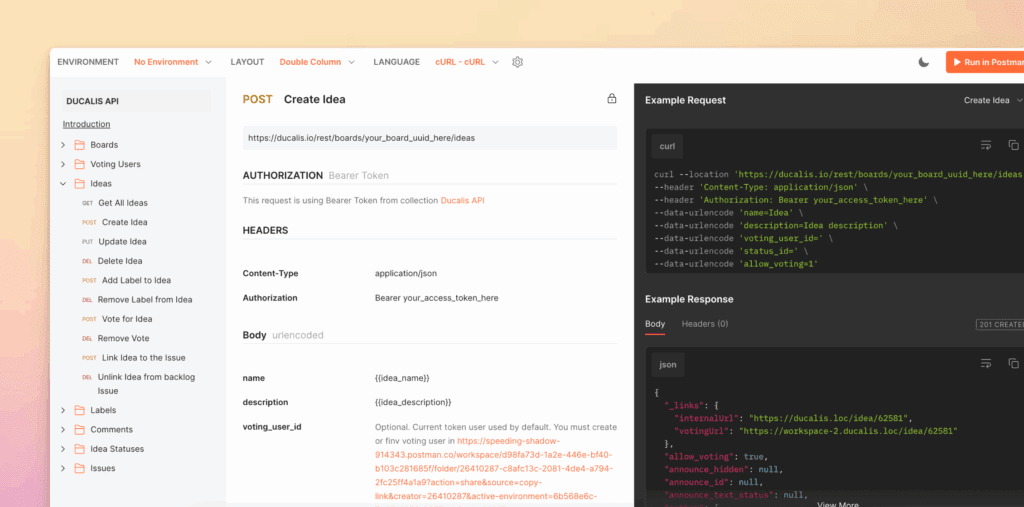
Via the Ducalis API
Ducalis's powerful API lets you supercharge your experience.
Import feedback from Canny
If you have existing feedback in Canny and want to import it into your Ducalis account, follow step-by-step instructions on how to import your data from Canny with your Canny API key.
From an integration (e.g. Telegram, Slack, Discord)
Transform customer requests and feedback received via external sources into actionable Ideas.
- 📧 Create Ideas from Email
- ↗️ Create Ideas from Telegram
- 👾 Create Ideas from Discord
- 📥 Create Ideas from Slack