Connect
Connect ClickUp to Ducalis to import tasks for prioritization. Once connected, you can filter which tasks sync automatically and keep your board updated in real time.
Connect ClickUp
-
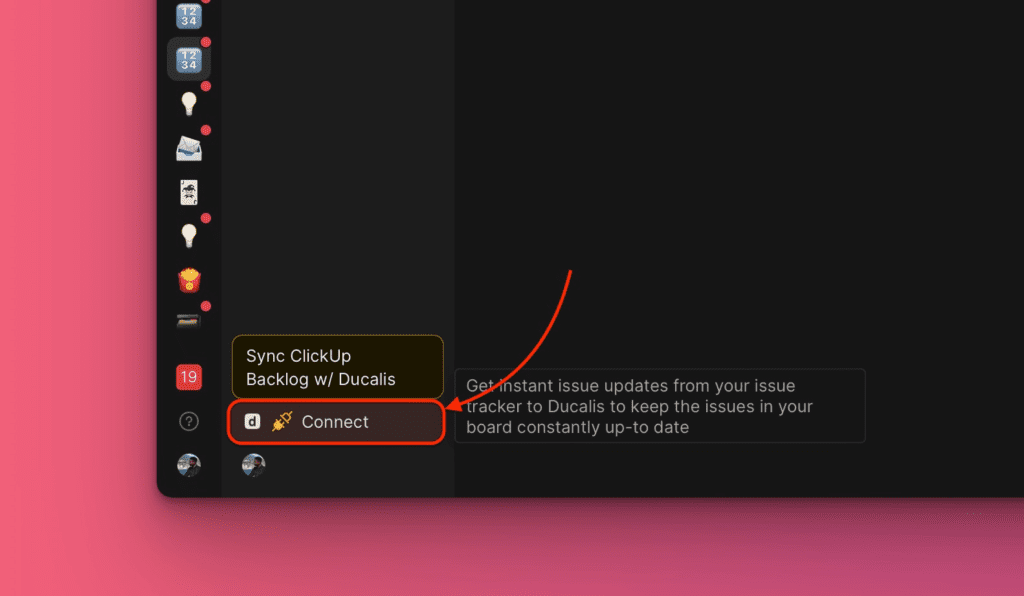
Click Connect in the bottom left corner to open Sync settings.
-
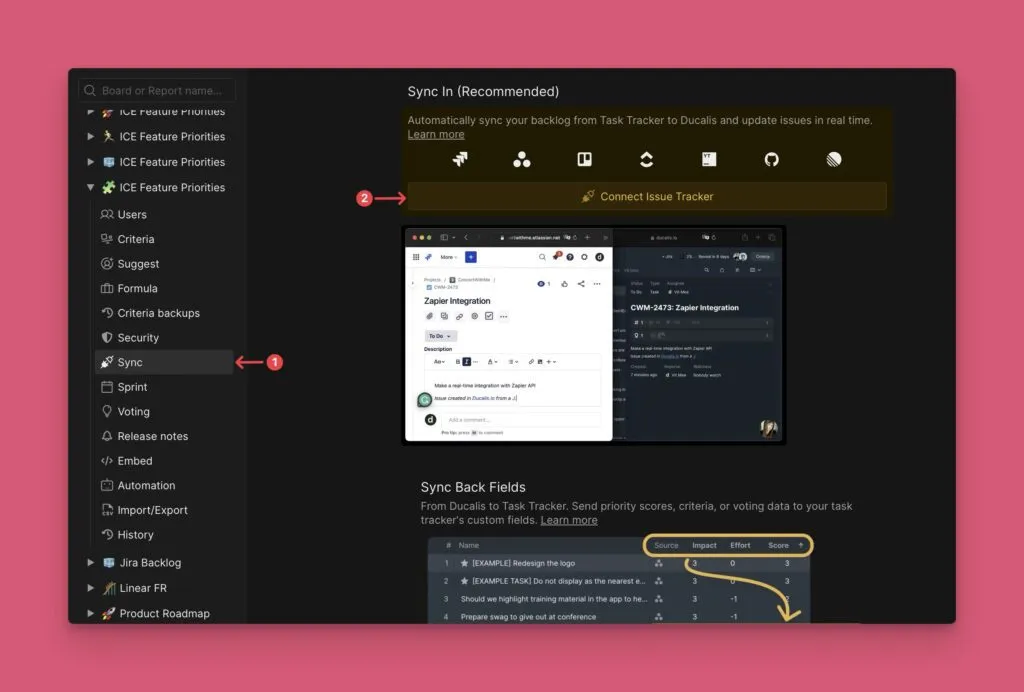
Under Sync settings, go to Sync and click Connect Issue Tracker.
-
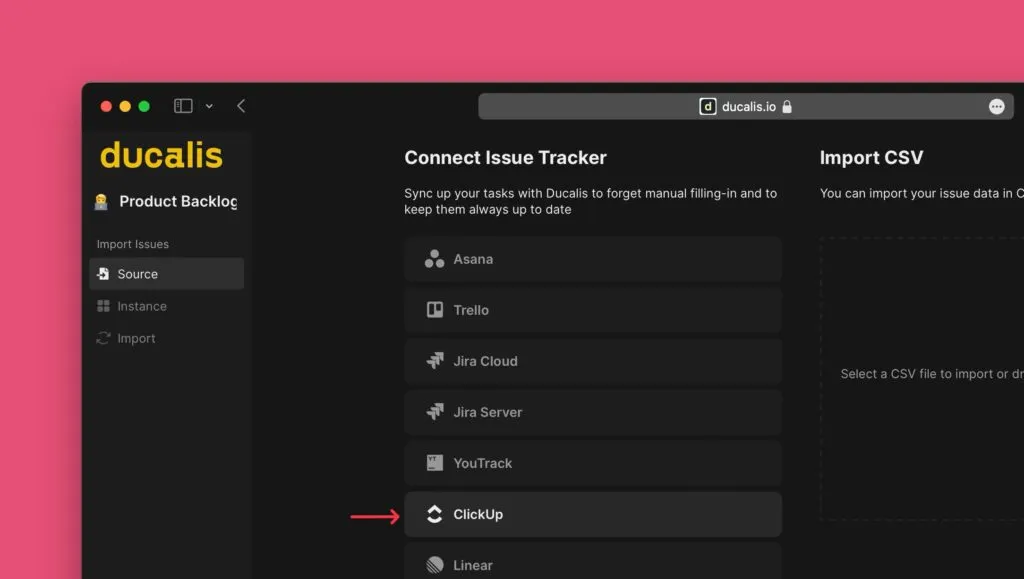
Under Source, select ClickUp from the list of task trackers.
-
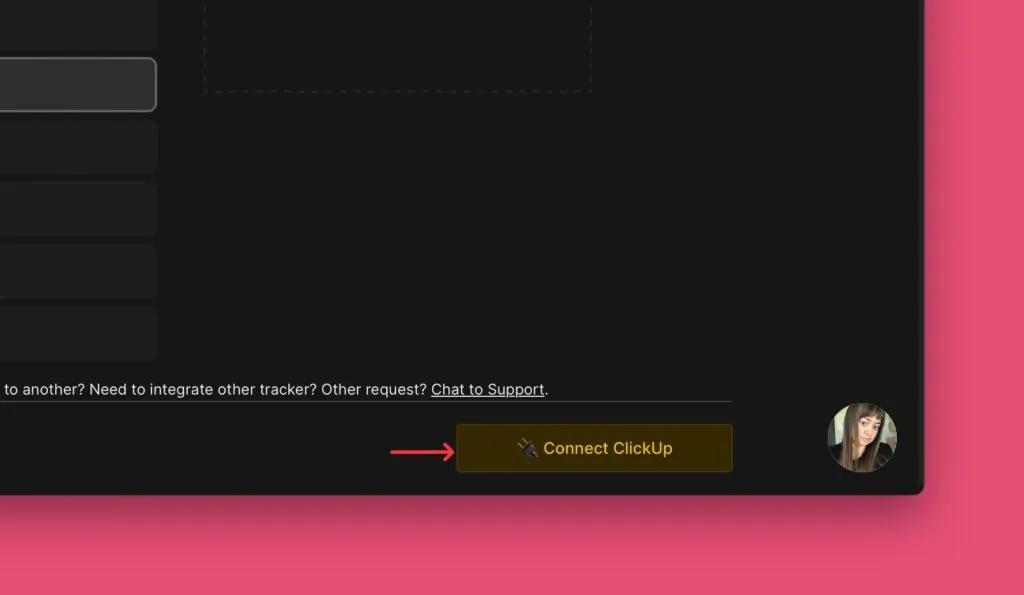
Click Connect ClickUp in the bottom right corner.
-
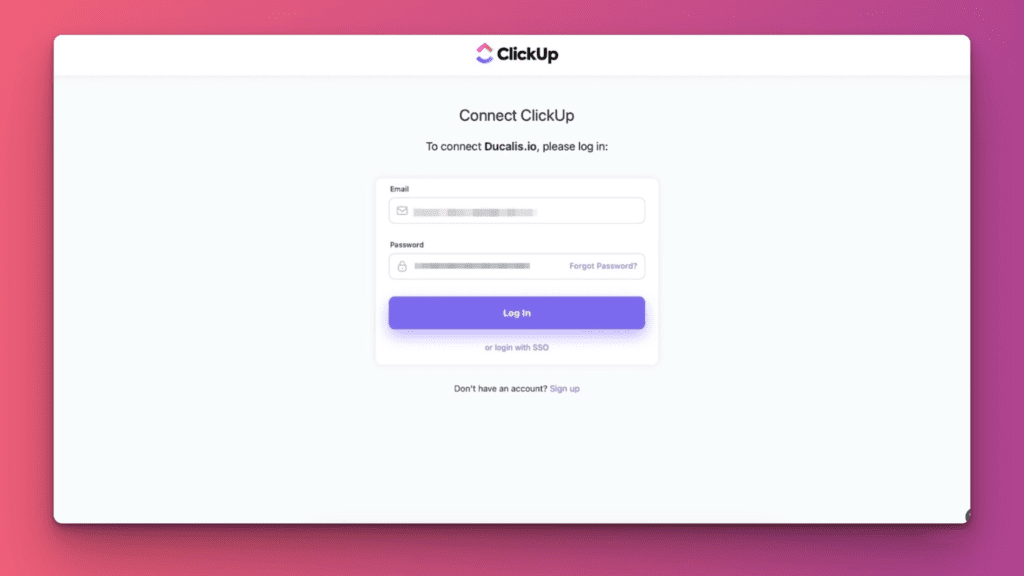
Log in to your ClickUp account when redirected for authorization.
-
Select the workspace to import issues from and click Connect Workspace.
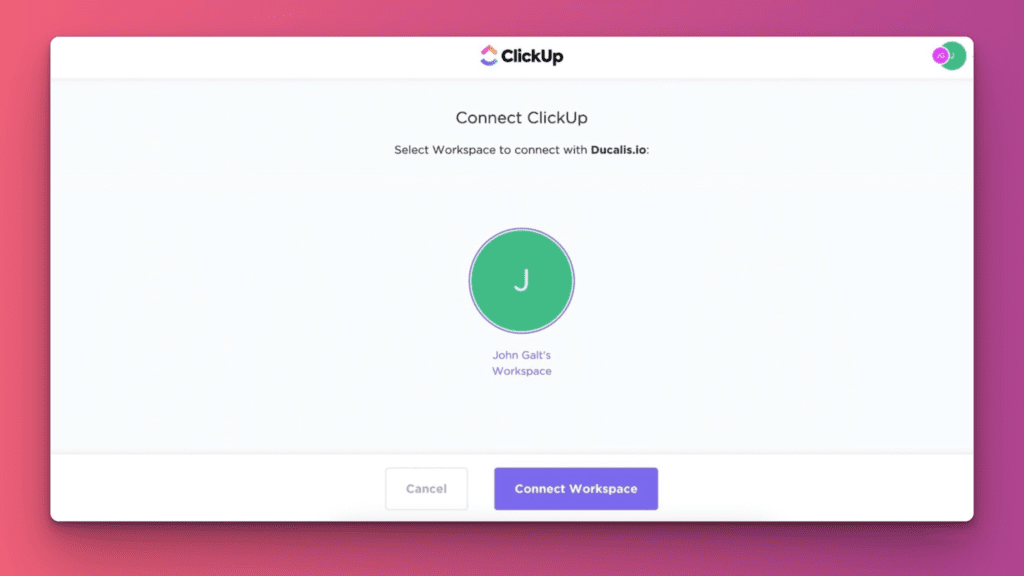
You're now ready to import issues.
Import issues
-
Under Instance, select the workspace you connected.
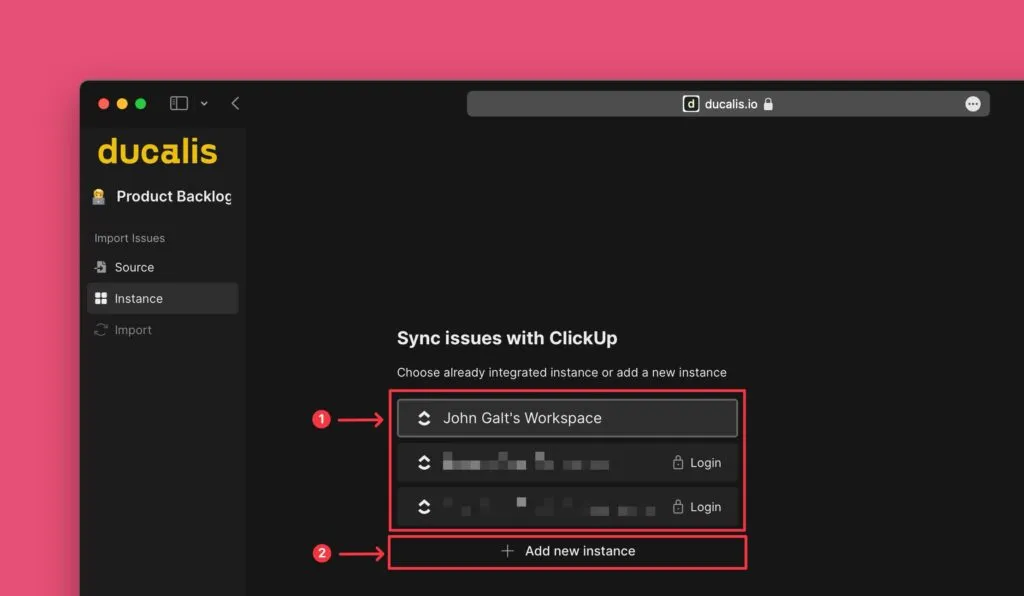
To add another workspace, click Add new instance.
-
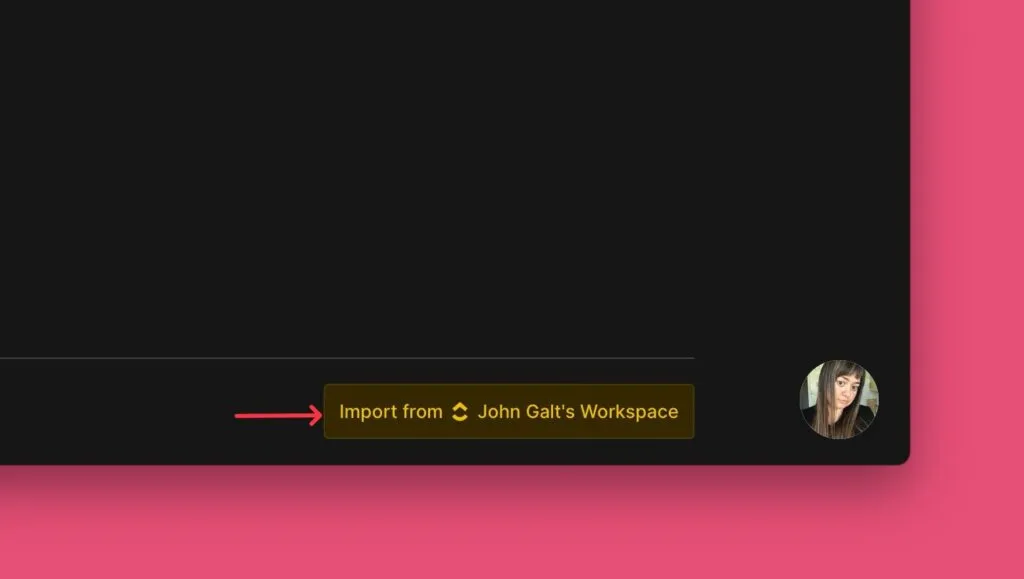
Click Import from [Workspace].
-
Apply filters to choose which issues to import for prioritization.
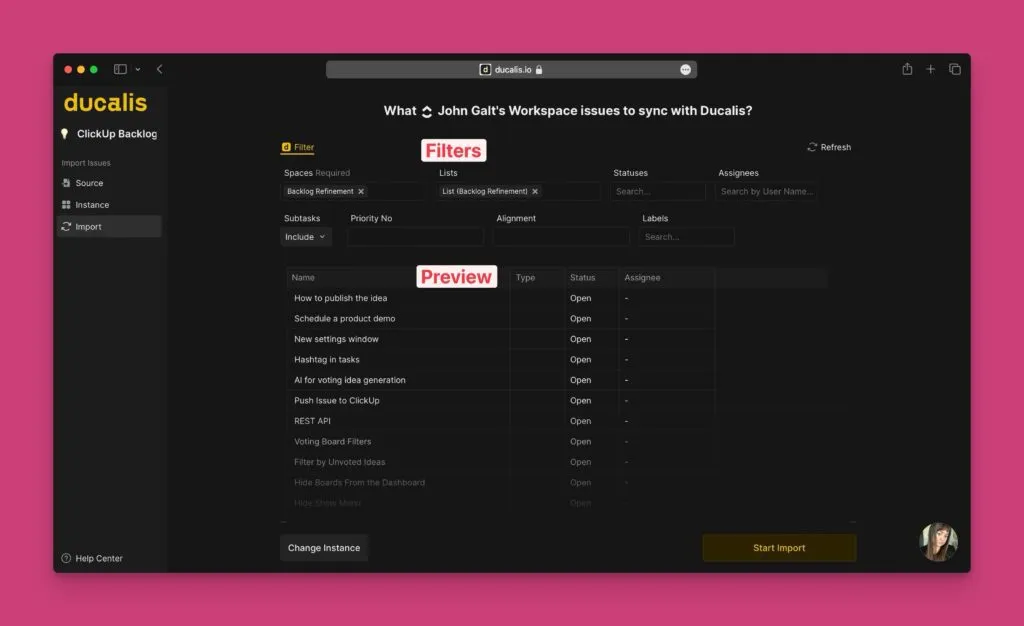
Review the preview to verify the filtered issues match your expectations.
-
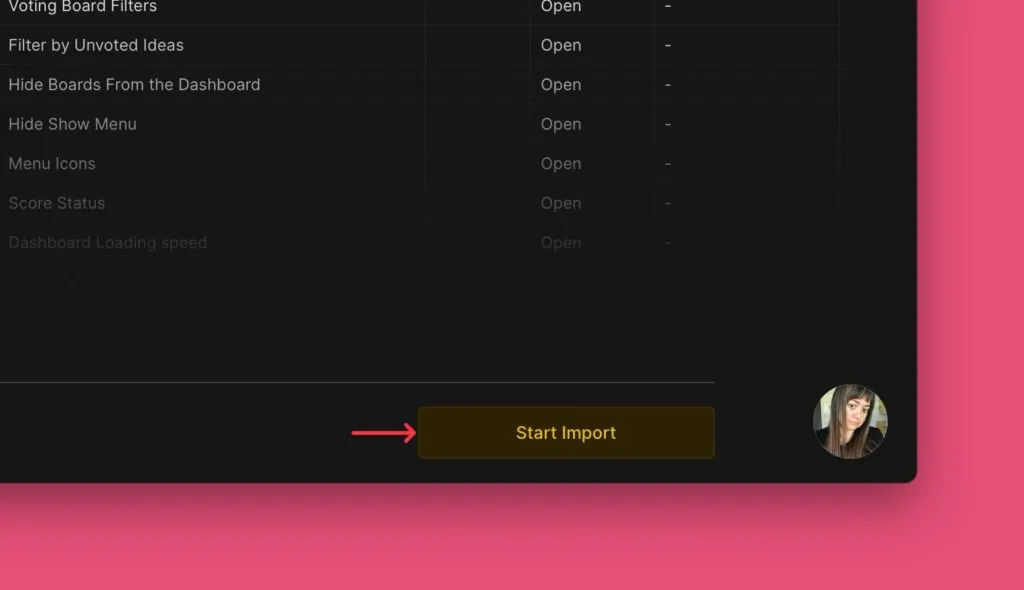
Click Start Import.
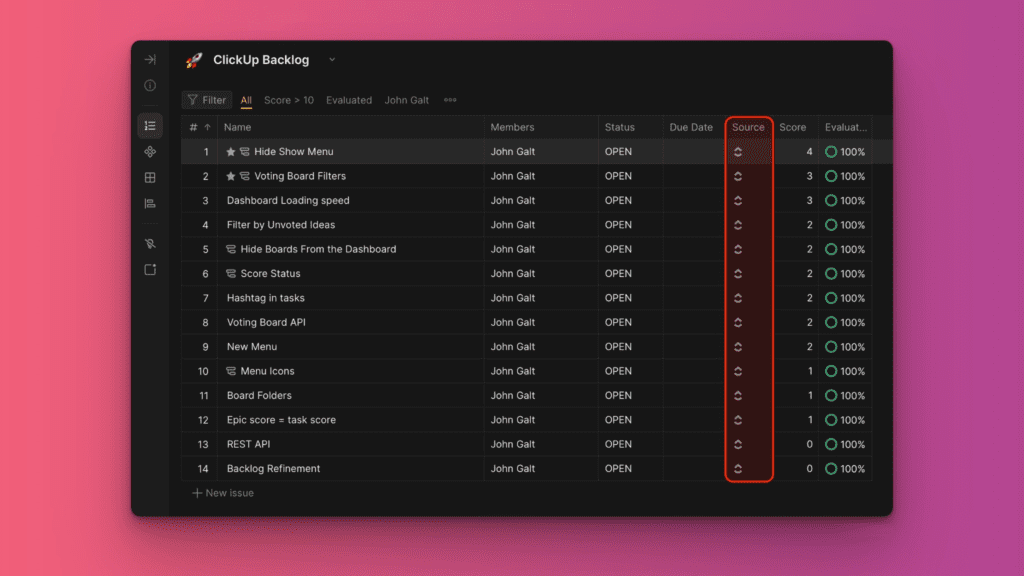
Imported issues appear on your board with a ClickUp icon. Any new ClickUp tasks matching your filters will automatically sync to your board in real time.
Edit import filters
Change filters to add or remove issues from your board.
-
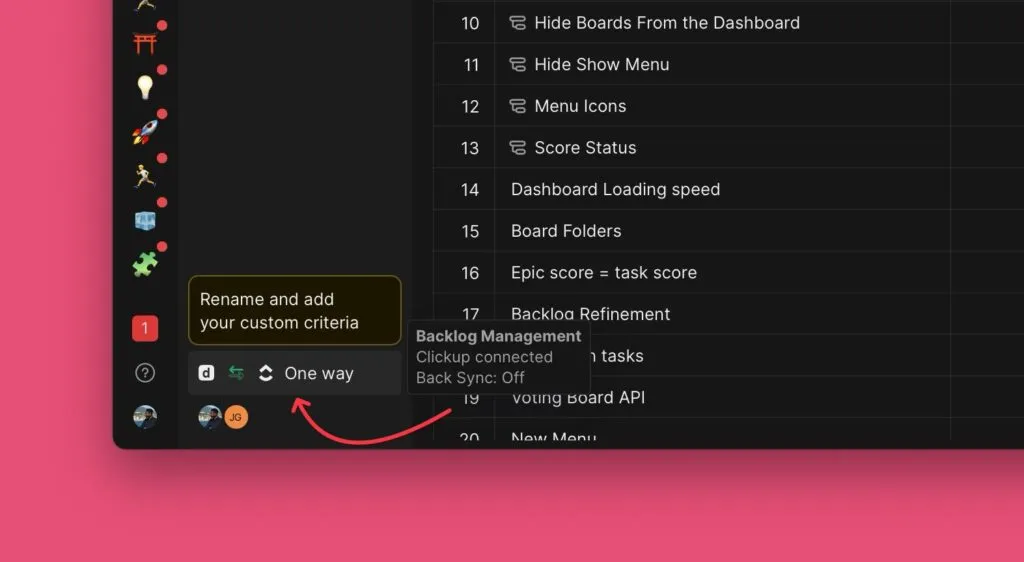
Click the sync icon in the bottom left corner.
-
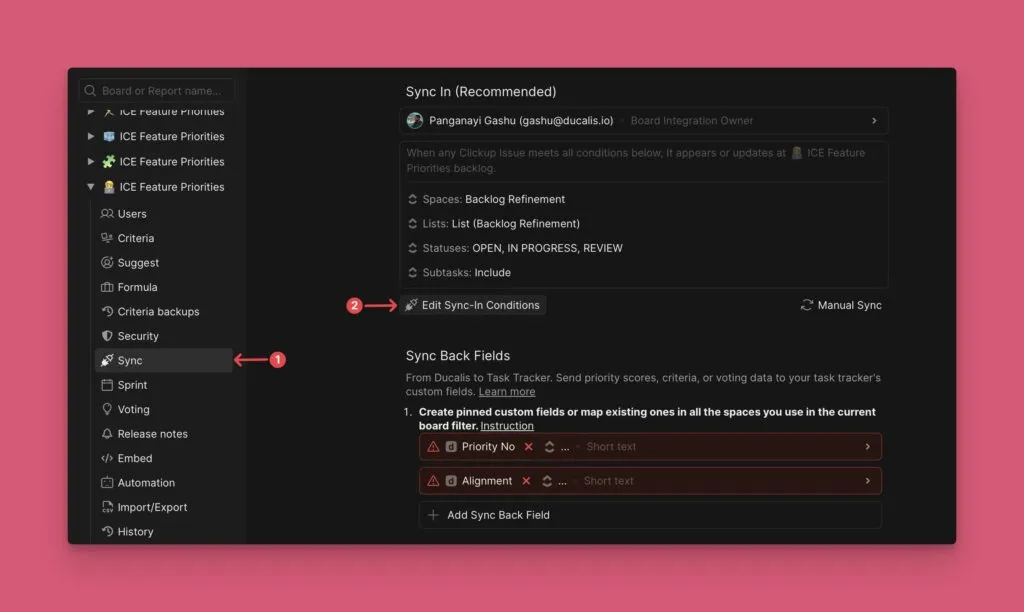
Click Edit Sync-In Conditions.
-
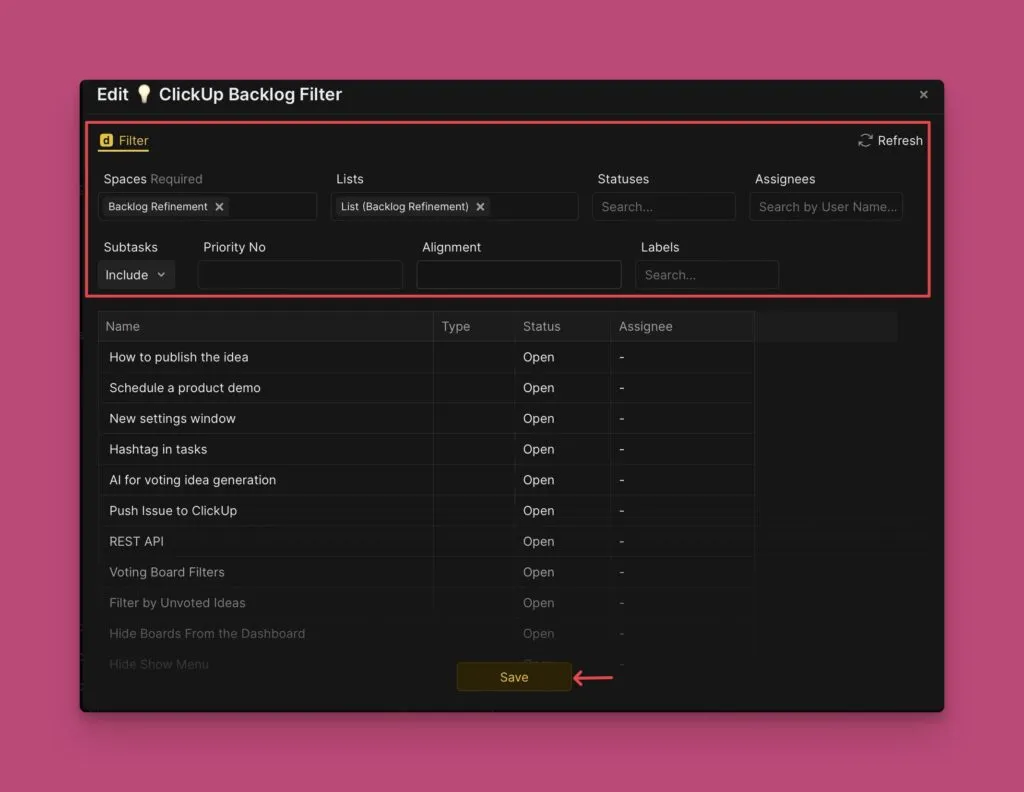
Add or remove filters.
-
Click Save.
Your board updates to reflect the new filter criteria.
Remove the integration
See Removing a task tracker integration for instructions on disconnecting ClickUp.
What's next
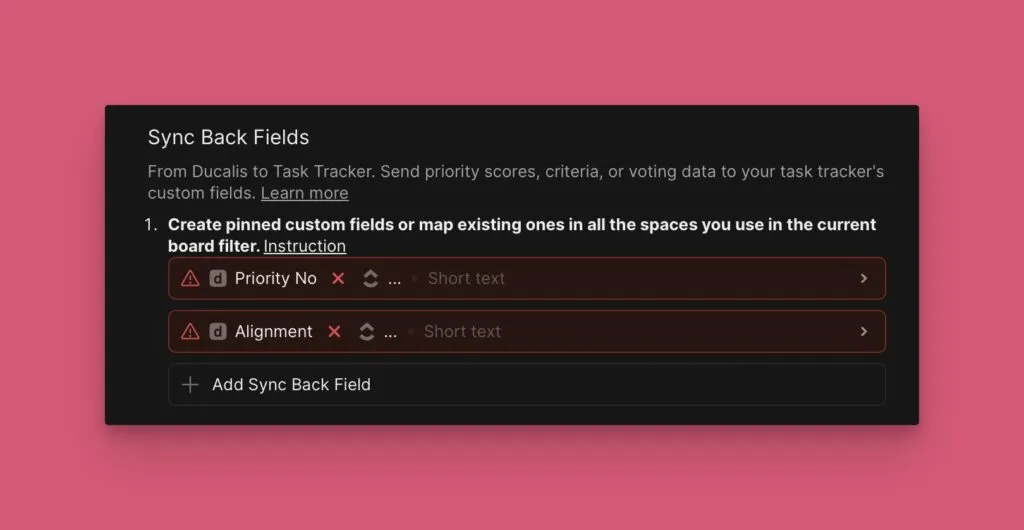
Enable Sync Back to push your prioritization results back to ClickUp. Learn more about Sync Back with ClickUp.