Connect
Connect Linear to Ducalis to import projects, initiatives, or issues for prioritization. Once connected, data syncs continuously between both systems.
Connect Linear
-
In your Board, go to Sync settings.
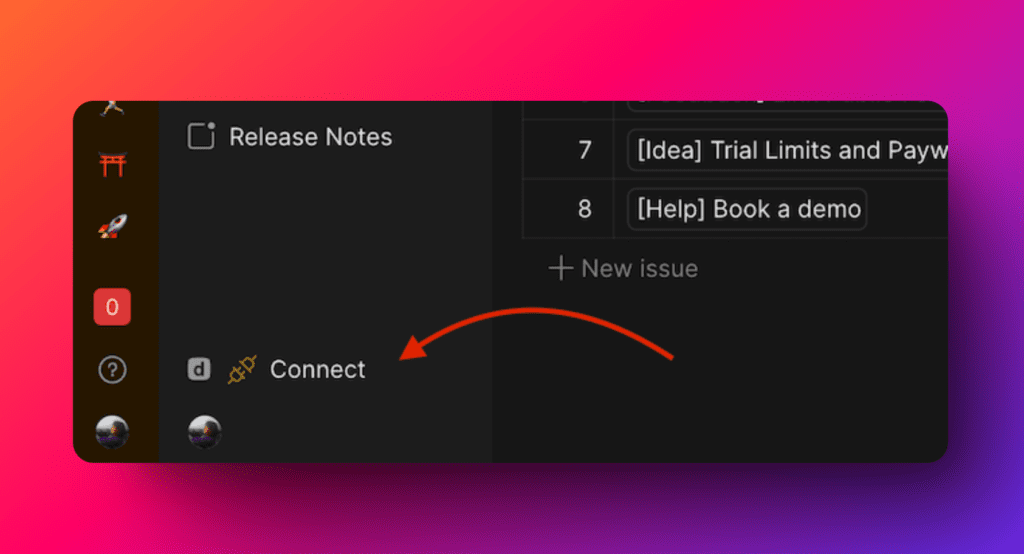
-
Scroll down to Sync In and click Connect Issue Tracker.
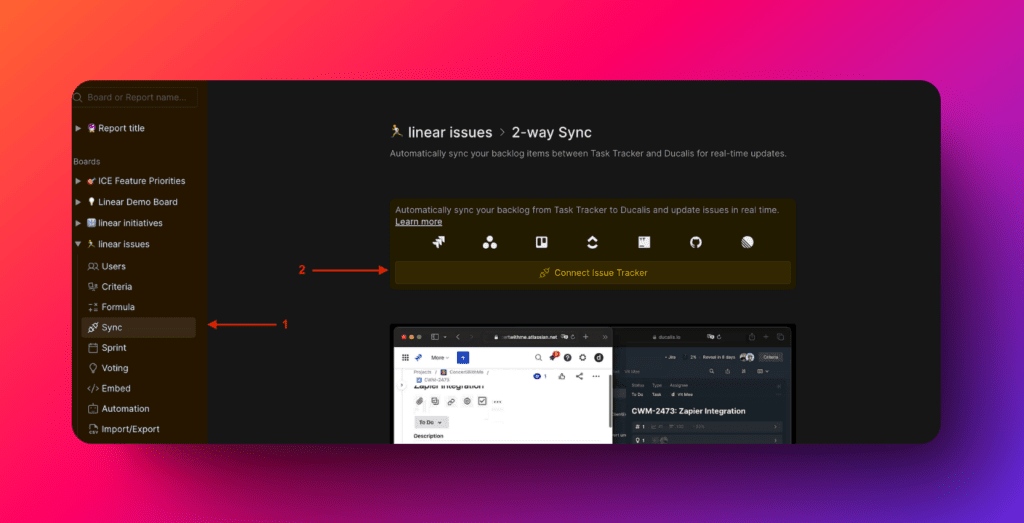
-
Under Source, select Linear, then click Connect Linear.
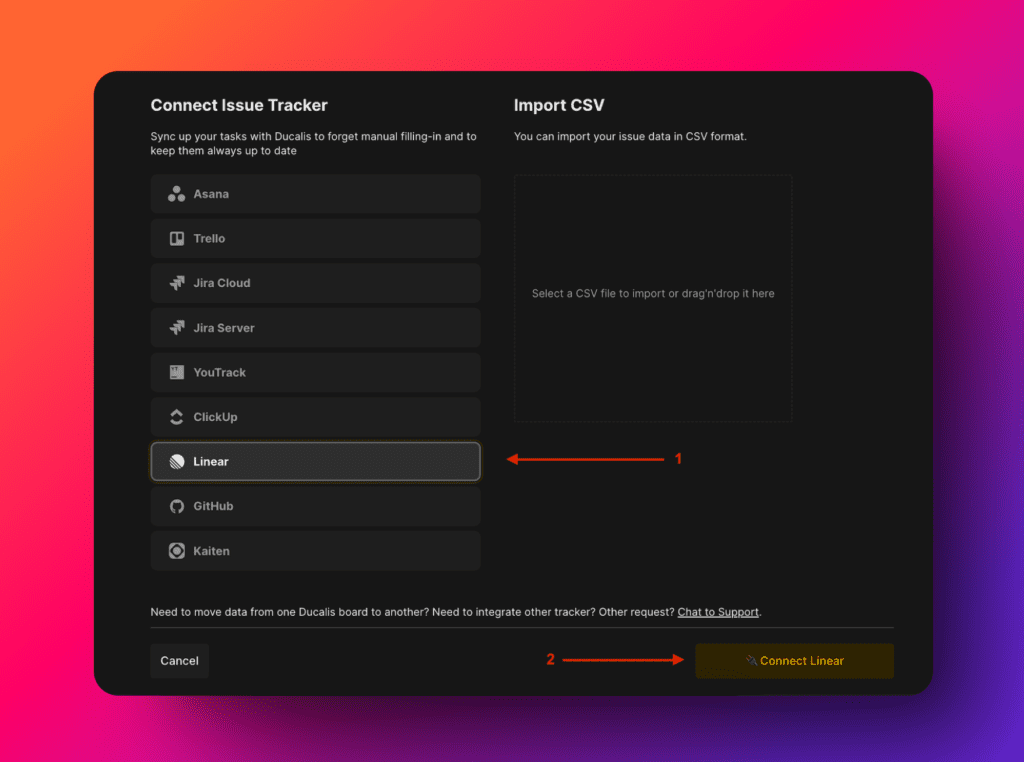
-
Choose your Linear instance and click Import.
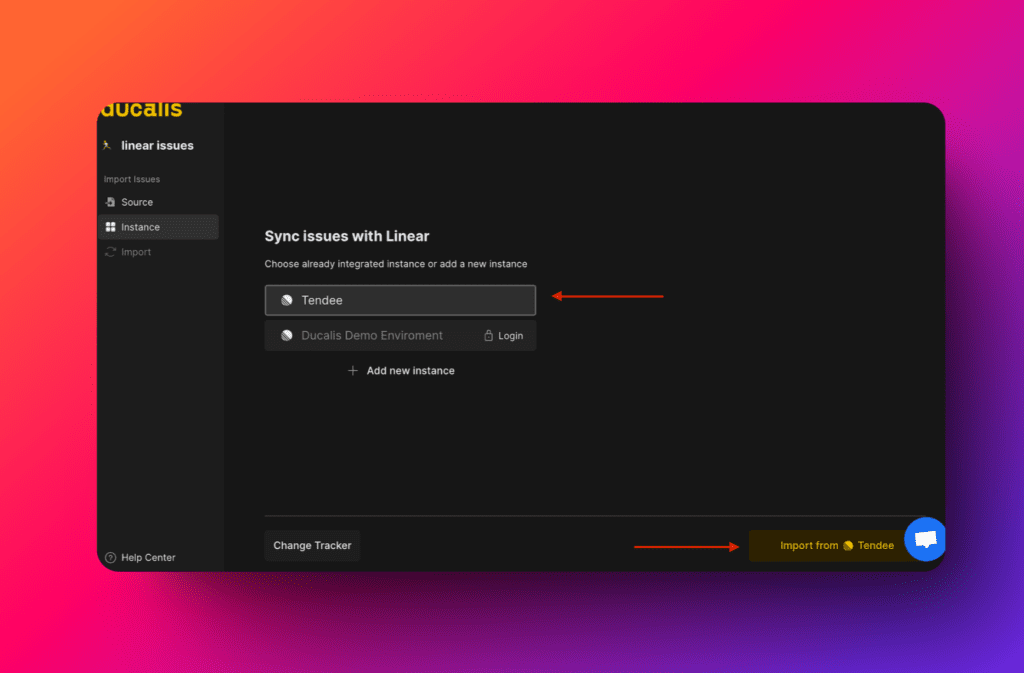
-
Authorize Ducalis to access your Linear account.
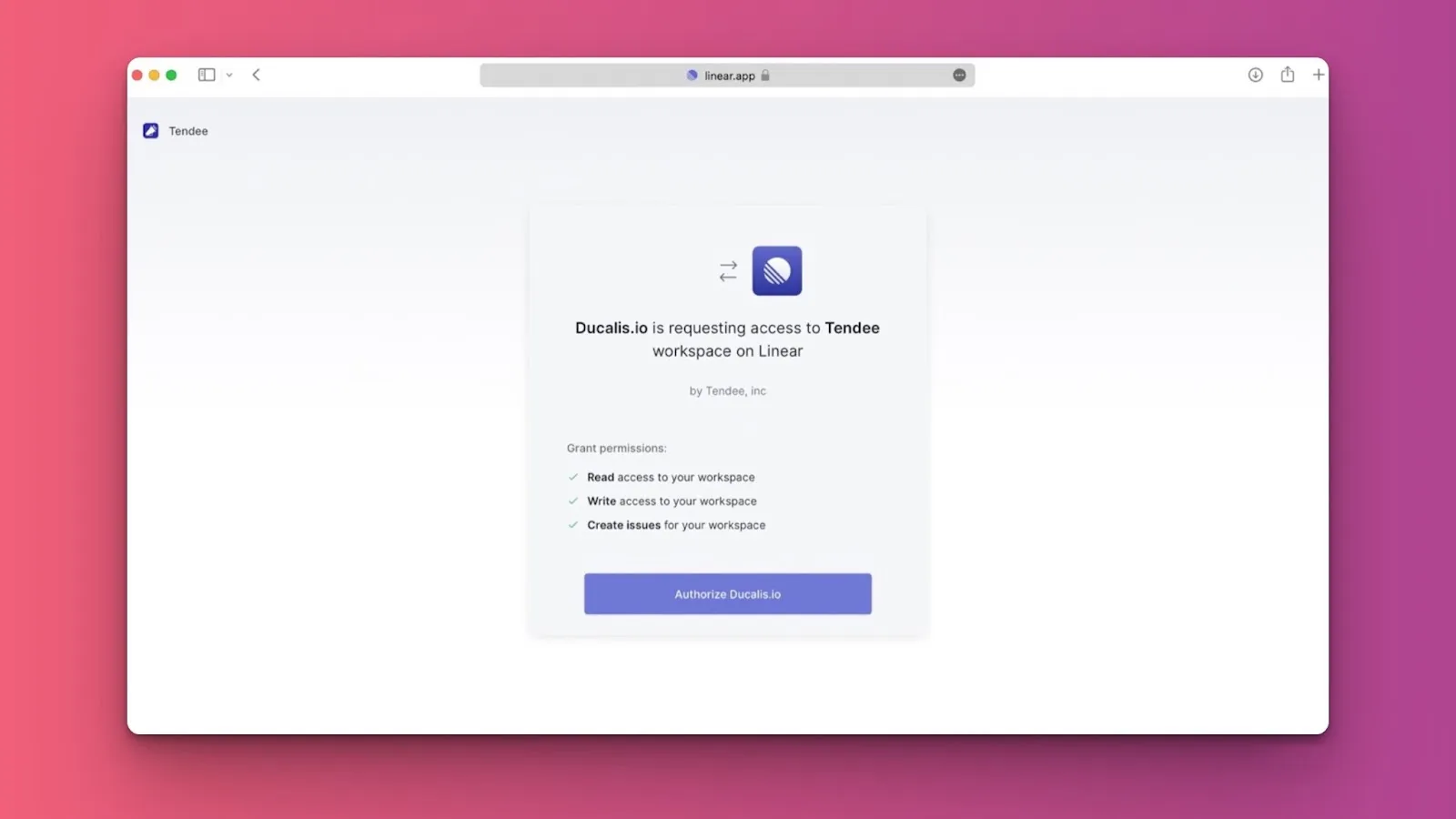
After connecting, import projects, initiatives, or issues from Linear.
Import projects
-
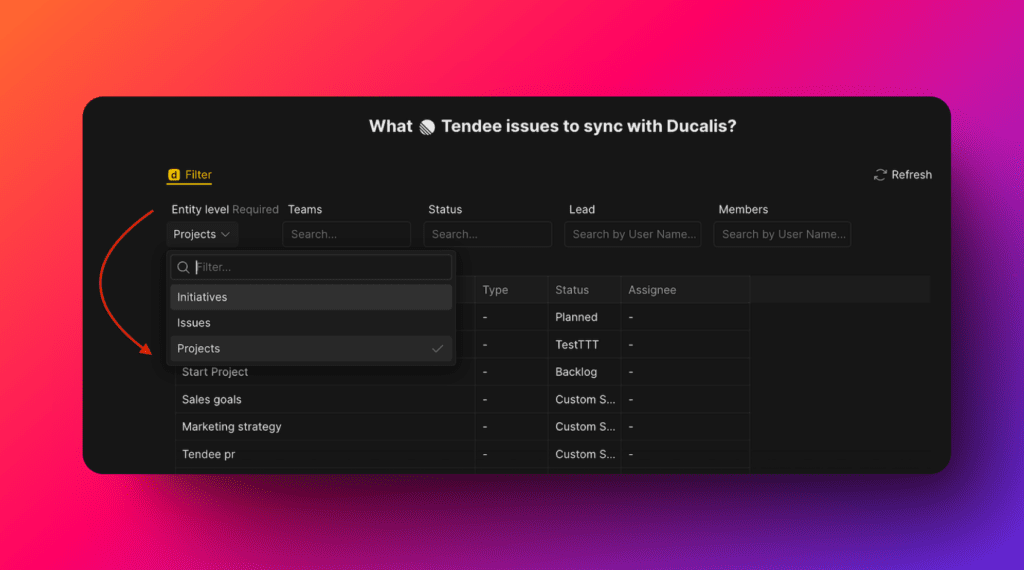
Select Projects as the entity level to import.
-
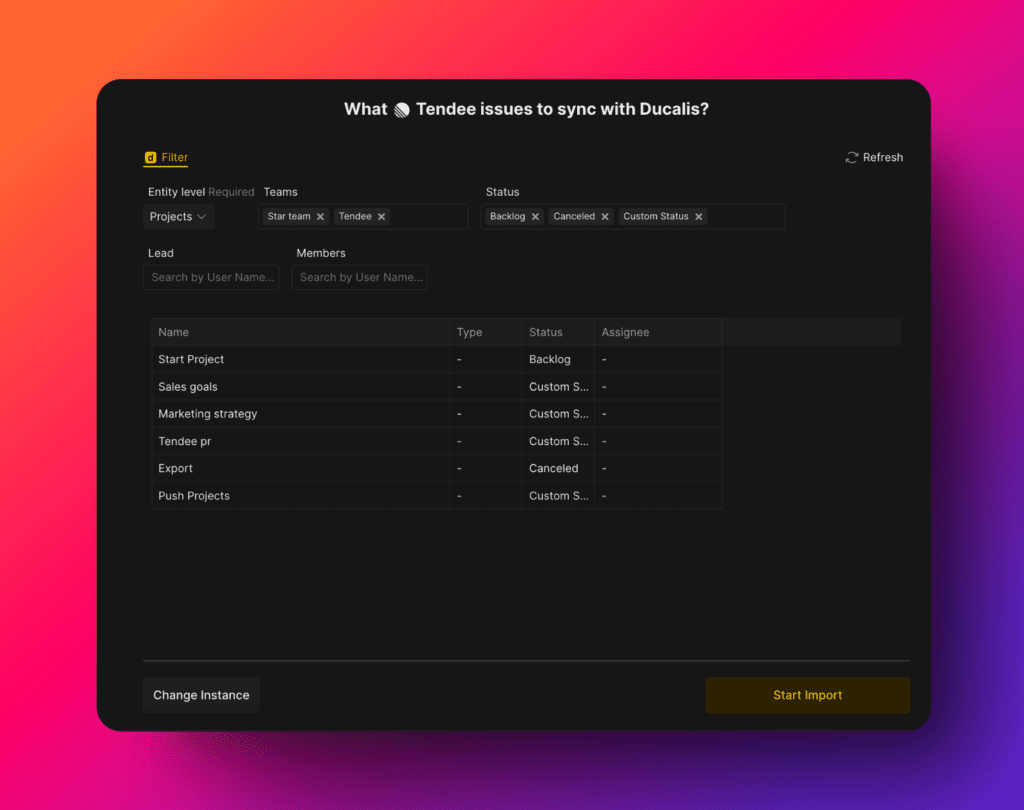
Apply filters to choose which projects to import. Select only required fields.
-
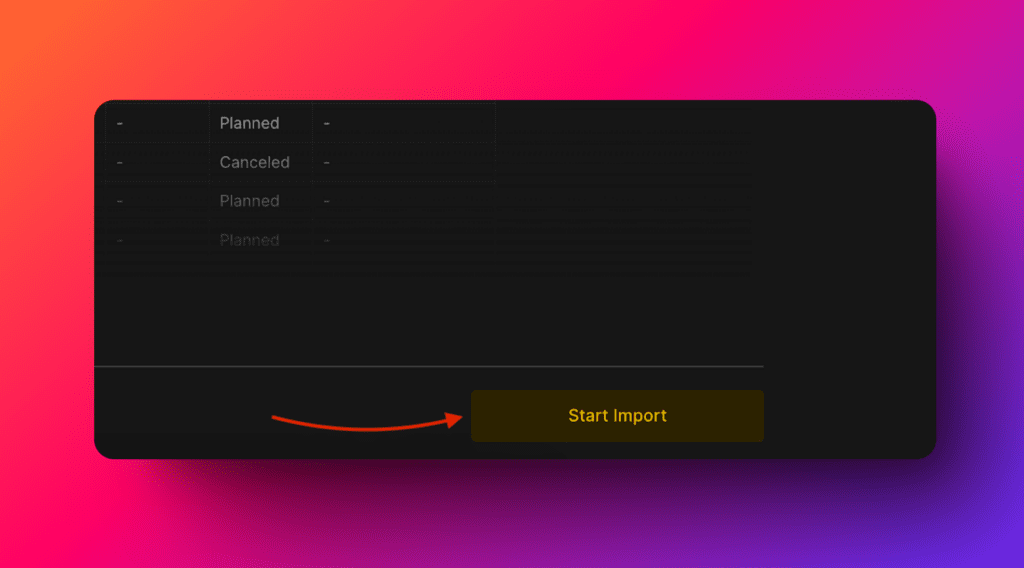
Click Start Import.
Import initiatives
-
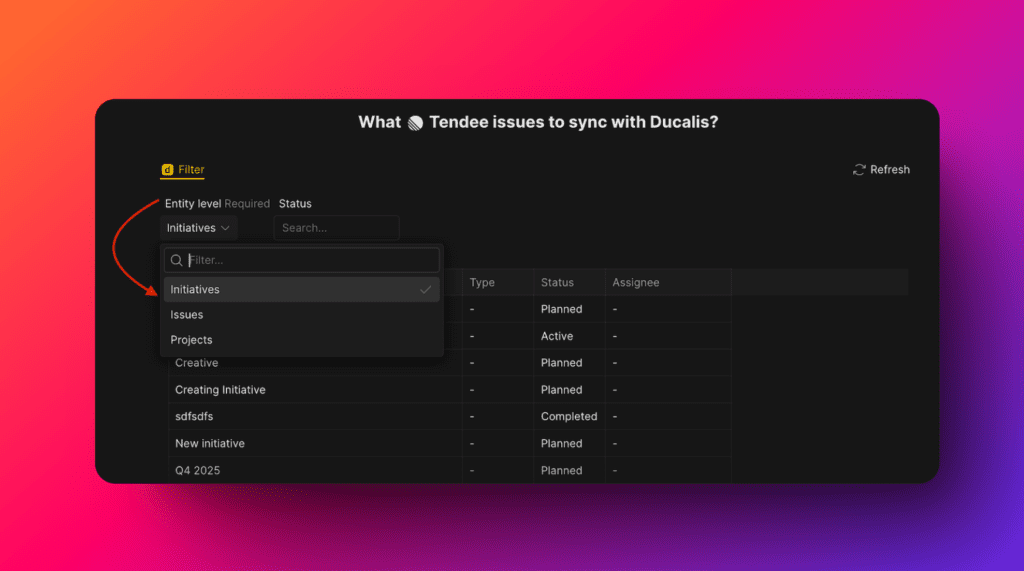
Select Initiatives as the entity level to import.
-
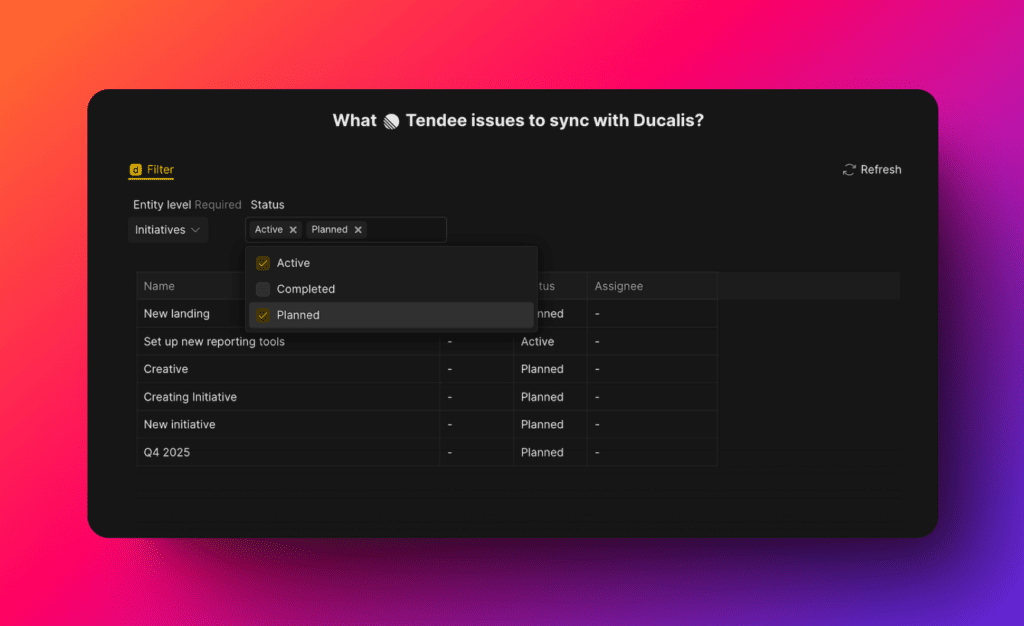
Apply filters to choose which initiatives to import. Select only required fields.
-
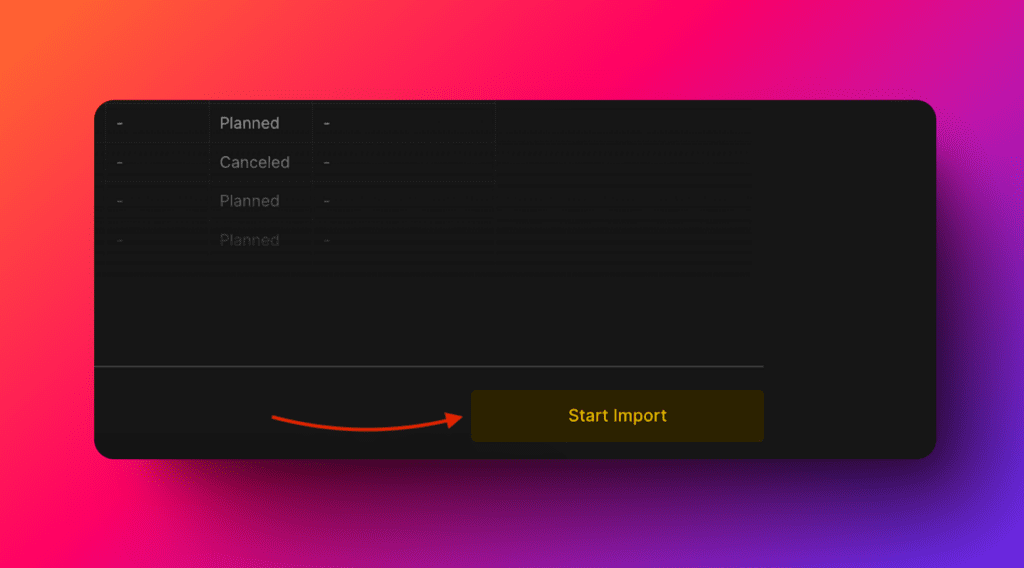
Click Start Import.
Import issues
-
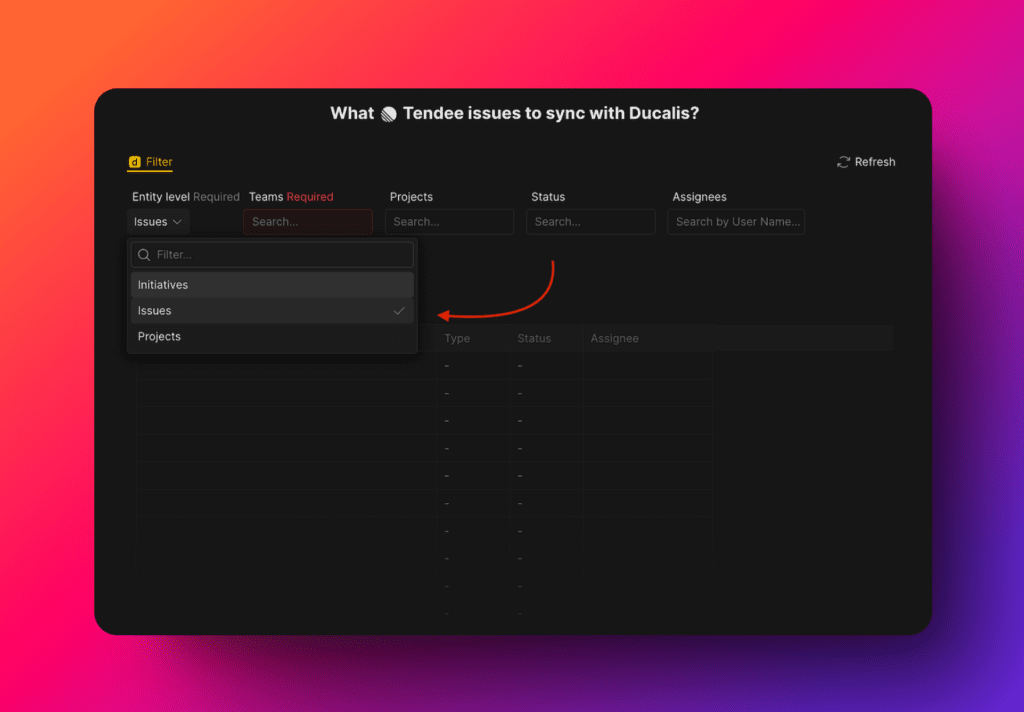
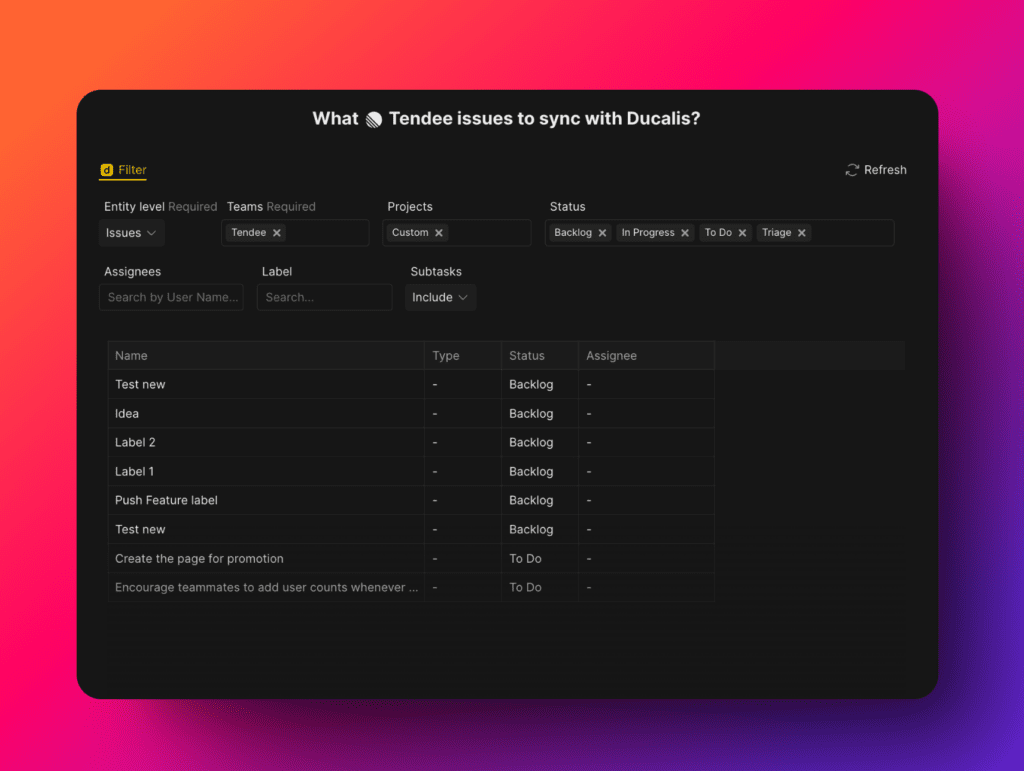
Select Issues as the entity level to import.
-
Apply filters to choose which issues to import.
-
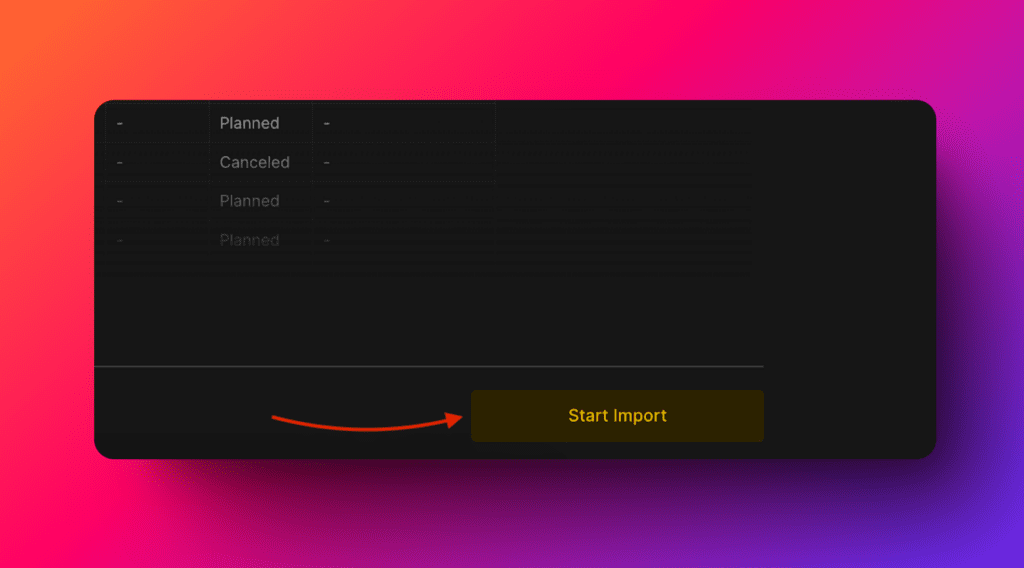
Click Start Import.
Edit sync filters
Edit sync filters to:
- Import more issues from Linear to the same Board
- Remove issues from a Board without disconnecting the integration
To edit sync filters:
-
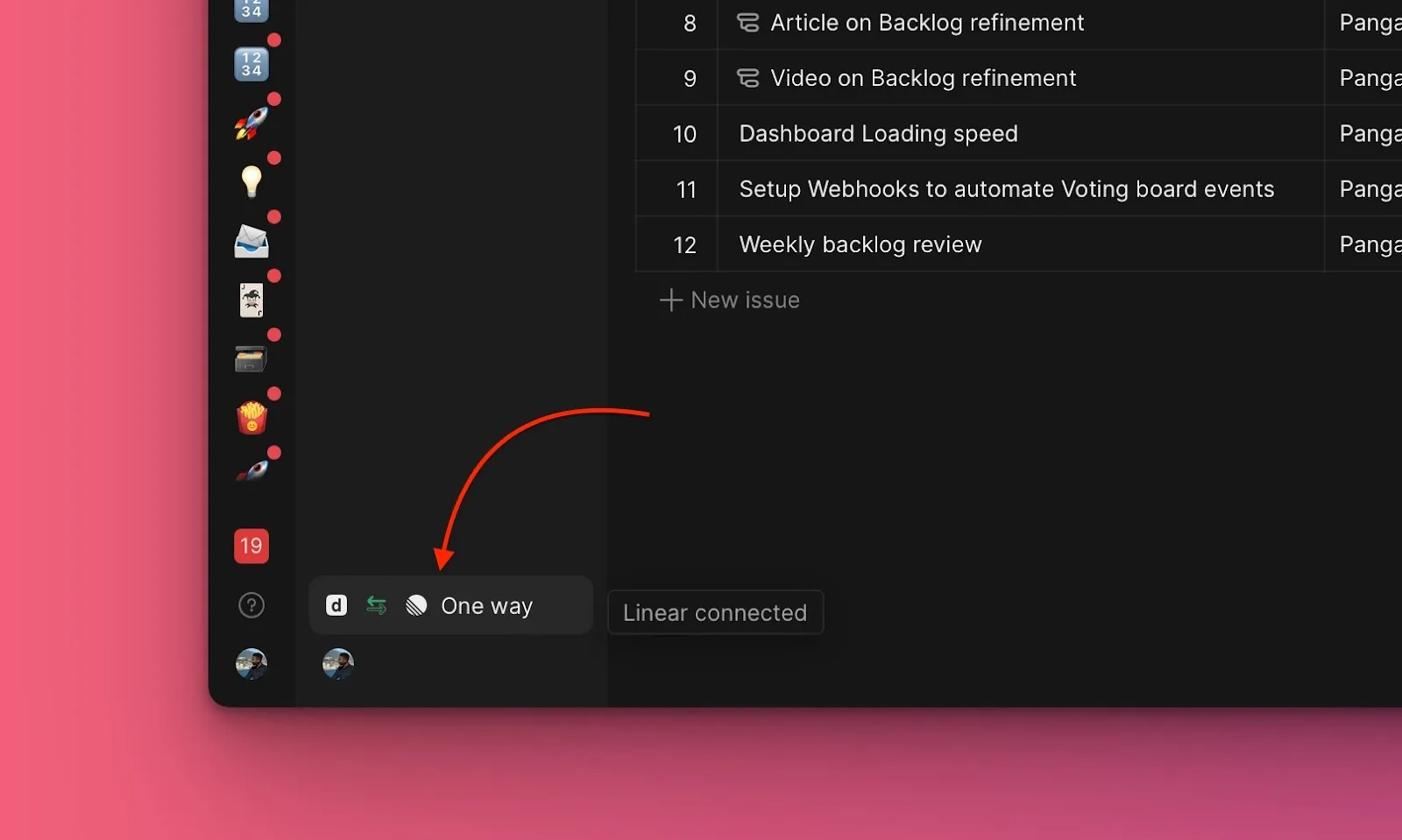
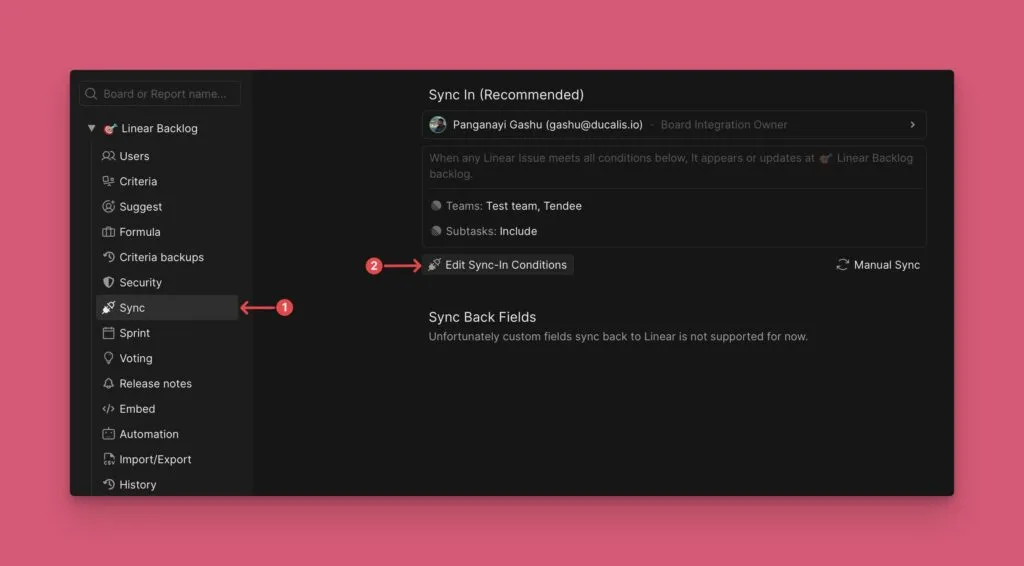
Go to Sync settings.
-
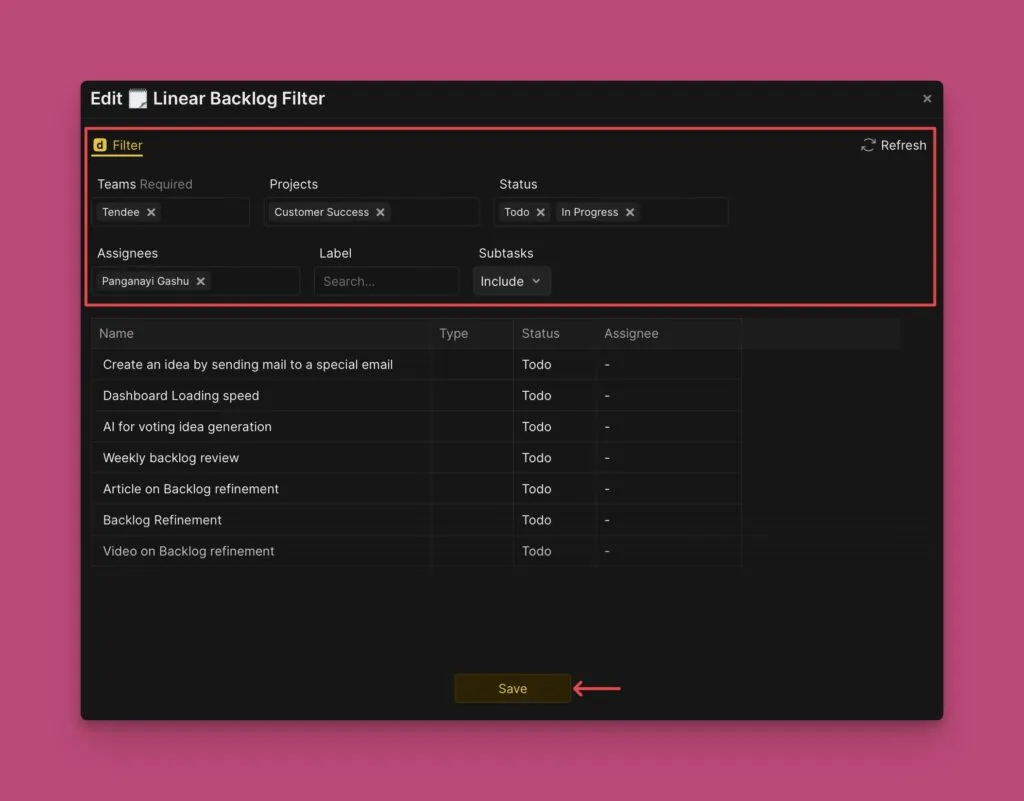
Scroll down to Sync, then click Edit Sync-In Conditions.
-
Add or remove filters to adjust which issues sync.
-
Click Save to apply your changes.
Disconnect integration
To remove the Linear integration, see Remove task tracker integration.
What's next
While working in Ducalis, create issues directly in your Linear backlog without switching tools.
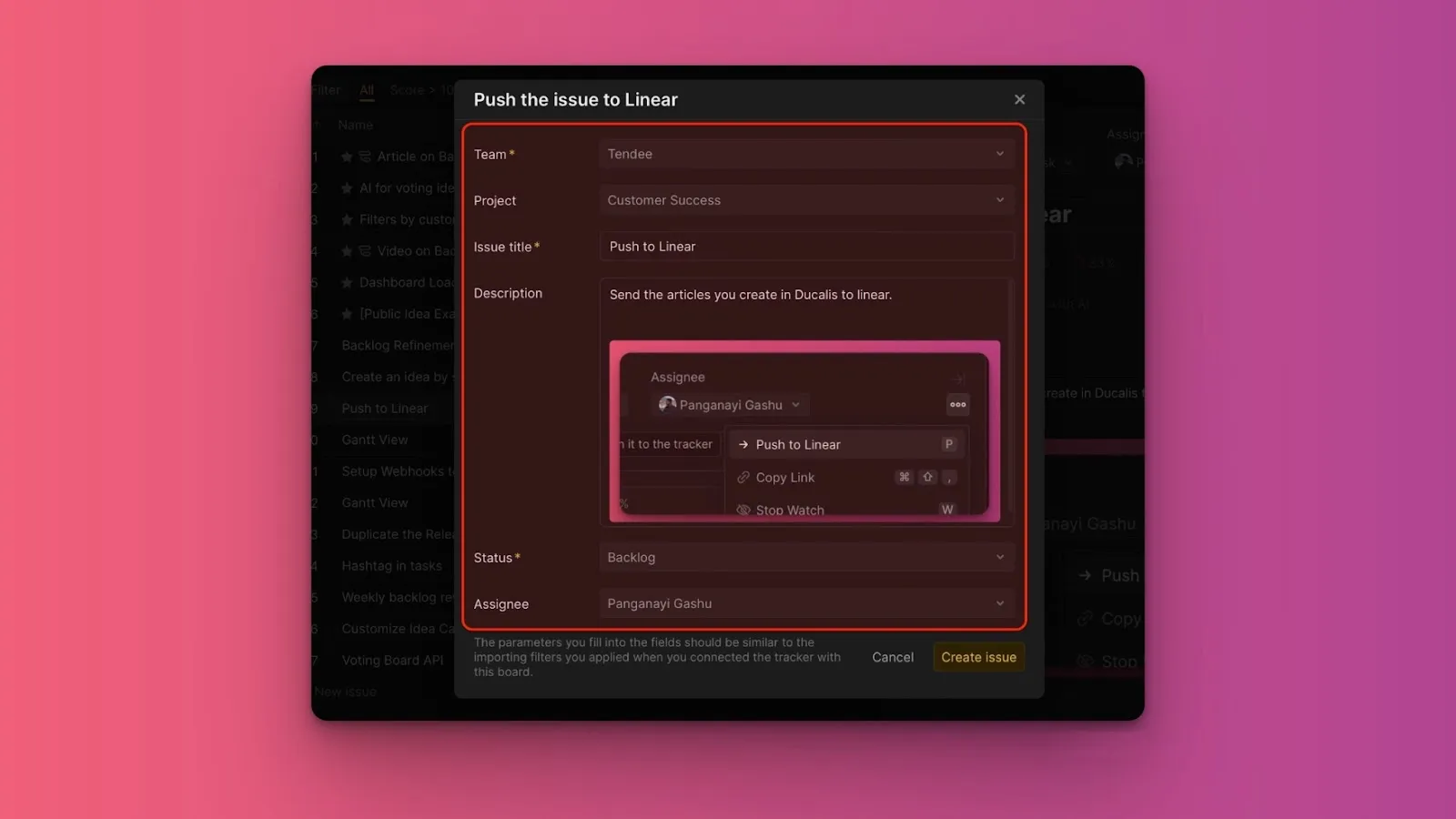
Learn more in Push issues.