Import issues
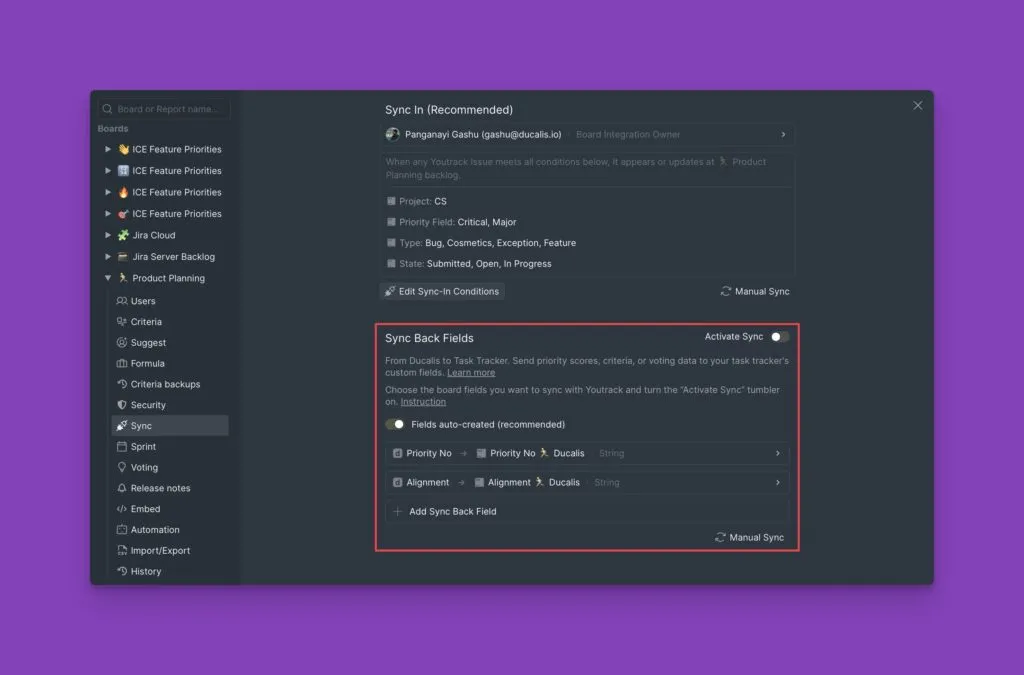
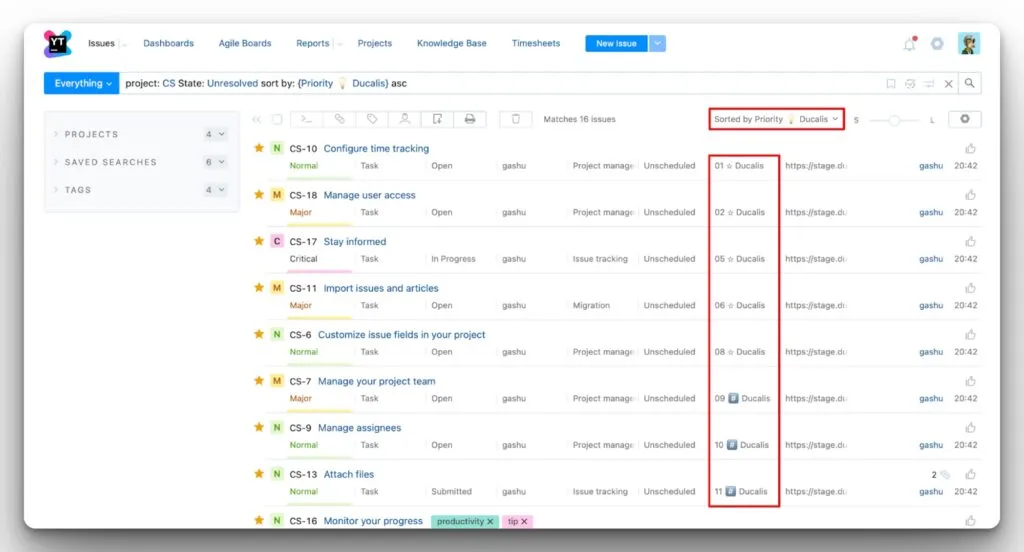
Import YouTrack issues into Ducalis to prioritize them using your team's custom criteria. Once connected, any new YouTrack task matching your filters automatically appears in your board.
Complete token-based authentication before importing issues.
Connect to YouTrack
-
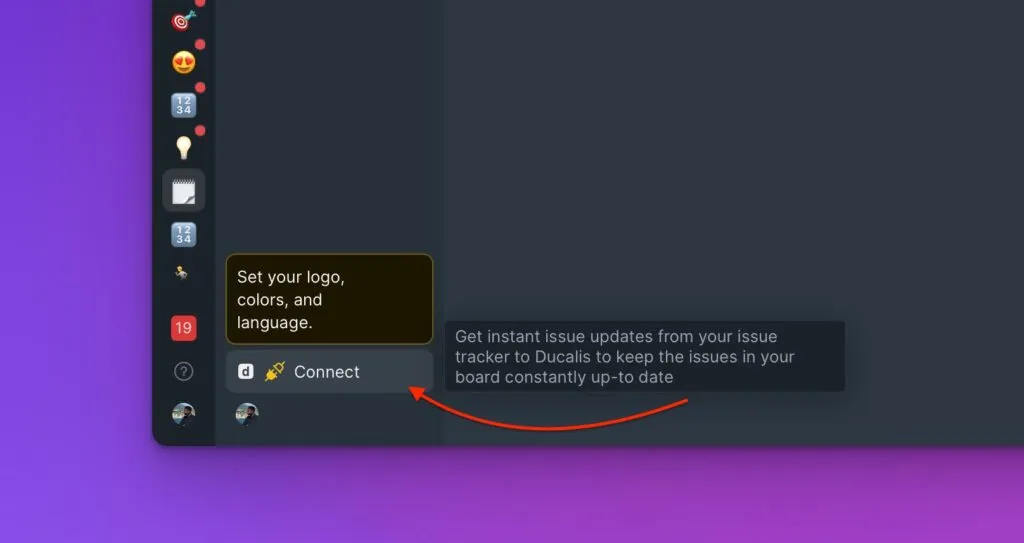
In your board, click Connect to open sync settings.
-
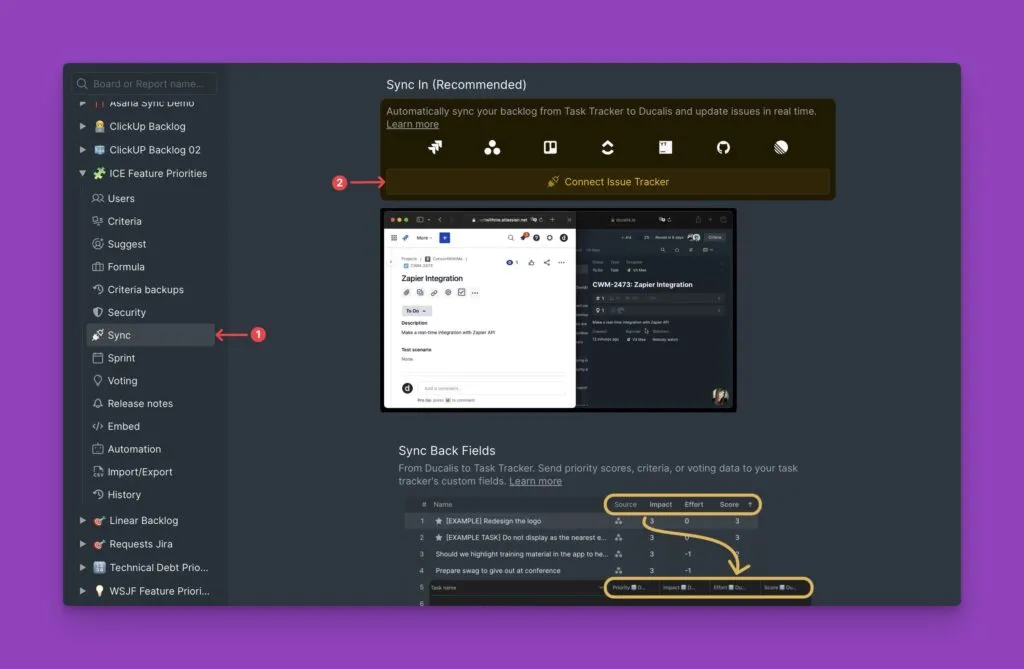
Click Connect Issue Tracker.
-
Select YouTrack from the list of task trackers.
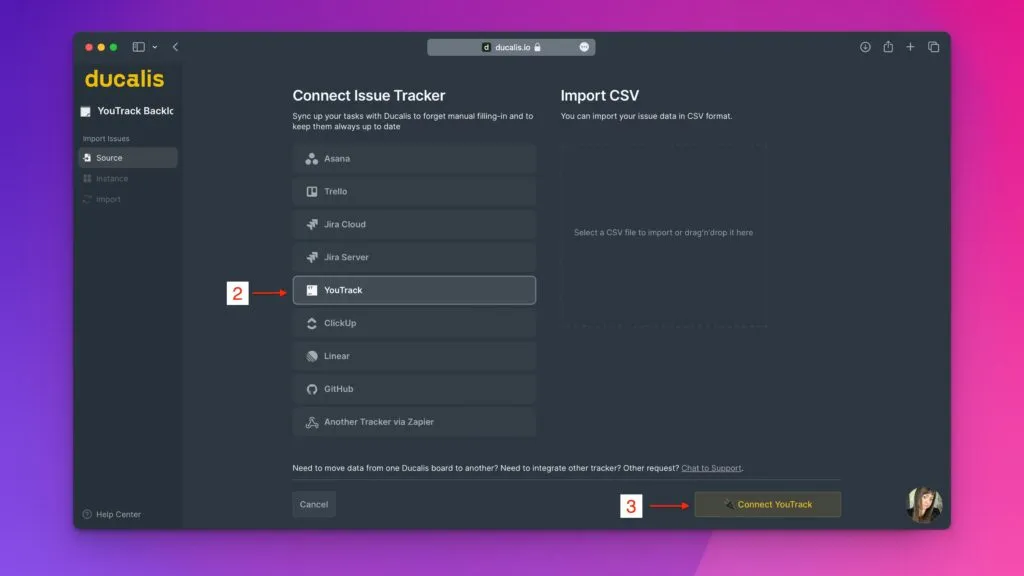
-
Click Connect YouTrack.
-
Enter your YouTrack instance URL and permanent token to authenticate.
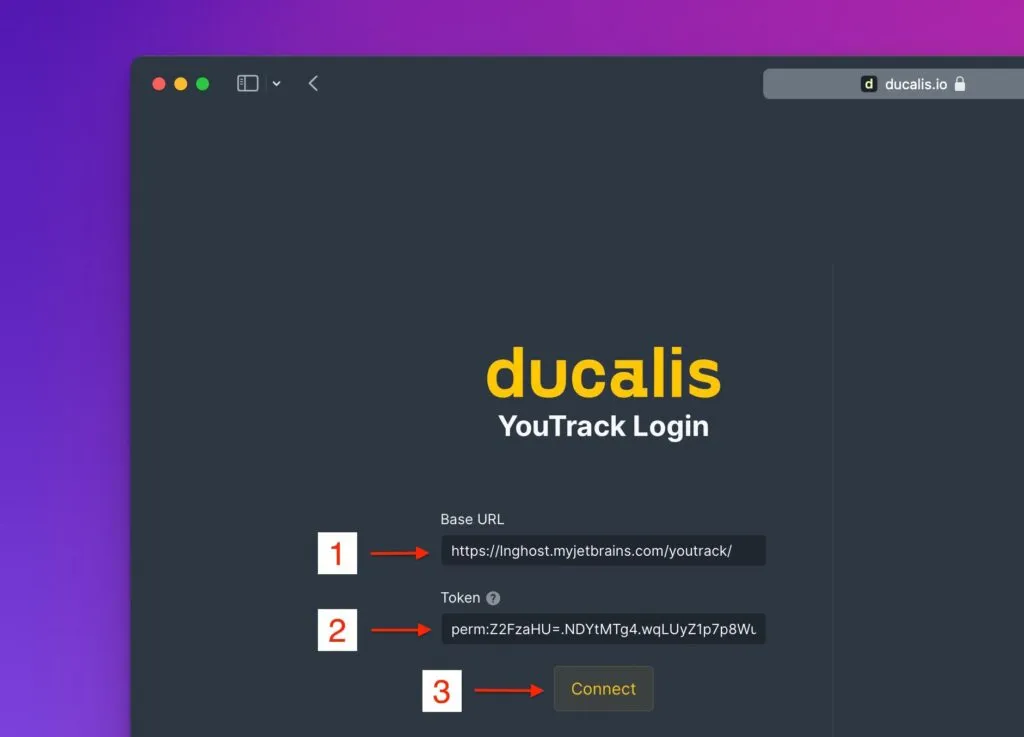
See token-based authentication for detailed steps.
-
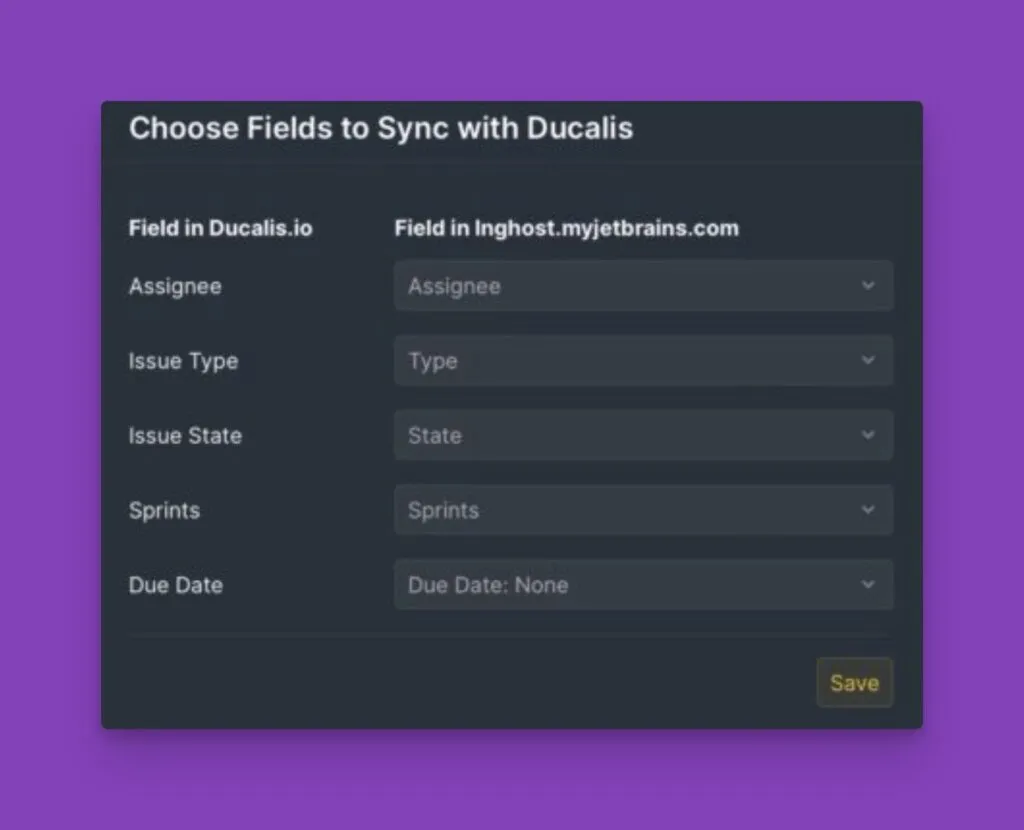
Select the fields you want to sync with Ducalis, then click Save.
Import issues
-
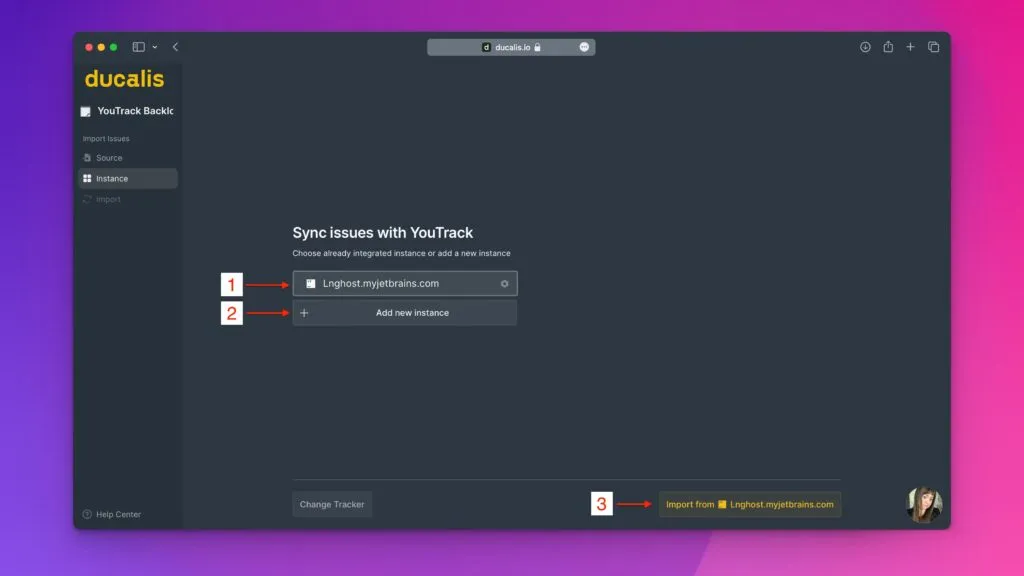
Under Instance, select the YouTrack instance to import from.
 info
infoYou must have admin permissions in YouTrack to access instances.
-
Click Import from [Workspace].
-
Apply filters to select which issues to import.
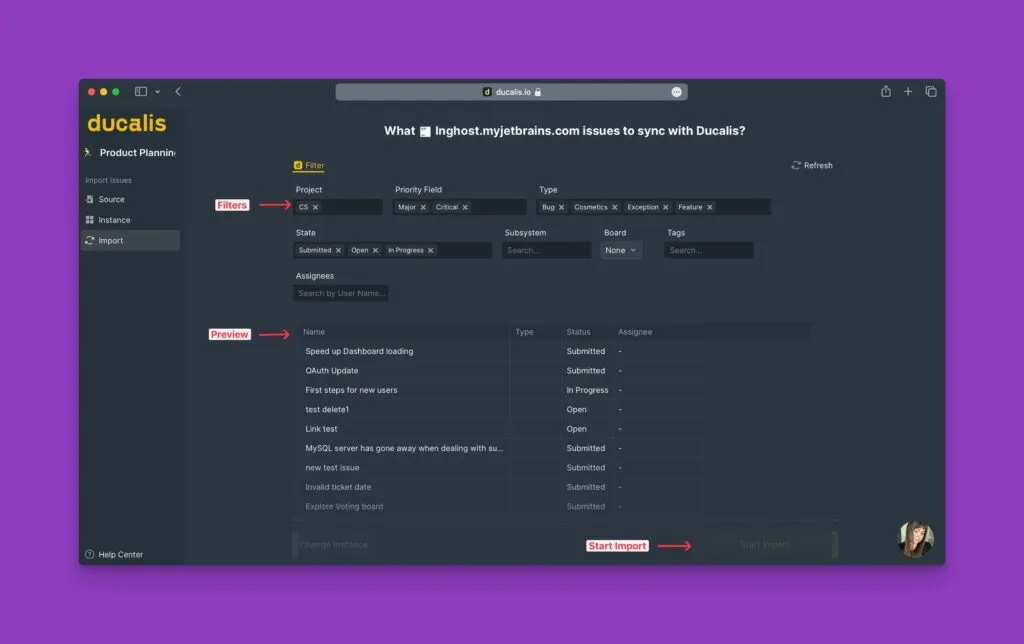
A preview shows issues matching your filters.
-
Click Start Import.
Your board now displays imported YouTrack issues, marked with the YouTrack icon.
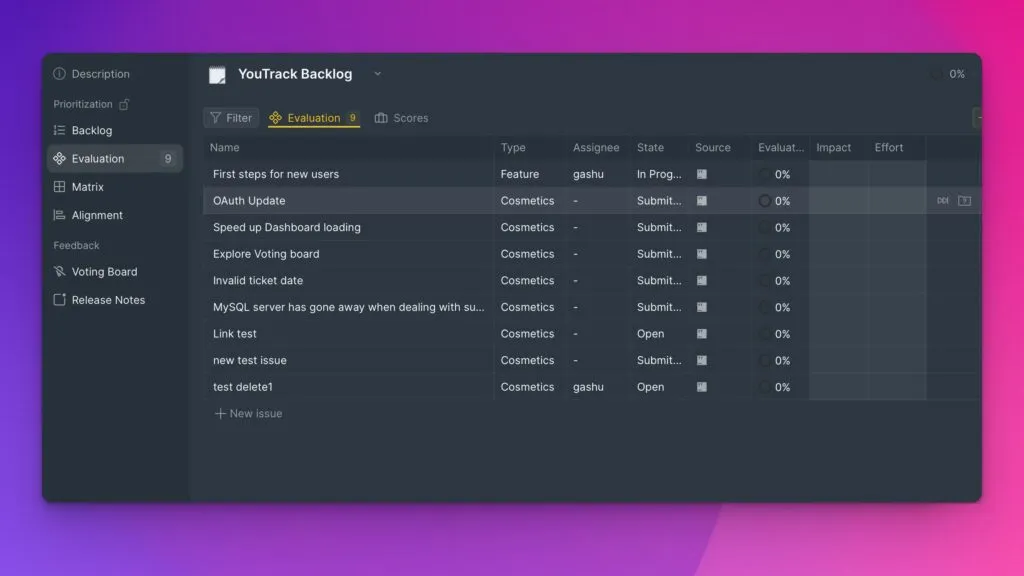
New YouTrack tasks matching your filters automatically appear in this board.
Edit import filters
Update filters to add or remove issues from your board.
-
Click the sync icon in the bottom-left corner to open sync settings.
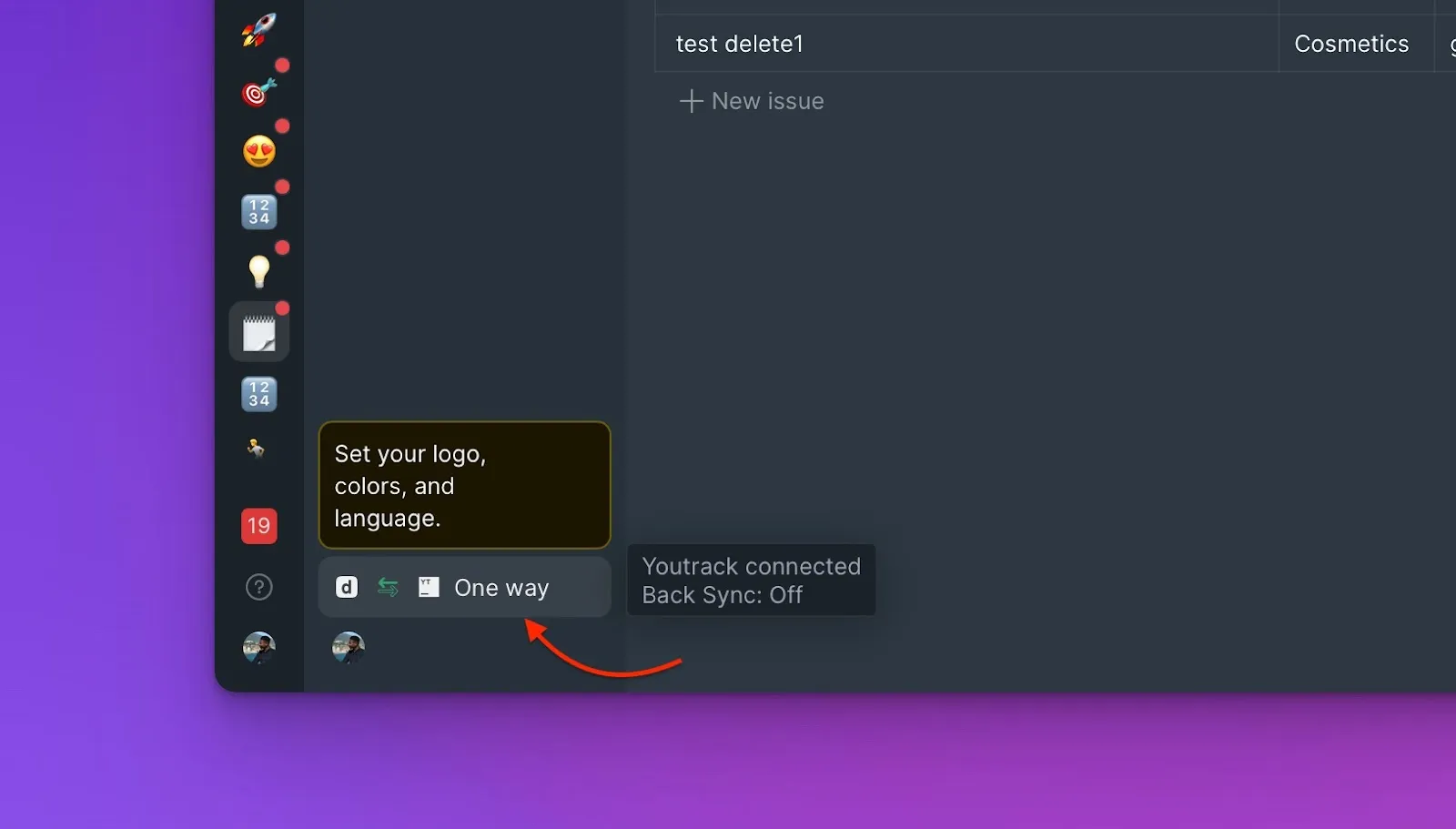
-
Under Sync, click Edit Sync-In Conditions.
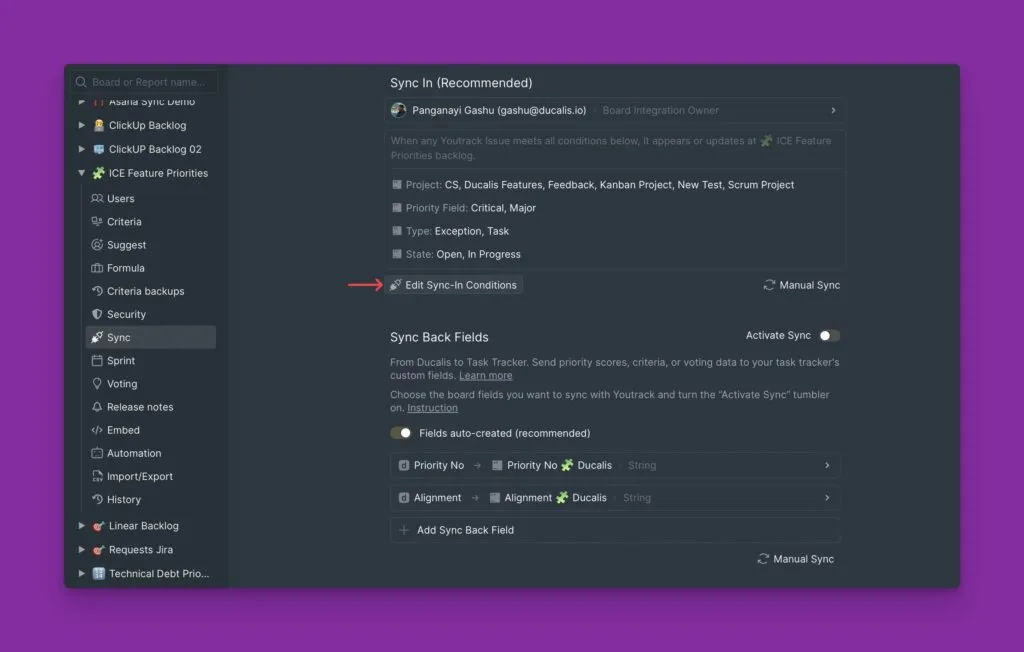
-
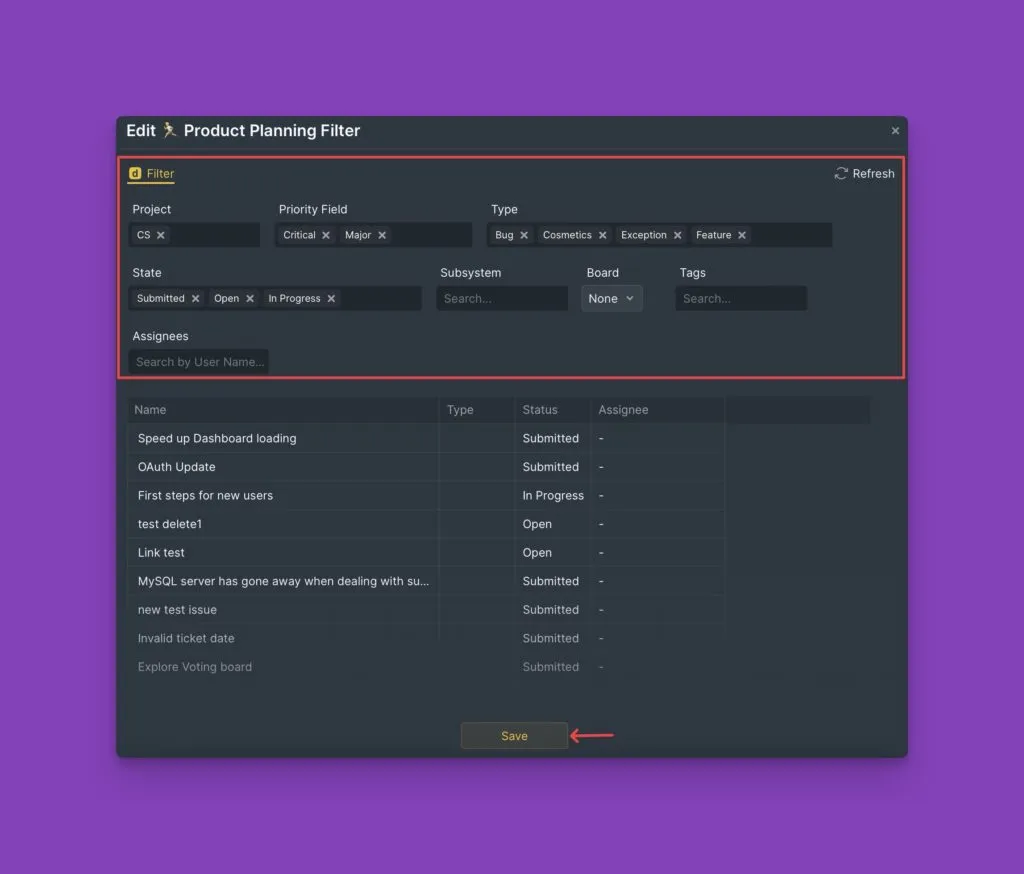
Add or remove filters to adjust which issues appear in your board.
-
Click Save.
What's next
After importing issues, enable 2-way sync to send your prioritization scores back to YouTrack custom fields. Learn more in 2-way sync with YouTrack.